This is how to get Grok Bot. You don’t buy Grok Bot on its own. It comes with certain plans. In this lesson you check whether you already have one, choose one if you don’t, and make sure you know which account you’ll sign in with.
What you’ll build
By the end of this lesson you will have:
- A confirmed plan that includes Grok Bot.
- One account ready to sign in with.
- No duplicate subscriptions.
Which plans include Grok Bot
Checked Nov 4, 2026. Plans change, so check the links in Sources before you buy.
New customers start on The X Subscription. It’s one subscription for Grok, Cursor and X. On it:
| Plan on The X Subscription | Includes Grok Bot? |
|---|---|
| Free | No |
| Plus | No |
| Premium | Yes |
| Super | Yes, with a bigger weekly usage pool than Premium |
| Ultra | Yes, with a bigger weekly usage pool than Super |
| Team seat on Premium, Super or Ultra | Yes, each seat |
| Enterprise | Ask your account team |
For prices and the full comparison, compare every plan and price. We keep prices on one page so they’re dated in one place.
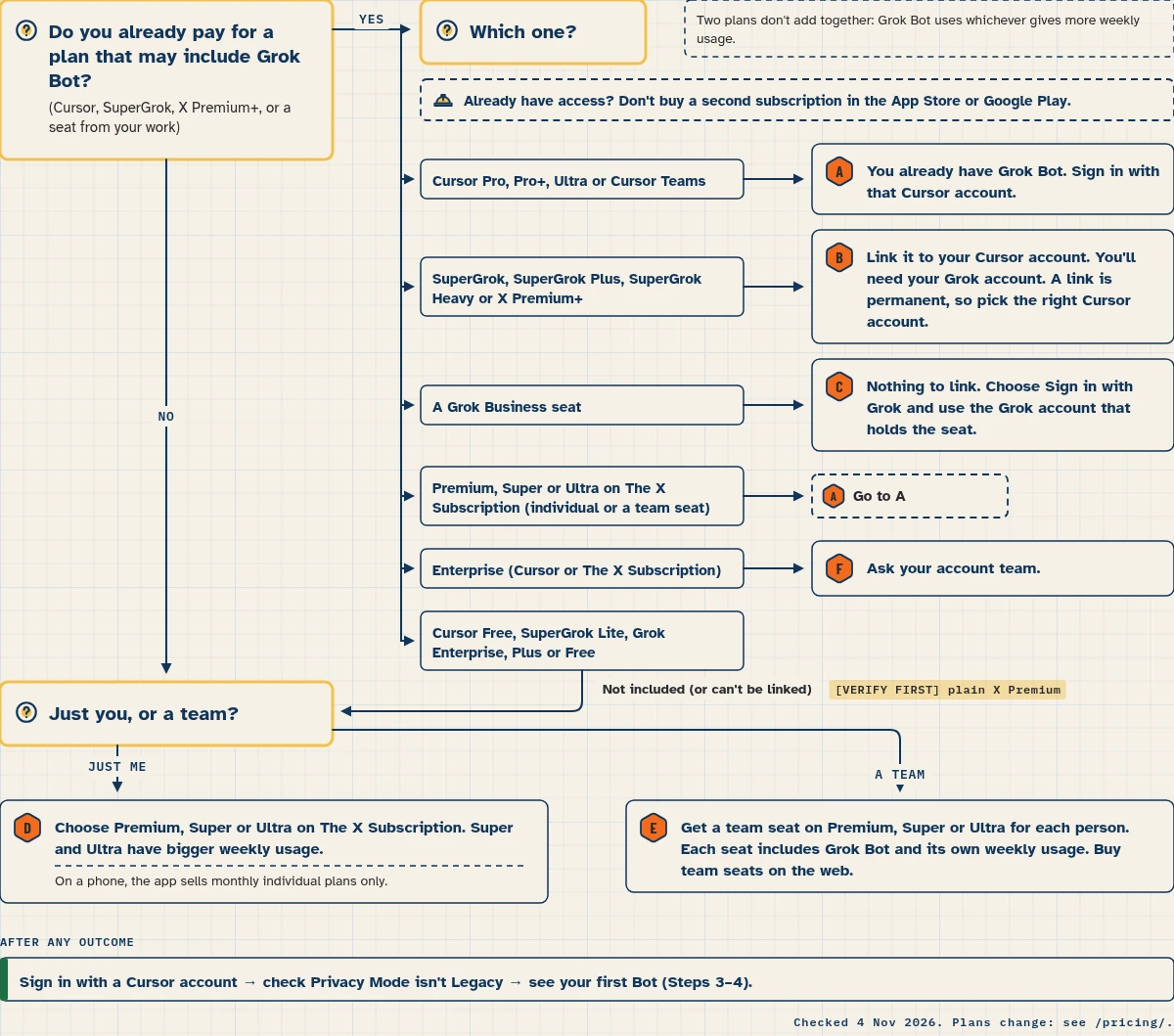
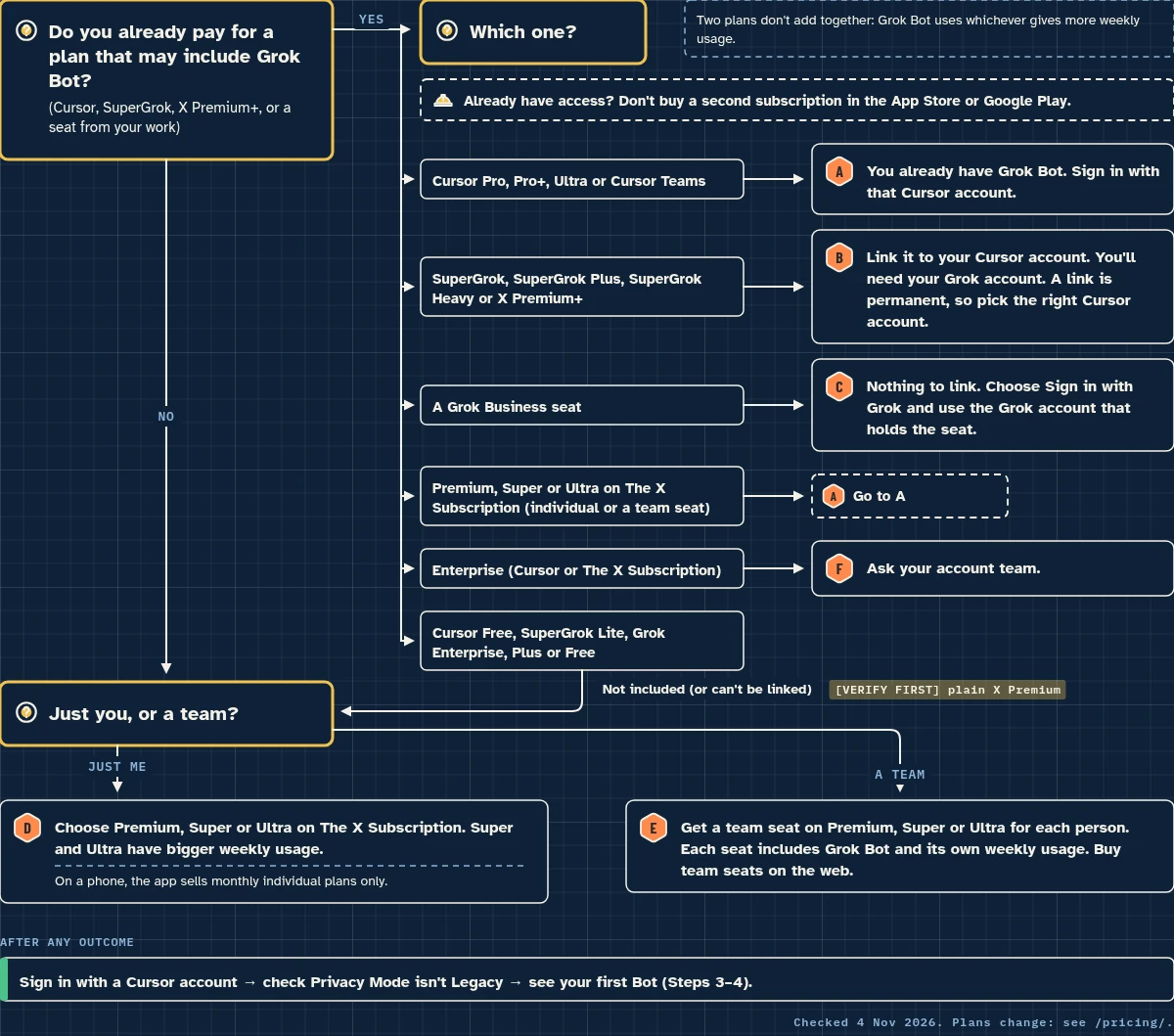


If you already pay for Cursor, SuperGrok or X Premium+
You may already have Grok Bot. Switching to The X Subscription is optional. Your current plan, price and features continue unless you change or cancel them.
- Cursor plans (legacy): every paid individual Cursor plan (Pro, Pro+, Ultra) and Cursor Teams include Grok Bot. Cursor Free doesn’t. On Cursor Enterprise, ask your account team.
- SuperGrok, SuperGrok Plus, SuperGrok Heavy or X Premium+: you can link that subscription to your Cursor account to get Grok Bot. SuperGrok Lite and Grok Enterprise can’t be linked.
- Grok Business seat: you don’t link anything. Sign in with Sign in with Grok using the Grok account that holds the seat.
- Two plans don’t add together. If you have a Cursor plan and a linked SuperGrok, Grok Bot uses whichever gives more weekly usage. Both keep billing on their own.
- A link is permanent. If you link SuperGrok to the wrong Cursor account, you can’t move it yourself. You have to contact support.
If you switch to The X Subscription: the old Cursor, SuperGrok and paid X Premium subscriptions you select are cancelled at checkout, with an automatic prorated refund for unused time. If you pay for Cursor through the Apple App Store, you must cancel it yourself in your iPhone or iPad Settings, or Apple keeps billing you. The switch is permanent. Support can’t undo it.
The accounts you need
- A Cursor account (needed). Grok Bot signs in with your Cursor account. There’s no separate Grok Bot login. The sign-in page may show Grok or xAI branding. That’s normal.
- A Grok account (only sometimes). You need it to link a SuperGrok or X Premium+ subscription, or if your access comes from a Grok Business seat.
- An X account (optional). You don’t need one for Grok Bot. On The X Subscription, X benefits apply when you add a personal X account.
- The right privacy setting. Grok Bot needs cloud data storage. If your Cursor account uses Privacy Mode (Legacy), switch it to Privacy Mode. On a team, an admin changes this.
Signing in only proves who you are. It doesn’t link or combine your X, Grok or Cursor accounts, and it doesn’t change your plan.
Step by step
Step 1: Check what you have
- If you haven’t switched to The X Subscription, open cursor.com/dashboard and look at your plan and usage.
- If you have switched, open grok.com/dashboard and choose Usage.
- Inside Grok Bot (once installed), open Settings → Usage & Billing on desktop, or Settings → Usage on the phone.
Step 2: Choose a plan if you need one
- On the web, choose a plan that includes Grok Bot (Premium, Super or Ultra). If you’re on Plus or Free, upgrade at grok.com/dashboard/billing.
- On a phone, the app sells monthly individual plans only. Yearly, Teams and Enterprise plans are bought on the web.
- If you already have access, don’t buy another subscription in the App Store or Google Play.
About free trials: some accounts see Start Trial on the access screen. That trial is a usage credit with a 7-day window, and it never turns into a paid plan. One big task can use all of it. An App Store free trial started in the iPhone app is different: Apple runs it, and it becomes a paid Apple subscription unless you cancel first. Android has no in-app trial.
Step 3: Sign in on desktop
- Install the app (lesson 1.3) and choose Sign in.
- Finish sign-in in the browser with the account that has your plan.
- If you use SuperGrok or X Premium+, link it when the app asks. On desktop, you can also find Get Access with Grok under Settings → Usage & Billing → Manage Plan.
Step 4: Confirm access
- When setup finishes, check that your first Bot, Grok Bot, is in the sidebar.
- Send it one short message. If it replies, your plan and account are working together.
Copy-paste prompts
Paste this into: Grok Bot chat, message box.
In one short list: which plan am I on for Grok Bot, and where can I see my weekly usage?
The Bot may not be able to see your billing. If it can’t, check the plan screen yourself as in Step 1.
Expected result
- You know which plan gives you Grok Bot, or you’ve chosen one.
- You know which account you’ll sign in with.
- You don’t have a second subscription for the same thing.
We haven’t run this lesson on our test account yet.
How usage is counted, in one paragraph
On The X Subscription, each paid seat gets a weekly usage pool shared across Grok, Grok Bot and Cursor. When the pool runs out, you can keep going with prepaid credit (Auto Top-up is optional, and you can set a monthly limit), or wait for the weekly reset. On a legacy Cursor plan, extra usage runs as on-demand usage if you turn it on, and you can cap it under Settings → Usage & Billing → On-demand monthly limit. On a team, each seat has its own pool. The amount you use depends on how much work your Bots do, not just how many messages you send. See compare every plan and price for current limits.
Common mistakes
- Buying a second subscription in the App Store. If you already have Grok Bot through the web, sign in on the phone instead.
- Signing in with the wrong Cursor account. Your plan belongs to one account. Sign out and sign in with that one.
- The Legacy Privacy Mode error. Switch your Cursor account to Privacy Mode, or ask your team admin.
- Thinking Plus includes Grok Bot. It doesn’t. You need Premium or higher.
- Mixing up the Grok app and Grok Bot. A Weekly SuperGrok Limit in the Grok app isn’t your Grok Bot usage. Grok Bot usage has its own meter.
Stuck? See the help hub for “limit reached” and sign-in problems.
Safety and usage
- Don’t share your account with others. On a team, give each person a seat.
- Set a spending cap before you run long jobs. A cap doesn’t stop a Bot in the middle of a run, so a running task can go a little past it.
- Billing questions go to support@x.ai from the email on your Grok Bot account.
Saved in this browser only; no account needed.
Level progress: Foundations, lesson 1.2.
Course: the full lesson path
FAQ
Is Grok Bot free?
No. It comes with paid plans: Premium, Super or Ultra on The X Subscription, or some older Cursor and SuperGrok plans. Some accounts get a short trial as a usage credit. See compare every plan and price.
Does the Plus plan include Grok Bot?
No. Plus and Free don’t include it.
Do I need an X account?
No. You sign in with a Cursor account. On The X Subscription, X benefits apply when you add a personal X account.
Can my team share one plan?
Each person needs their own seat. On The X Subscription, every paid team seat includes Grok Bot, and each seat has its own weekly pool.
Do I lose my old plan if I switch?
If you switch, the old subscriptions you select are cancelled with a prorated refund, and the switch can’t be undone. If you don’t switch, your current plan carries on.
Written with Grok, checked against the docs on Nov 4, 2026 (plan facts fetched live that day). Nothing in this lesson has been run on our test account yet. – Plans that include Grok Bot (Premium, Super, Ultra; Plus doesn’t), shared weekly pool, switching cancels old subscriptions with prorated refund, App Store caveat, switch is permanent, where to see usage: https://docs.x.ai/x-subscription/grok-bot – Plan tiers and team seats (Plus not for teams), usage levels: https://docs.x.ai/x-subscription/pricing and https://x.ai/pricing – Weekly pool per seat, team seats don’t share pools, top-ups: https://docs.x.ai/x-subscription/usage-limits – Legacy plans, links don’t add together, SuperGrok Lite not included, trial is a usage credit with a 7-day window, upgrade at grok.com/dashboard/billing, on-demand limit: https://cursor.com/help/grok-bot/plans – Link SuperGrok/X Premium+, Grok Business “Sign in with Grok”, link is permanent, Get Access with Grok, refunds, stop charges, trial, Grok app vs Grok Bot: https://docs.x.ai/grok-bot/faq – Sign in with Cursor account, eligible plans, Privacy Mode (Legacy): https://docs.x.ai/grok-bot/get-started – Sign-in page may show Grok or xAI branding; signing in doesn’t link accounts: https://docs.x.ai/x-subscription/grok-bot-sign-in and https://docs.x.ai/x-subscription/sign-in – Switching optional, X benefits with a personal X account, new customers start on The X Subscription: https://docs.x.ai/x-subscription/overview and https://docs.x.ai/x-subscription/do-i-have-to-switch – App Store and Google Play rules: https://docs.x.ai/x-subscription/app-store, https://docs.x.ai/x-subscription/google-play, https://docs.x.ai/grok-bot/mobile – Grok Bot included with Premium, Super, Ultra, Teams and Enterprise: https://x.ai/bot