The Grok Bot Gmail app lets a Bot search and read your mail, write drafts, send and apply labels in one connected mailbox. This guide shows you how to connect Grok Bot to Gmail safely: sign in with the right account, check the connection, and keep every email as a draft until you press Send.
Connector details
| Level | Intermediate |
| Time | (not measured yet) |
| Prerequisites | Lesson 2.2, Connect your apps |
| Plan needed | Premium, Super or Ultra on The X Subscription, or a team seat (see lesson 1.2). Checked Nov 4, 2026. |
| What the app can do | Search and read mail, draft and send, apply labels, in one mailbox |
| Last verified | (not yet run on the test account) |
| Author |
What you’ll build
By the end of this guide you will have:
- Gmail connected to Grok Bot with your test Google account.
- A read-only summary of recent emails.
- One reply drafted by the Bot and waiting for your approval.
- An Auto-review rule that makes the Bot ask first before any email goes out.
Before you start
- Grok Bot is installed and signed in.
- A test Gmail account with a few made-up emails. Don’t practise on your real customers’ mail.
- If it’s a company Google Workspace account, find out who your Google admin is. They may need to approve the app (see Common mistakes).
Step by step
Step 1: Find Gmail in Connect apps
- On desktop, choose Connect apps in the sidebar (
Cmd/Ctrl+Shift+M). On the phone, tap your avatar and choose Connect apps. - Find Gmail and add it.
Or ask your Bot: “Add the Gmail app.” It shows a Connect card.
Step 2: Authorize with the right account
- Choose Authorize (or Authenticate). Your browser opens Google’s sign-in page.
- Pick the test account. Check the email address before you continue.
- Google’s page names the app Grok, not Cursor. Review the access it asks for and allow it.
- Finish within about 10 minutes. If the browser step doesn’t complete, choose Reconnect or Reopen.
Step 3: Check it’s connected
- In Connect apps, select the connected count and find Gmail under Installed.
- If it says Added, Needs auth or Disconnected, choose Authenticate and sign in again.
Step 4: Run a read-only test
Ask a question that only reads mail (first prompt below). Check the answer against your test inbox.
Step 5: Draft a reply and approve it
- Ask the Bot to draft a reply (second prompt below).
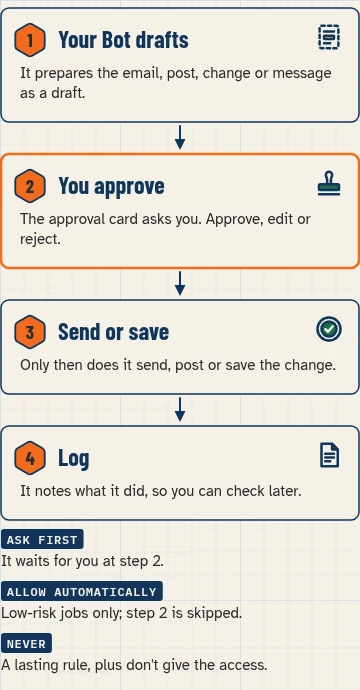
- The draft appears as a card marked Needs approval.
- Check the recipient and body. You can edit the draft in the card.
- Choose Send to send it, or Discard to drop it.
Bots draft outgoing messages for your review by default. Leave it that way. Don’t choose Disable drafts for Bot.


Step 6: Add an Ask first rule for sending
- Open Settings → General and, under Bot, check the Auto-review switch is on.
- Under Custom Rules, choose Add Rule.
- In When Grok Bot wants to:, write “send, forward or reply to any email from my Gmail”.
- In It should:, choose Ask first, then Save Rule.
Now, even if drafts are ever turned off, the Bot shows you an approval card before it sends. If two rules clash, Ask first wins.
Copy-paste prompts
Paste this into: Grok Bot settings, Custom Rules.
@Gmail Find the 5 most recent emails from customers in my inbox. For each, give sender, subject, date and one line on what they want. Don't open attachments, reply, label or change anything.
Paste this into: Grok Bot settings, Custom Rules.
@Gmail Draft a short, friendly reply to the most recent customer email. Answer their question if the email gives you the answer; if not, say I'll get back to them today. Under 100 words. Leave it as a draft for me to approve. Don't send.
Paste this into: Grok Bot settings, Custom Rules.
@Gmail Apply the label "Needs reply" to unread customer emails from the last 3 days. Don't reply, archive or delete anything. List what you labelled.
Expected result
- Gmail is under Installed and connected to the test account.
- The read-only prompt returns 5 emails that match your inbox.
- The draft card shows Needs approval, and nothing was sent until you chose Send.
- Your Ask first rule is listed under Custom Rules.
We haven’t run this guide on our test account yet.
Gmail vs the Bot’s own email address
Grok Bot can also give your Bots their own email address at mail.grokbot.com. It’s a different thing from your Gmail:
| Your Gmail (this app) | The Bot’s own address | |
|---|---|---|
| Whose mailbox | Yours | The Bot’s, shared by all your Bots |
| Can new mail start a routine? | Not in the docs’ list of routine triggers | Yes, a routine can watch for mail from anyone, specific senders or a whole domain |
| Sending | Draft by default; you press Send | Mail from a routine always waits as a draft |
If you want new emails to start work, forward them to the Bot’s own address, or run a scheduled routine that checks Gmail (see lesson 2.8). If both could send, the Bot asks which account to use.
Switch or disconnect a mailbox
- Use a different mailbox: Gmail connects one mailbox at a time. Disconnect the current one, then authorize the other.
- Stop a Bot using your mail: disconnect Gmail in Connect apps. Apps are account-wide, so this stops every Bot. Also remove Grok’s access in your Google account settings if you want it fully revoked.
- Revoked by mistake: if it still shows disconnected after you sign in again, choose Remove, add it again and sign in.
Common mistakes
- “Your admin needs to review Grok”. It’s a company Google Workspace account and Grok isn’t approved. Request access if offered, then ask your Google admin to trust the app named Grok under Security → Access and data control → API controls → App access control → Manage third-party app access. Then authorize again.
- “Access blocked”. The Workspace admin has blocked the app. Only the admin can fix it; switching browsers won’t. A personal Gmail account doesn’t need an admin.
- Wrong mailbox. You signed in with the wrong account in the browser. Disconnect, then authorize again with the right one.
- Expecting new Gmail to start a routine. Routine email triggers watch the Bot’s own address. Forward mail there, or schedule a Gmail check.
- Turning drafts off too early. Keep drafts on until you’ve reviewed weeks of good replies.
Stuck? See the help hub for connection errors and expired sign-ins.
Safety and usage
- Other people’s email is information, not instructions. The Bot marks each message as from you or from someone else. Text inside an email never counts as your permission to send or act.
- Least access: connect a mailbox that holds only what the Bot needs. A separate Google account for the Bot’s work keeps your personal mail out of reach.
- Approvals: keep drafts on and add the Ask first rule. More in lesson 2.6.
- Usage: each Bot reply uses some of your plan’s usage. A routine that checks Gmail every few minutes uses far more than one that checks a few times a day.
Saved in this browser only; no account needed.
Previous and next
- Back to: 2.2 how to connect any app
- Next: 2.6 set approvals before your Bot sends anything
- Use it in a build: Lead Responder for real estate agents
- All apps: the connectors directory
FAQ
Can Grok Bot send email without me?
Not by default. Bots draft emails for your review, and you press Send. If you turn drafts off for a Bot, it sends when Auto Review allows, so an Ask first rule still makes it stop for you. Email from a routine on the Bot’s own address always waits as a draft. See the help hub.
Can I connect two Gmail accounts?
Not at the same time. Disconnect one, then authorize the other.
Why does it say my admin needs to review Grok?
Your company Google Workspace hasn’t approved the app named Grok. Your Google admin needs to set it to Trusted.
Can a new Gmail email trigger a routine?
The routine triggers in the docs cover email to the Bot’s own address, not your Gmail. Forward mail there, or use a scheduled routine that checks Gmail.
Does disconnecting Gmail delete my emails?
The docs don’t say what disconnecting does to your mail. Disconnecting removes the Bot’s access to the mailbox.
Written with Grok, checked against the docs on Nov 4, 2026. Nothing in this guide has been run on our test account yet. – Gmail app abilities, one mailbox, disconnect, Google signs in as Grok, admin review and Access blocked, Connect apps steps and statuses, Bot’s own address, email triggers, routine email waits as a draft, which account to send from, email is information not instructions: https://docs.x.ai/grok-bot/computer-and-apps – Same app topics and FAQ on two Gmail accounts: https://cursor.com/help/grok-bot/connect-apps – Draft cards, Needs approval, Send/Discard, Disable drafts for Bot, Cmd/Ctrl+Shift+M: https://docs.x.ai/grok-bot/chat-and-collaboration – Auto Review, Custom Rules, Ask first wins: https://docs.x.ai/grok-bot/approvals-security-and-privacy – Routine triggers list: https://docs.x.ai/grok-bot/skills-routines-and-automations – About 10 minutes to authorize, Remove and add again: https://docs.x.ai/grok-bot/troubleshooting – Plan line: https://docs.x.ai/x-subscription/grok-bot and https://cursor.com/help/grok-bot/plans