Free prompts: Every prompt on this site is free to copy and paste into Grok Bot. Browse the Free Grok Bot prompts library.
The computer-and-apps documentation lists Slack as an app you can connect. The Slack app posts as the Slack user you connected, not as a separate bot that has to be invited. It can post only in channels that user can post in. To use another Slack workspace, connect that workspace. This is separate from a Slack message that starts a routine.
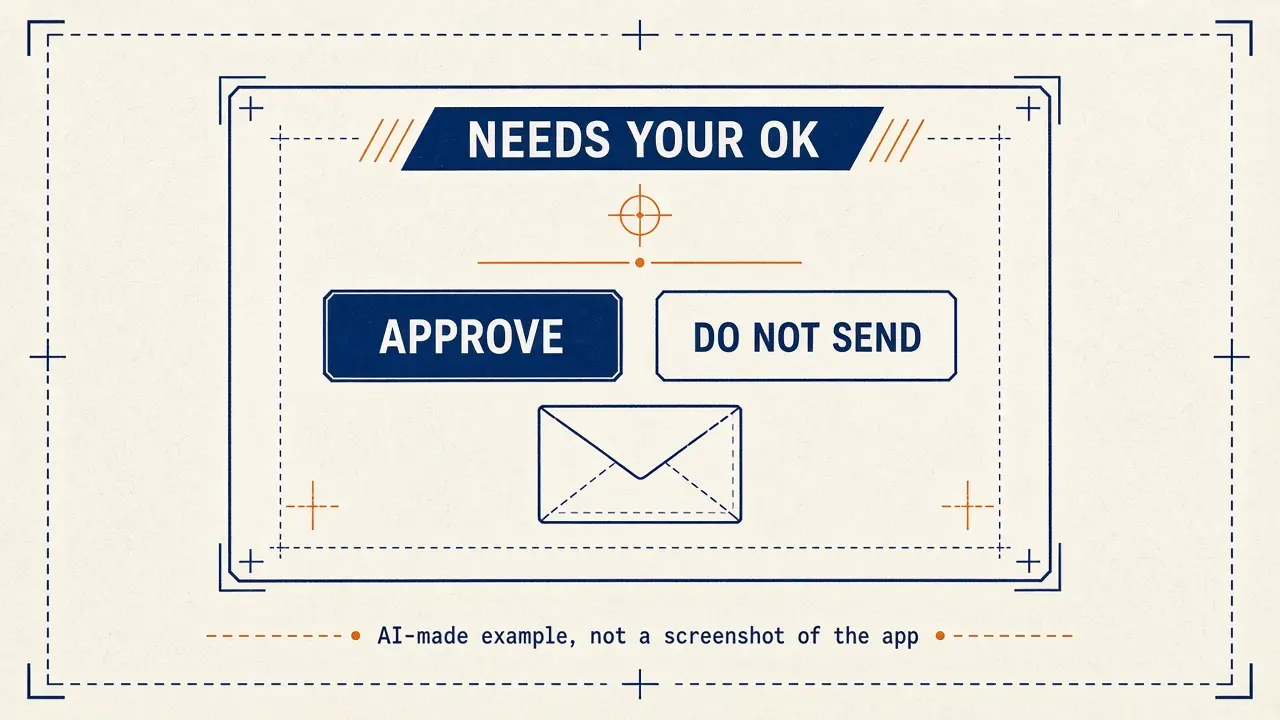
The collaboration docs also describe Slack drafts: review the recipients and body, then choose Send message for a Slack draft in the desktop app, or Discard. On this site, leave drafts on. Bot Agents 24 is an independent guide. It is not affiliated with, endorsed by or sponsored by xAI. Grok Bot is a product of xAI. Labels in the app can change; if a name you see here does not match your screen, follow the wording in your app.
Example: Harbor Street Hardware in Portland, Oregon, wants a Bot to draft a short #front-desk update, not to post it on its own.
The documentation says: open Connect apps from the sidebar, or follow an in-chat Connect card. On the phone, tap your avatar at the top left and choose Connect apps. Browse or search for the app, then add it. When Grok Bot asks you to Authorize or Authenticate, finish the provider login in your browser. If sign-in does not finish, choose Reconnect on the app, or Reopen on the in-chat card. Confirm the app appears under Installed. “Added” means installed, not signed in. If the Bot says an app is missing, open the app and choose Authenticate (Authorize on the phone) if it shows Needs auth or Disconnected. In chat, type @ to attach the app to the task. A connected app is available to every Bot on your account. A teammate’s shared Bot asks before it uses your accounts. Never paste passwords or one-time codes into ordinary chat.
Connect Slack from Connect apps
Search for Slack, add it, and finish Authorize or Authenticate in your browser with the workspace you intend to use. Confirm it appears under Installed and shows as connected, not merely Added.
Tell the Bot what it may draft, and that posting waits for you
Paste this into: Grok Bot chat, message box.
You are helping Harbor Street Hardware in Portland, Oregon. Using the connected Slack app, draft a short update I could post in #front-desk about Saturday closing at 5 p.m. for the street fair. Do not post, send, or start a routine. Show me the channel and the exact wording for my approval.
Review the draft before anything goes to a channel
Check the channel and the wording. The docs say: the app can only post where that Slack user can post. It cannot post in a private channel that user is not in. If you also use Slack to start a routine, that is a separate setup — test it with a safe input, and remember unattended approvals can expire after about 30 minutes.
A connected Slack app is account-wide: every Bot on your account can use it. Do not connect a workspace you would not want another of your Bots to reach.
FAQ
Does Slack in Grok Bot install a workspace bot I have to invite?
The docs say no: the app posts as the Slack user you connected, not as a separate bot that has to be invited.
Can I connect two Slack workspaces?
The docs say: to use another Slack workspace, connect that workspace.
Is this an xAI website?
No. Bot Agents 24 is an independent guide. It is not affiliated with, endorsed by or sponsored by xAI.