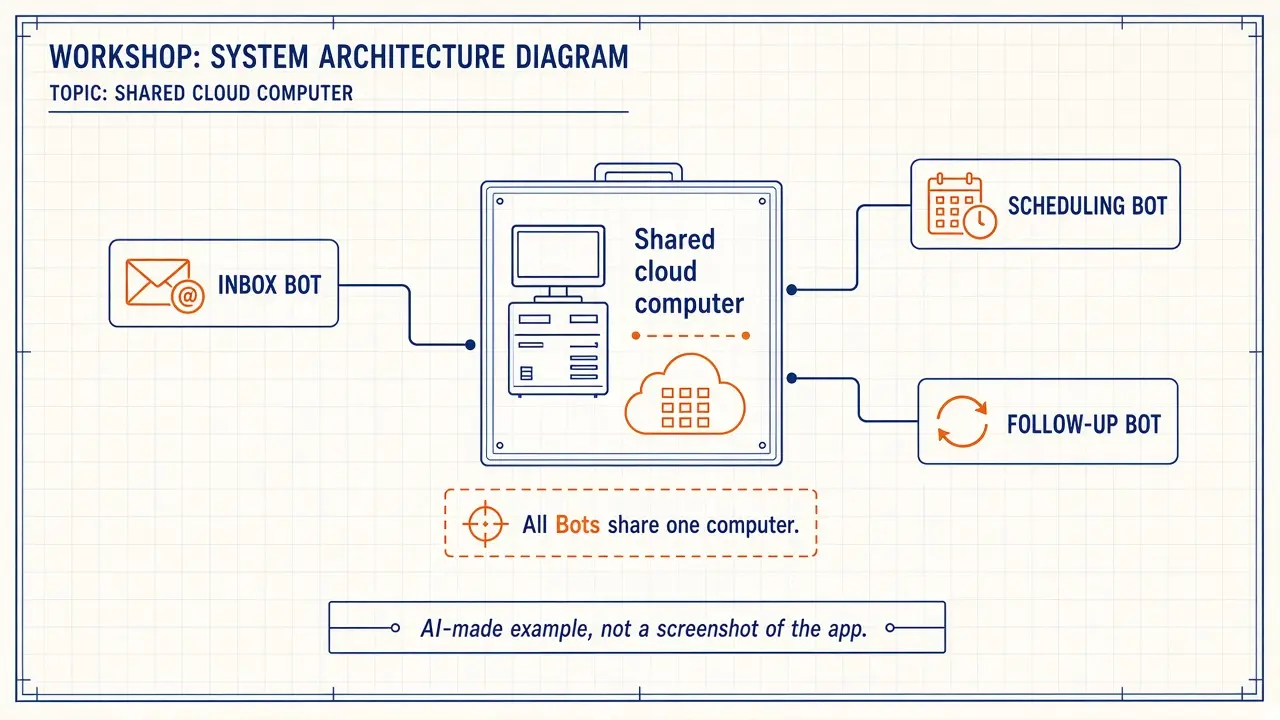
Grok Bot gives you Bots that do work on a cloud computer they share. Browser sessions, files, and command-line credentials on that computer are shared across your Bots. That is useful, and it is also why you should keep the computer tidy and never store a secret in chat.
When a task needs a login, the docs say the Bot uses a login saved in Vault first, then a connected password manager such as 1Password, then asks you with a Secure Form. It never sees the password, and the session usually stays signed in on the Bot’s computer for next time. For supported services, you can connect an app instead. For single sign-on, a passkey, or another step a form cannot handle, the Bot hands you the computer: choose Open computer, then Take control, finish the step, and tell the Bot to continue.
Example: North Shore Veterinary in Evanston, Illinois, needs a public price list copied from a supplier site that has no connector.
Bot Agents 24 is an independent guide. It is not affiliated with, endorsed by or sponsored by xAI. Grok Bot is a product of xAI. Labels in the app can change; if a name you see here does not match your screen, follow the wording in your app.
Step 1: Ask the Bot to use the computer only for a bounded task
Say the site or job, what to bring back, and what not to do. For a public page, it may not need a login at all.
Paste this into: Grok Bot chat, message box.
I run North Shore Veterinary in Evanston, Illinois. Open this public supplier page I will paste, and extract the current list prices for gauze pads and isotonic saline into a short table I can review. Use only the page I give you. Do not sign in, do not create an account, do not place an order, and do not contact the supplier. If the page will not load, tell me what you saw instead of guessing.
Step 2: If a login is required, let Vault or a Secure Form handle it
Do not paste a password, one-time code, or private key into ordinary chat. Prefer a connected app when one exists. If the Bot presents a Secure Form or asks to use Vault, follow that path. If the site uses SSO, a passkey, or a step a form cannot handle, choose Open computer, then Take control, finish the step yourself, and tell the Bot to continue from the current page. Fingerprint, Face ID, Windows Hello, and passkeys saved on your laptop or phone do not work on the Bot’s computer.
Step 3: Know when to route traffic through your own device
The Bot’s computer reaches the internet through Cursor’s shared network. Some sites drop that connection even when the same address opens on your device. The troubleshooting guide describes two settings under Settings → Computer → Your computer: Route traffic through this computer (the Bot’s browser uses your desktop’s connection while the Grok Bot desktop app is open), and Execution on this computer (commands run on your desktop). A team admin may lock local routing. Skip Reset, Recover, and Update as a way to fix a site that simply will not load from the shared network — the docs say those steps do not change that.
What to watch for
If the computer says Reconnecting or Couldn’t Reach Grok Bot’s Computer, wait, then choose Retry. Do not Reset during that. A full restart of the app (on Mac, Quit from the menu bar) is the usual next step. Recover and Reset can remove installed apps and may lose very recent changes. Details are in the troubleshooting guide, and in the help articles on this site once you need them.
All of your Bots share this computer, including files in /workspace. Use clear folder names if more than one Bot will read the same files.
Quick quiz
Saved in this browser only; no account needed.
FAQ
Can I watch or take over the computer from my phone?
Yes. The get-started notes say that from your phone you can watch and take over the computer, approve actions, and pause or resume routines.
Are files on my Mac or Windows PC the same as files on the Bot’s computer?
No. The troubleshooting guide says files that exist only on your Mac or Windows machine are not covered by the computer’s durable copy. Keep your own backups for those.
Is this an xAI website?
No. Bot Agents 24 is an independent guide. It is not affiliated with, endorsed by or sponsored by xAI.