The documentation describes Vault as the place you store logins the Bot can use. The documented path is Settings → Vault, and it is described for Grok Bot 0.75.2 and later. The sign-in order when a Bot needs a login is: a login saved in Vault first, then a connected password manager such as 1Password, then a Secure Form. The Bot never sees the password.
This lesson does not invent extra Vault screens or claim features we have not seen in the public docs. Follow the wording in your app. Do not put a password, card number, or one-time code into ordinary chat, and do not ask the Bot to echo a saved secret back to you. The troubleshooting guide notes that a saved value is not shown again, including in Shell.
Example: you are saving a vendor-portal login for Mesa Ridge HVAC in Tucson, Arizona.
Bot Agents 24 is an independent guide. It is not affiliated with, endorsed by or sponsored by xAI. Grok Bot is a product of xAI. Labels in the app can change; if a name you see here does not match your screen, follow the wording in your app.
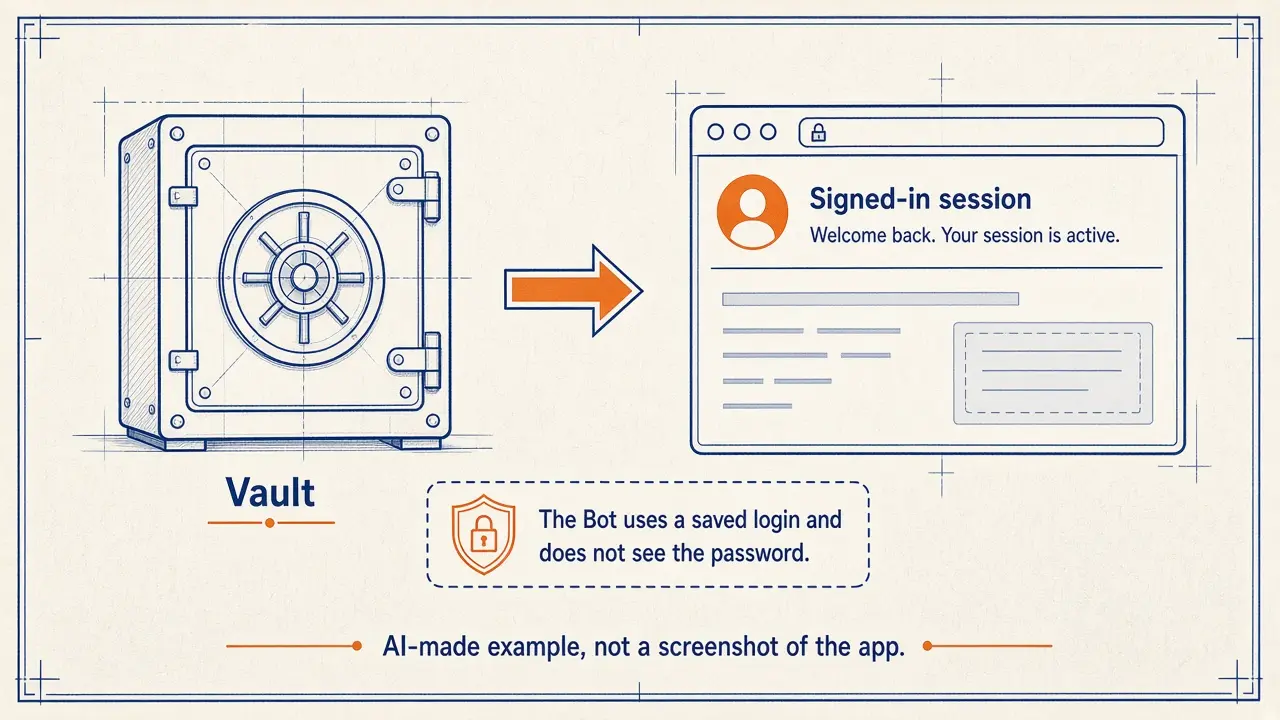
Step 1: Open Settings → Vault
In the Grok Bot app, open Settings, then open Vault. If you do not see Vault, check that your app is a current version (the docs mention 0.75.2 or later for this path) and look for the wording in your Settings list. We will not guess at older menu names.
Step 2: Save the login the form asks for, then test on a low-risk site
Enter the login using the Vault form in the app — not the chat. Use a vendor or site you are willing to test. After it is saved, ask the Bot to sign in to that site and stop before any change or order. Watch that it uses the saved login path rather than asking you to paste a password into chat.
Paste this into: Grok Bot chat, message box.
Please sign in to the vendor portal I have saved for Mesa Ridge HVAC using the documented saved-login path, not a password typed in this chat. Once you are signed in, stop and tell me the page title you see. Do not change any account details, do not place an order, and do not download anything until I say so.
Step 3: Keep cards and personal details on a short leash
If Vault or a related payment flow offers to store a card or an address, read the in-app wording before you save anything. This site does not describe an unverified card-sharing setup. Only the Bot’s owner should approve payments (the collaboration docs say only a Bot’s owner can pay its orders). When in doubt, enter payment details yourself in a take-over session, or pay on your own device.
What to watch for
On a shared Bot, the troubleshooting guide says that if a secret’s name is still listed under Secrets, it is still stored, even if the value is not shown. Do not try to “test” a secret by asking the Bot to print it.
Hardware security keys can be used on Mac and Windows: the troubleshooting guide mentions Settings → General, under Security Key, Use hardware security keys, for some take-over sign-ins.
Quick quiz
Saved in this browser only; no account needed.
FAQ
I do not see Vault in Settings. What now?
Check that your app is updated, and look for the documented path Settings → Vault. If it is still missing, use a Secure Form or take over the computer rather than pasting secrets into chat, and check the docs for your version.
Can I ask the Bot to show me a saved password?
Do not do that. The troubleshooting guide says a saved value is not shown again, including in Shell.
Is this an xAI website?
No. Bot Agents 24 is an independent guide. It is not affiliated with, endorsed by or sponsored by xAI.