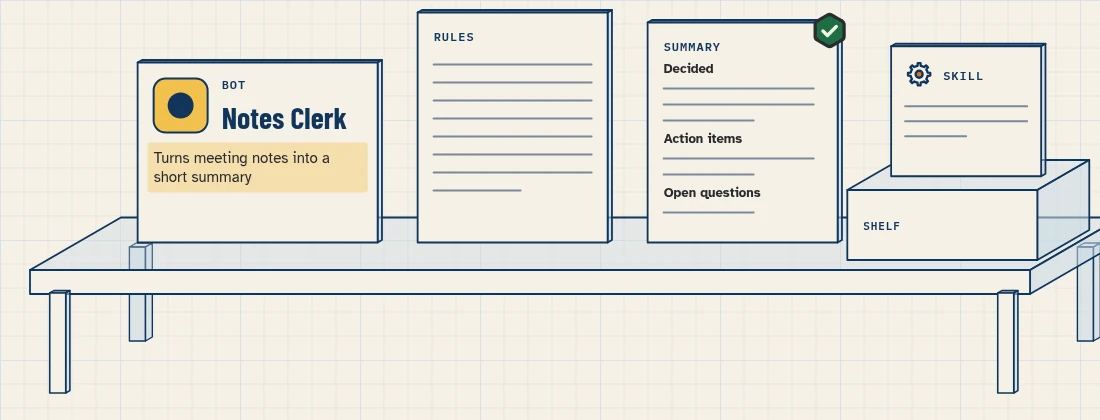
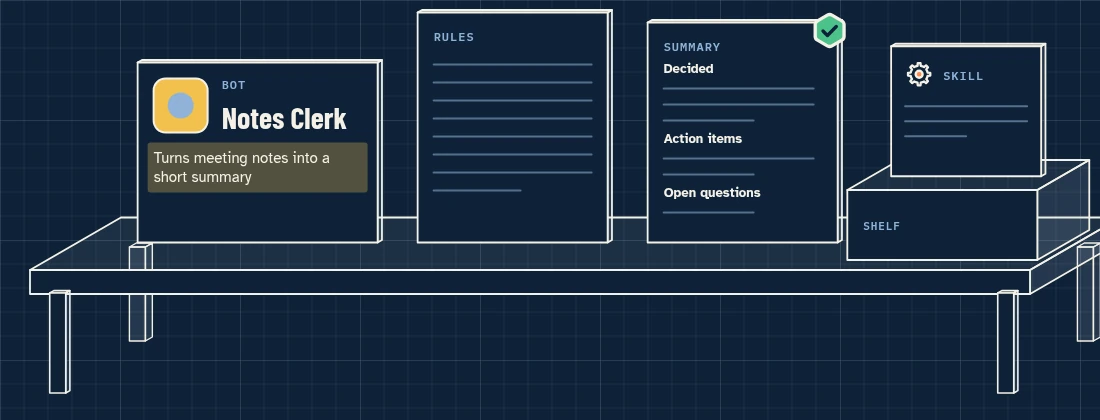
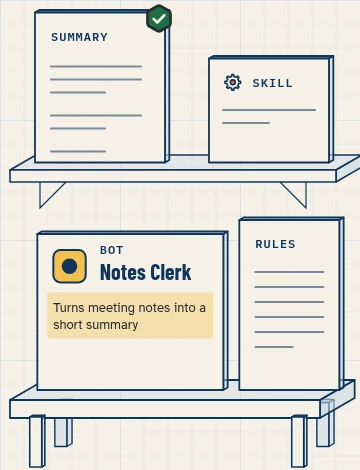
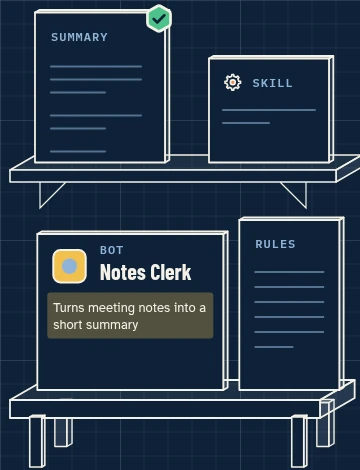
This is how to set up Grok Bot for real work. You create a new Bot, give it a name and one job, and tell it the rules it must always follow. Then you run one small task on test data and check the result. When it’s right, you save the method as a skill.
What you’ll build
By the end of this lesson you’ll have:
- A new Bot called Notes Clerk in your sidebar, with its own name and picture.
- One job and a few lasting rules that the Bot keeps in memory.
- One finished task on test data: a short draft summary of a made-up meeting note, with action items.
- A saved skill, so you can ask for the same summary again by name.
Before you start
Tick each item before step 1:
- The Grok Bot desktop app is installed. If not, install Grok Bot first.
- You’re signed in. Grok Bot uses your Cursor account; there’s no separate Grok Bot login (source).
- Your plan includes Grok Bot.
- You have test data with made-up names only. This lesson gives you a test meeting note to paste. Don’t use real customer or staff data for a first test.
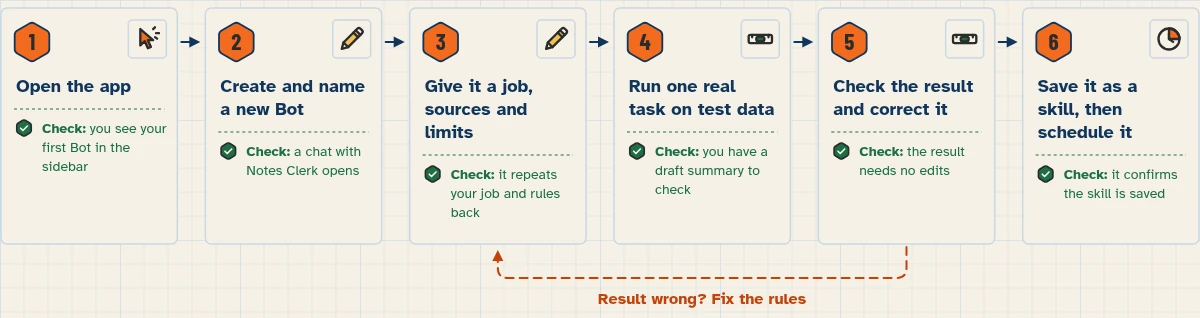
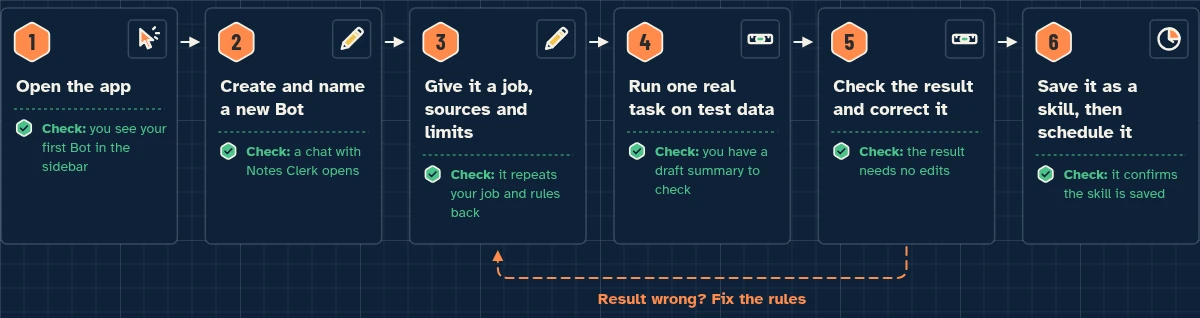
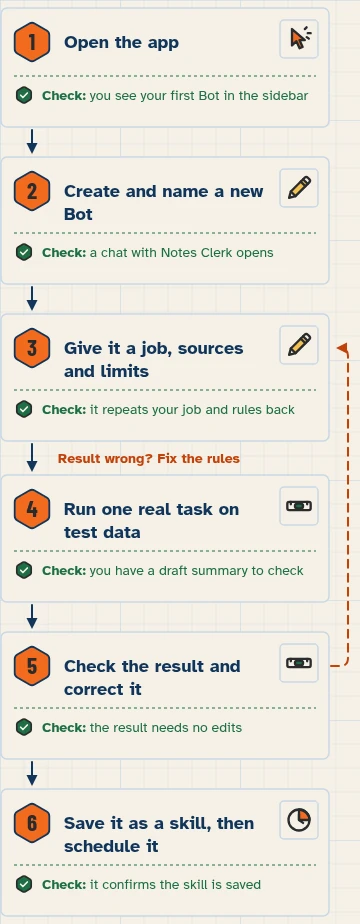
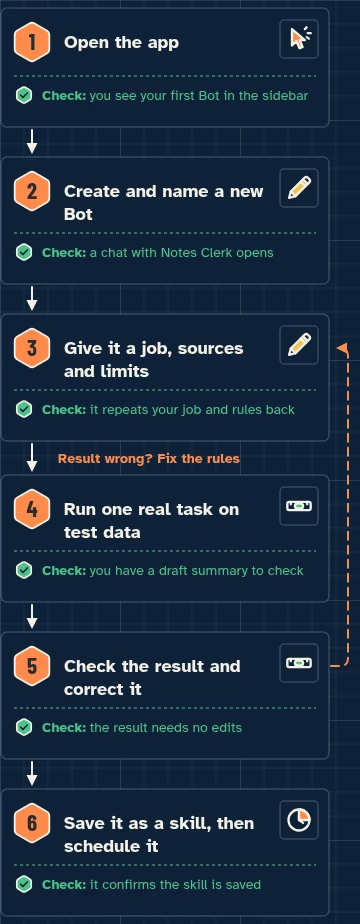
Step 1: Open the app
- Open the Grok Bot desktop app. If it isn’t installed yet, install Grok Bot first.
- Look at the sidebar. Your first Bot, named Grok Bot, is already there. It’s created for you when you first sign in (source).
In this lesson you add a second Bot with one focused job. Lesson 1.7 shows how to use your main Bot as a Chief of Staff.
Step 2: Create and name a new Bot
First decide on one job. A good Bot owns a repeatable result (source). “General Helper” is too broad. For this lesson, the job is: turn meeting notes into a short summary with action items.
- Choose the + button at the top of the sidebar, or press Cmd+N (Mac) or Ctrl+N (Windows and Linux). On a team account, + opens a menu: choose Create a Bot (source).
- In Create New Bot, type the name Notes Clerk.
- Pick a shape and a color for its picture.
- Choose Create. A chat with your new Bot opens.
Step 3: Give it a job, sources and limits, and ask it to remember them
The docs advise putting the job, the sources and the approval limits in your first message, and asking the Bot to remember them (source).
- Copy Prompt 1 below.
- Send it as your first message to Notes Clerk.
- Read the Bot’s reply. It should confirm it will remember the job and rules.
A lasting rule is something the Bot should always do, like “never send anything”. A task is one piece of work, like “summarize this note”. Keep the two apart. Lesson 1.8 shows you how to give your new Bot a role and rules in more depth.
Paste this into: Grok Bot chat, message box.
You are Notes Clerk. Your job is to turn meeting notes I give you into a short summary.

Use only the notes I paste or attach in this chat.

For every summary:
- Start with 5 bullets or fewer covering what was decided.
- Then list action items as: owner – task – due date (write "no date" if none was given).
- Then list open questions.
- Use only facts that are in the notes. If something is unclear, say so instead of guessing.

Limits:
- Never send, post or share anything. Leave drafts for me.
- Never change or delete my files.
- Ask me before you use any app or website.

Remember this job and these rules for all future work.
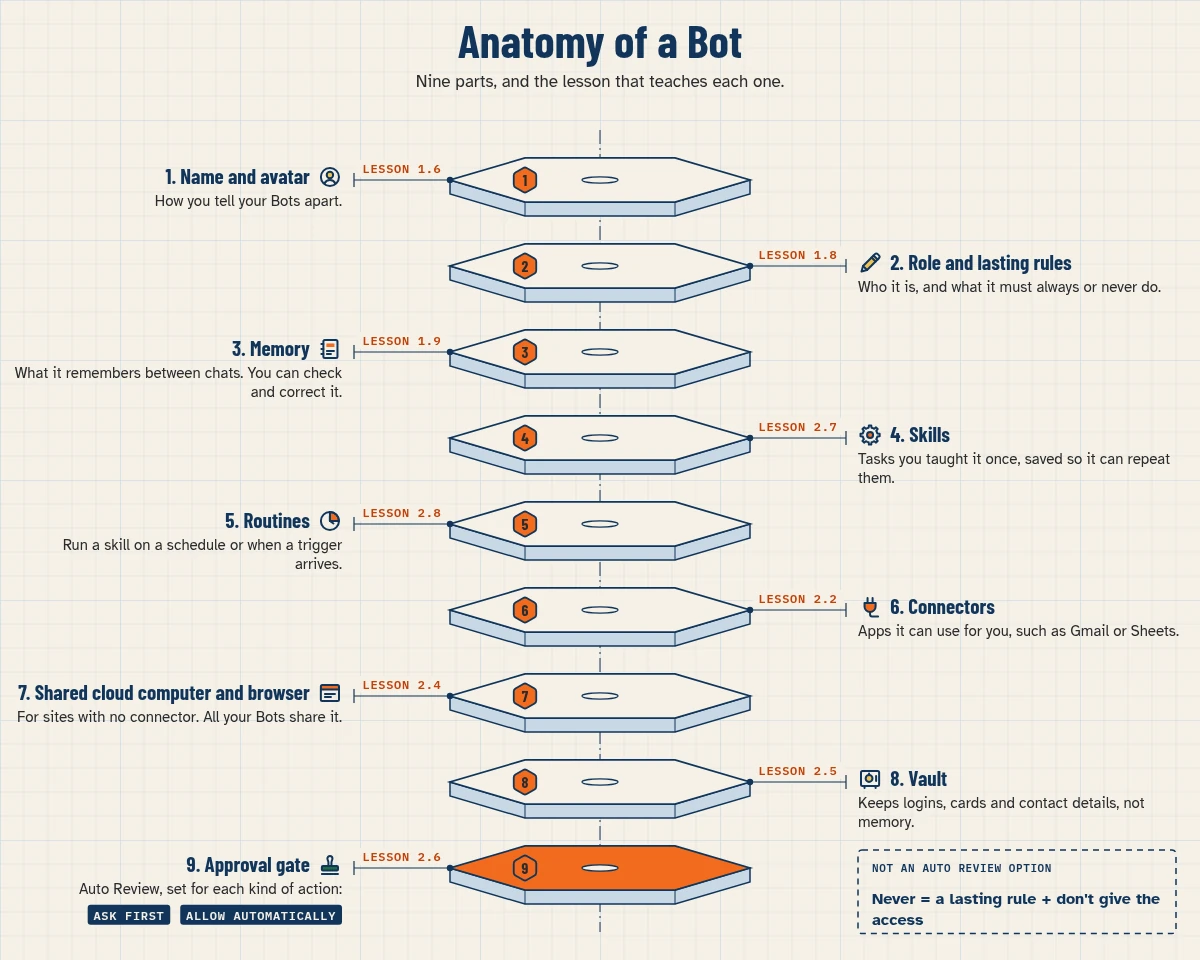
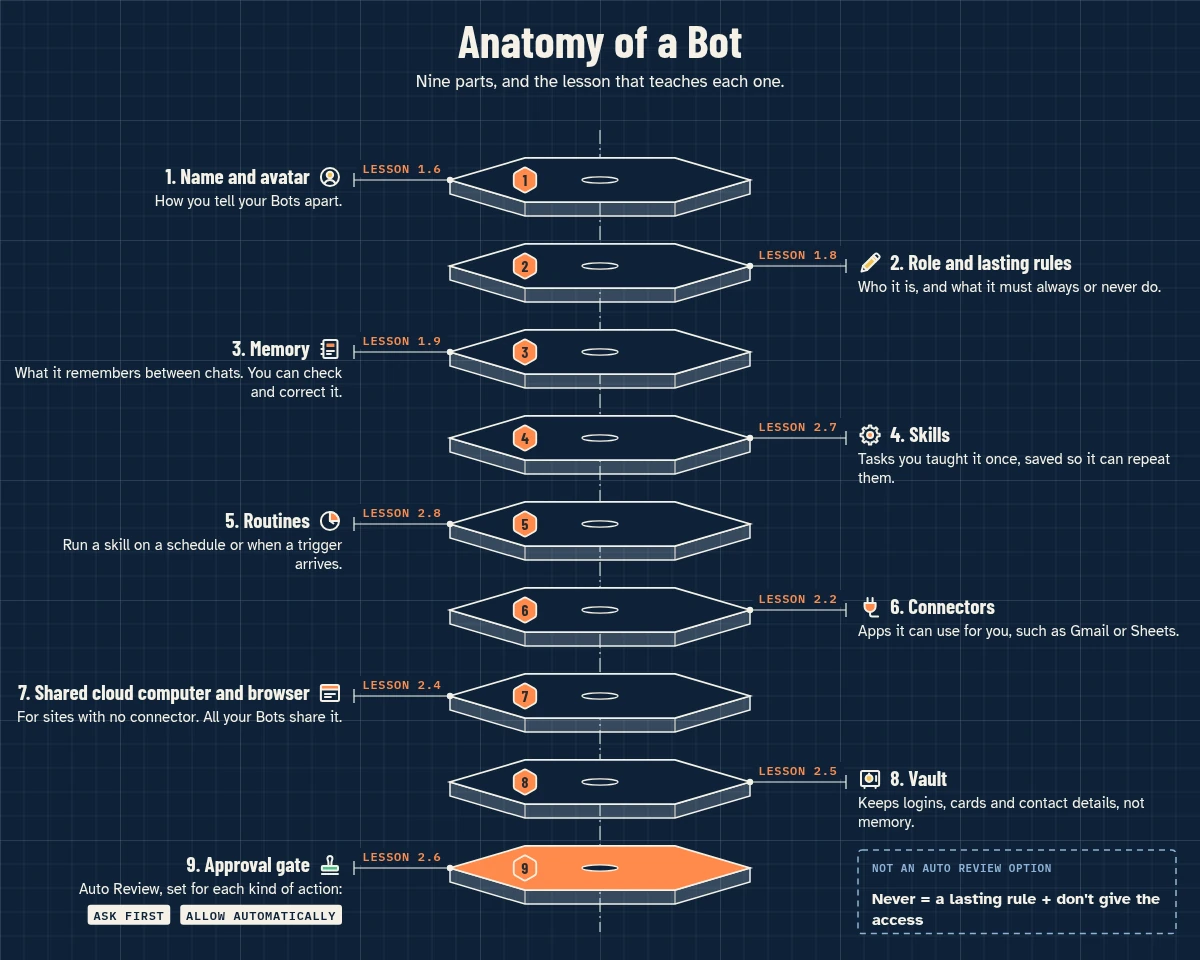
Printable poster: A4 (PDF) · US Letter (PDF). Direct download; no email needed.
Step 4: Run one real task on test data
- Copy Prompt 2. It contains a made-up meeting note, so no real data is used.
- Send it to Notes Clerk.
- Wait for the draft summary.
Paste this into: Grok Bot chat, message box.
Summarize these test meeting notes using your rules. All names are made up.

Team call, Monday
- Dana says the spring price list is ready but needs a final check.
- We agreed to move the newsletter from Thursday to Friday.
- Omer will call the packaging supplier about the late delivery by Wednesday.
- Nobody knows yet if the shop is open on the public holiday.
- Lior will update the FAQ page, no date set.
Step 5: Check the result and correct it
- Check the summary against the list in “Expected result” below.
- If something is wrong, fill in and send Prompt 3. It fixes the summary and saves the fix as a lasting rule.
- Run the task again with Prompt 2. Repeat until the result needs no edits.
If the result keeps going wrong, go back to step 3 and make your rules clearer.
Paste this into: Grok Bot chat, message box.
That's close. Fix this: [describe what was wrong, e.g. "you added a due date for Lior that isn't in the notes"]. Redo the summary.
Save this as a lasting rule: never add a date or owner that isn't written in the notes.
Step 6: Save it as a skill, then schedule it
Save it as a skill. When the result needs no edits, send Prompt 4. A skill is a saved method: it tells a Bot how to do a task. Your private skills are shared by all your Bots (source). Lesson 2.7 covers skills in full.
Paste this into: Grok Bot chat, message box.
Save the process we just used as a skill called "Meeting notes summary". Include when to use it, what input it needs, the steps, how to check the result, what to return, and that it must never send or share anything.
Then schedule it (later). A routine tells one Bot when to run a skill: on a schedule or when something happens (source). Don’t schedule this one yet. A routine repeats whatever the Bot does, mistakes included. Lesson 2.8 shows you how, once a skill is reliable.
Expected result
You should see a draft reply with three parts: a few bullets, a list of action items and a list of open questions. Check it line by line:
- There are 5 bullets or fewer.
- “Move the newsletter to Friday” is listed as a decision.
- Omer’s supplier call is an action item with Wednesday as the date.
- Lior’s FAQ task shows “no date”, not an invented date.
- The holiday opening question is under open questions.
- Nothing in the summary is missing from the notes, and nothing is added.
- The Bot didn’t send, share or open anything else.
What your Bot remembers
There’s no memory screen. To see what a Bot remembers, ask it (source):
Paste this into: Grok Bot chat, message box.
What do you remember about me?
- If something is wrong, correct it in plain words.
- To remove something, say “Forget …”, for example: “Forget the rule about meeting times.”
- Each Bot has its own memory, but a few facts about you, such as your name and time zone, are shared by all your Bots (source).
- Memory isn’t a lock. The docs say to back important limits with approvals and Auto Review (source). Lesson 2.6 covers both.
Common mistakes
- One giant Bot for everything. A “General Helper” collects messy, mixed context. Give each Bot one job. Make a new Bot only when the goal, tools, style, approval limits or schedule really differ.
- Rules typed but not remembered. If you don’t ask the Bot to remember a rule, it may apply only to the current task. Ask “What do you remember about me?” to check.
- Real customer data in a first test. Start with made-up names. Move to real data only after the result is right.
- Turning drafts off. Bots draft outgoing email and Slack messages for your review by default. The app lets you switch this off for a Bot (source). Don’t: keep every send as a draft while you learn.
- Pasting passwords into chat. Logins and cards go in Vault, never in chat (source). See lesson 2.5.
Stuck? Start at the Help hub. The first fix for most problems is to fully quit and reopen the app (source).
Safety and usage note
- Drafts by default. Bots draft outgoing email and Slack messages for your review by default, and the card shows Needs approval (source). Keep it that way.
- Your Bot asks first. Auto Review checks actions and shows an approval card when one needs you (source).
- Every reply uses usage. That includes group chats and Bot-to-Bot messages (source). Keep first tasks small.
- Bots share one computer. All your Bots use the same cloud computer, files, browser sessions and logins, so separate Bots aren’t a security boundary (source).
Saved in this browser only; no account needed.
Level progress: Foundations, lesson 1.6.
Ready for a real job?: Pick a first build to copy.
FAQ
How many Bots should I start with?
One. Get one Bot doing one job well before you add more. Make a new Bot only when the work has a different goal, tools, style, approval limits or schedule.
Can I rename or delete a Bot later?
Yes. Deleting a Bot erases its memory and routines. Files on the shared computer stay (source).
Where do I edit a Bot's instructions?
In chat. Personal Bots have no settings page for rules, so tell the Bot what to change and ask it to remember (source).
Will it send emails by itself?
See the short answer on our FAQ page.
Can I set it up from my phone?
Yes, you can create Bots in the phone app. Teaching a task by demonstration and testing routines need the desktop app (source).
Written with Grok, checked against the docs on Nov 4, 2026. Nothing in this lesson has been run on the test account yet.