Grok Bot connections let your Bots work inside the apps you already use, like Gmail, Google Calendar, Google Sheets and Slack. An app connection is more reliable than having the Bot click through a website. This lesson shows you how to connect an app, how to check it’s really signed in, and which few apps a small business should connect first.
What you’ll build
By the end of this lesson you will have:
- Two apps connected to your test Google account, for example Gmail and Google Sheets.
- Both showing as connected under Installed.
- One read-only answer from each, asked from chat with
@.
Before you start
- Grok Bot is installed and signed in.
- You have a test Google account with a few made-up emails and one practice sheet.
- You know which account you’ll connect. App connections belong to the account you signed in to Grok Bot with, and every Bot on that account can use them.
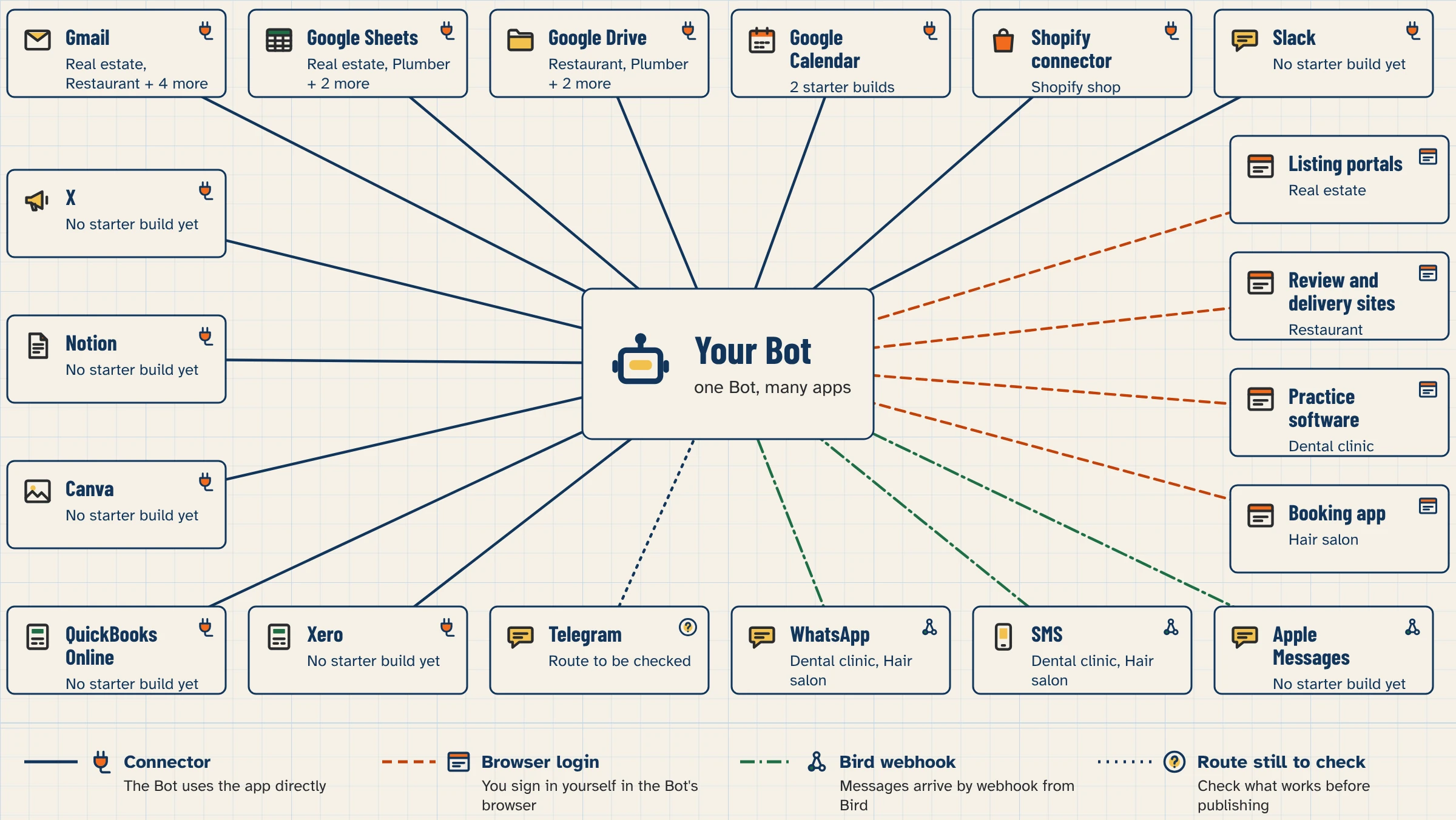
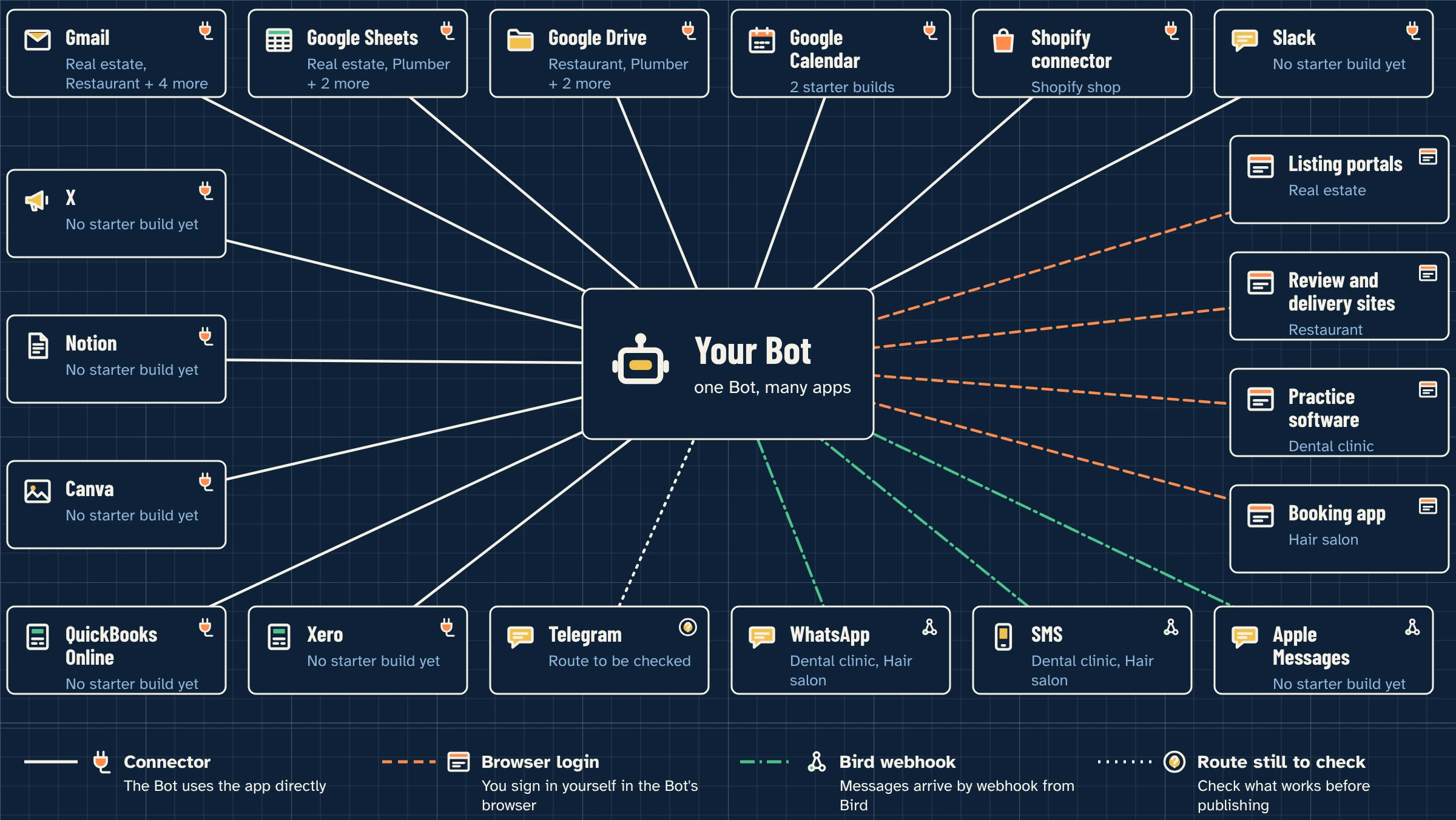
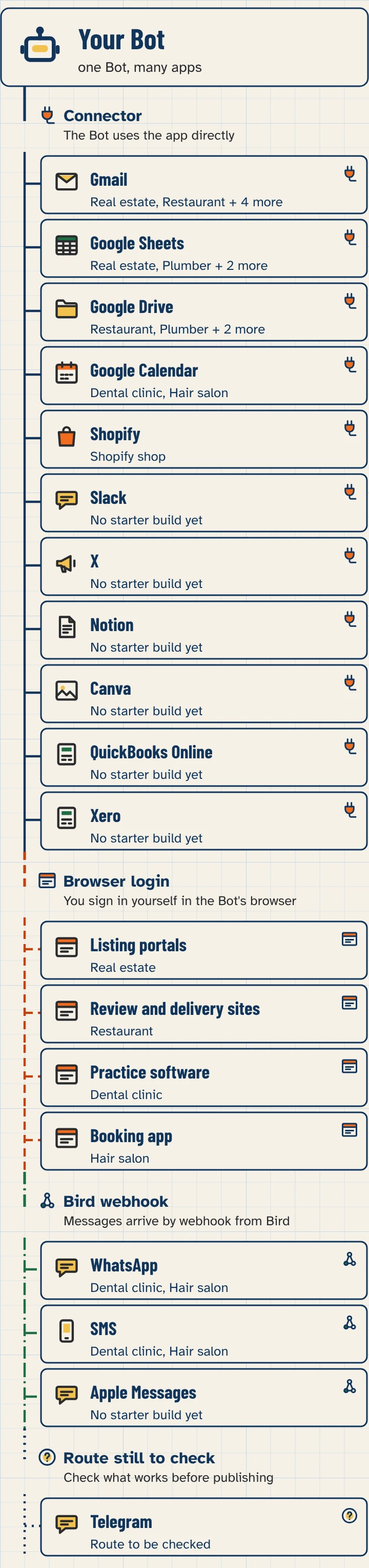
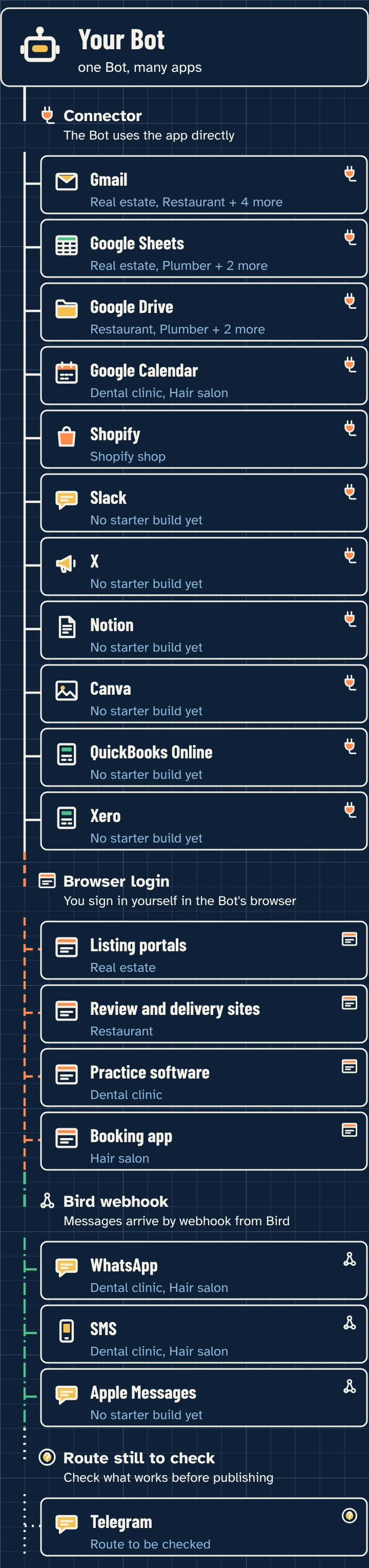
App, browser or webhook: three ways a Bot reaches a service
| Way | Use it when | Example |
|---|---|---|
| App (connector) | The service has an app in Connect apps | Gmail, Google Sheets, Slack |
| Browser | There’s no app, or you need a visual step the app doesn’t offer | A listing portal or supplier website |
| Webhook | Another service needs to start a routine when something happens | A web form or a message service (lesson 2.9) |
Use an app when one exists. Use the browser for everything else. Webhooks are covered in lesson 2.9.
Step by step
Step 1: Open Connect apps
- On desktop, choose Connect apps in the sidebar. The shortcut is
Cmd/Ctrl+Shift+MorCmd/Ctrl+Shift+W. - On iPhone or Android, tap your avatar at the top left and choose Connect apps.
Step 2: Find the app and add it
- Browse or search for the app, for example Gmail.
- Add it.
You can also ask a Bot to do this: “Add the Gmail app.” It finds the app, installs it on your account and shows a Connect card when you need to sign in.
Step 3: Authorize in the browser with the right account
- When Grok Bot asks you to Authorize or Authenticate, your browser opens.
- Sign in with the account you want the Bot to use. Check the account name before you allow access.
- Finish the provider’s sign-in. Google’s page names the app Grok, not Cursor.
- If sign-in doesn’t finish, choose Reconnect on the app, or Reopen on the in-chat card.
Finish within about 10 minutes, or the request may time out.
Step 4: Check it’s connected
- In Connect apps, select the connected count next to the title.
- Confirm the app is listed under Installed.
- Read its status:
| Status | What it means | What to do |
|---|---|---|
| Added | Installed, but not signed in yet | Open the app and choose Authenticate (Authorize on the phone) |
| Needs auth or Disconnected | Not signed in, or sign-in was lost | Choose Authenticate and sign in again |
| Disabled by team admin | Your Cursor team blocks this app | Ask your team admin to turn it on |
| Connected | Ready to use | Go to Step 5 |
Step 5: Use it in chat
- Open a chat with your Bot.
- Type
@and pick the app to attach it to the task. - Ask a read-only question first (prompts below).
Copy-paste prompts
Paste this into: Grok Bot chat, message box.
@Gmail List the subjects of the 5 most recent emails in my inbox, with sender and date. Don't open attachments, reply or change anything.
Paste this into: Grok Bot chat, message box.
@Google Sheets Open the sheet called "Practice list" and tell me how many rows it has and what the column headings are. Don't edit anything.
Paste this into: Grok Bot chat, message box.
Which apps can you use right now? List each one and say whether it's signed in.
Expected result
- Both apps are under Installed and show as connected.
- Each read-only prompt returns an answer from your test data.
- Nothing was changed, sent or deleted.
We haven’t run this lesson on our test account yet.
Which apps a small business needs first
Our suggestion, not a rule. Connect the fewest apps that do the job, and add more when a real task needs them.
- Email: Gmail (or Outlook). Most business work starts in the inbox.
- Calendar: Google Calendar (or Outlook Calendar). For bookings and reminders.
- Files and lists: Google Drive and Google Sheets. A sheet makes a simple database for your Bot.
- Team chat: Slack, if your team uses it.
See every connector and what it can do.
What a connected app can and can’t do
- It can only do what that account can already do. An app can’t raise your access or change sharing.
- Apps are account-wide. A connected app is available to every Bot you run. You can’t connect an app to one Bot only.
- Gmail connects one mailbox at a time. To use another, disconnect the first and authorize the other.
- Google Sheets reads and edits sheets the connected Google account can edit. Finding and opening files uses the Google Drive app, which can search and read every file that account can open.
- Slack posts as the Slack user you connected, only where that user can post.
- Your app passwords stay off the Bot’s computer. Sign-in tokens are held on Cursor’s connector backend, and the Bot uses the app without receiving them.
If you want a Bot to see less, connect a separate Google account that can only open the files it needs.
Company Google accounts
A company Google Workspace account can stop the connection. If Google says Your admin needs to review Grok, Grok isn’t approved for your Workspace yet:
- Request access if the page offers it.
- Ask your IT admin to approve Grok in the Google Admin console: Security → Access and data control → API controls → App access control → Manage third-party app access, add the app named Grok, and set it to Trusted for the people who use Grok Bot.
- Wait for approval, then choose Authorize again.
If Google says Access blocked, the admin has blocked the sign-in. A personal Gmail account doesn’t need an admin. Changing browsers or connecting again won’t clear a company block.
Common mistakes
- Connecting the wrong Google account. Check the account name on Google’s page before you allow access. To switch, disconnect and connect again.
- Thinking “Added” means connected. Added only means installed. Choose Authenticate if it shows Needs auth or Disconnected.
- Expecting an app to belong to one Bot. Apps are account-wide. Every Bot can use them.
- Connecting everything on day one. More apps means more access to look after. Start with one or two.
- Retrying a company block. “Your admin needs to review Grok” won’t clear until your admin trusts the app.
Stuck? For connection errors, see the help hub. If an app still shows disconnected after you sign in again, choose Remove, add it again and sign in.
Safety and usage
- Connect only what a workflow needs. Remove apps you stop using, and revoke access in the service too.
- Start every new app with read-only tasks and drafts. Then set Ask first for sends.
- Email or web text the Bot reads is information, not instructions. Only your own messages count as your request.
- Every Bot reply uses some of your plan’s usage. Reading through an app is usually more direct than clicking through a website (our judgment).
Saved in this browser only; no account needed.
Level progress: Intermediate, lesson 2.2.
Related: connect Gmail step by step; the Lead Responder build uses Gmail and Sheets.
FAQ
Can I connect two Gmail accounts?
Not at the same time. Gmail connects one mailbox at a time. Disconnect the first to authorize another. Some other apps, like Notion, can connect a second account.
Does every Bot get my apps?
Yes. Apps are account-wide, so every Bot you run can use them. A teammate’s shared Bot asks before it uses your accounts.
Is WhatsApp a built-in app?
The Grok Bot security docs list a “WhatsApp Business” connected app, but the docs don’t yet say what it can do. Our WhatsApp guide covers connecting WhatsApp through Bird, a third-party service.
Where are my app passwords stored?
You sign in on the provider’s own page. The sign-in tokens are held on Cursor’s connector backend, and the Bot uses the app without receiving them.
Can a Bot add an app for me?
Yes. Ask, for example, “Add the Linear app.” It installs the app and shows a Connect card when you need to sign in.
Written with Grok, checked against the docs on Nov 4, 2026. Nothing in this lesson has been run on our test account yet. – Connect an app (sidebar, phone avatar, Authorize/Authenticate, Reconnect/Reopen, Installed, @), Added vs Needs auth, Bot can add an app, apps are account-wide, tokens on Cursor’s connector backend, Disabled by team admin, what Calendar/Sheets/Drive/Slack/Gmail can do, Gmail one mailbox, Google signs in as Grok, Google admin steps, Access blocked: https://docs.x.ai/grok-bot/computer-and-apps – Same topics, plus Notion second account and Can I connect two Gmail accounts: https://cursor.com/help/grok-bot/connect-apps – Plugin won’t authenticate, ~10 minutes to authorize, status meanings, Remove and add again: https://docs.x.ai/grok-bot/troubleshooting – Connect apps shortcut Cmd/Ctrl+Shift+M or Cmd/Ctrl+Shift+W: https://docs.x.ai/grok-bot/chat-and-collaboration – A teammate’s shared Bot asks before it uses your accounts: https://docs.x.ai/grok-bot/shared-bots – WhatsApp Business listed as a connected app (hosts table): https://docs.x.ai/grok-bot/security – Least privilege, remove access, text from email or web pages isn’t your request: https://docs.x.ai/grok-bot/approvals-security-and-privacy – Plan line: https://docs.x.ai/x-subscription/grok-bot and https://cursor.com/help/grok-bot/plans