Before your Bot sends an email, uses an app or changes something, Grok Bot’s Auto Review checks the action. Most actions just run. When one needs you, the Bot shows an approval card and waits. Your own Custom Rules tell Auto Review where you always want to be asked.
What you’ll build
By the end of this lesson you will have:
- One Ask first rule: your Bot always asks before it sends an external email.
- One narrow Allow automatically rule for a safe, everyday action.
- A Bot that drafts, shows you the draft and waits.
- A plan for how much to trust it, and when to give it more.
Before you start
- You finished lesson 1.6, First Bot.
- You have the desktop app open. You can use the phone too; the steps note where it differs.
- You have one Bot with a job that drafts something, like an email reply.
- Your plan includes Grok Bot (see the lesson details above).
The trust ladder
The trust ladder is Bot Agents 24’s own way of thinking about trust. It isn’t a Grok Bot setting. Each rung gives the Bot a little more freedom. Move up only when the Bot has earned it on the rung below.
- Read-only. It reads and reports. You do everything else.
- Draft. It writes drafts. You send them.
- Approve each. It prepares the action and asks first, every time.
- Low-risk on its own. Actions you picked, like posting a summary in its own chat, run without asking.
Never let a Bot send to customers, move money or delete data without an approval step, on any rung.
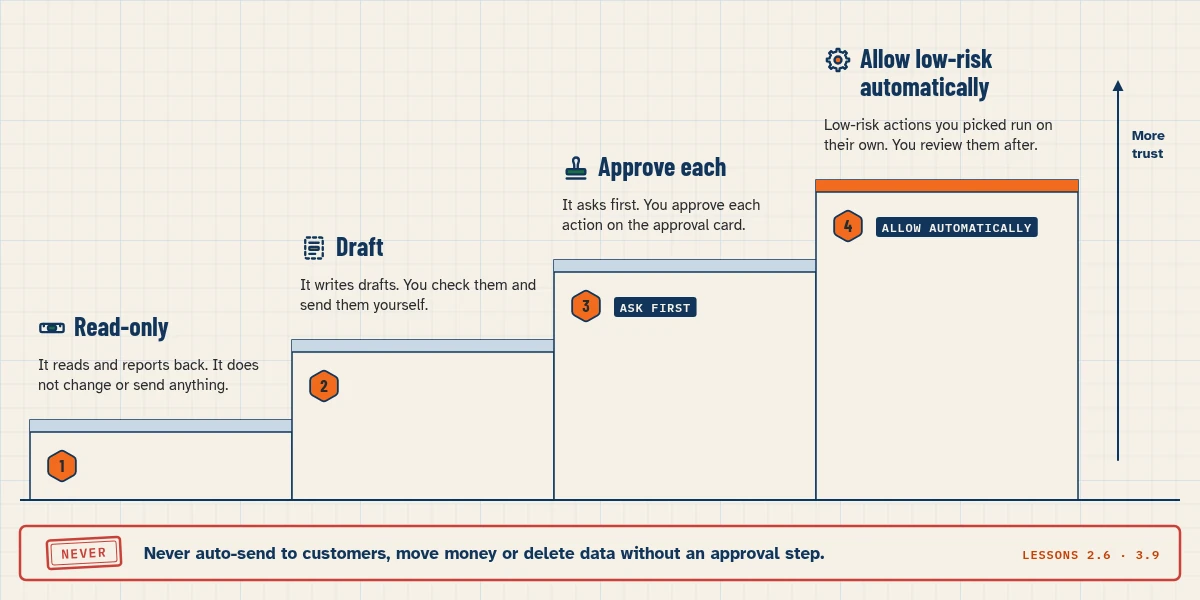
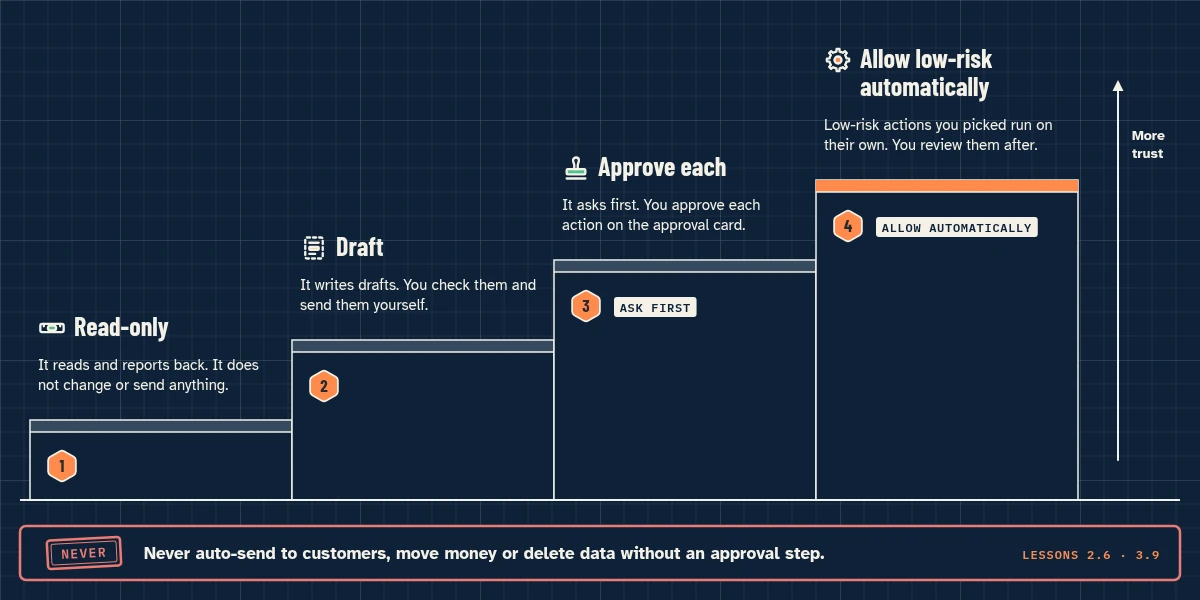
- Read-only. It reads and reports back. It does not change or send anything.
- Draft. It writes drafts. You check them and send them yourself.
- Ask first: approve each. It asks first. You approve each action on the approval card.
- Allow automatically: auto-send low-risk. Low-risk actions you picked run on their own. You review them after.
- Never: never auto-send to customers, move money or delete data without an approval step.
What Auto Review does
- It checks each action your Bot is about to take: before it runs a command, uses a connected app or uses its computer.
- Most actions run on their own. When one needs your OK, you get an approval card.
- An Ask first rule always gets a card.
- It counts only your own messages as your request. Text from an email or a web page doesn’t count, even if it says “send this now”.
- Built-in safety checks always apply, whatever your rules say.
- It’s a helper, not a lock. The docs say Auto Review is model-based and should sit alongside limited access and clear approval boundaries, not replace them.
Read an approval card
A card shows the action your Bot wants to take and its inputs. Read the target (who or what), the scope (how much) and the values (what exactly) before you answer.
The usual buttons:
- Allow once: the Bot does it now. No rule is saved.
- Always allow: the Bot does it now and saves an Allow rule to your Custom Rules. The card shows Saved to Custom Rules. Similar actions then run on their own.
- Deny: the Bot doesn’t do it. It won’t try that action again or ask you about it until you send another message.
Other cards use other labels:
- A card for a terminal command shows Allow and Skip, plus Manage settings.
- A card paused by one of your Ask first rules shows Allow and Not now, and Edit rule opens your Custom Rules.
- A card with no rule to offer shows Allow instead of Allow once, and no Always allow.
Some cards carry a warning: This can’t be undone, This changes sign-in or security settings or This shares your data outside this chat. Slow down on those.
On the phone, tap a card to see the full request and all its buttons.
Step by step
Step 1: Set a boundary in your request
Every request can say where the Bot must stop. Copy Prompt 1 below and change it to fit your job. Be extra clear about:
- Sending messages or invitations
- Publishing content
- Purchases and money transfers
- Deleting or overwriting data
- Changing permissions
- Changes to live systems
- Accepting legal terms
Step 2: Open Custom Rules
- Open Settings.
- Choose General.
- Under Bot, check that the Auto-review switch is on.
- Find Custom Rules under the switch.
On the phone: open Settings, find the Bot group and tap Custom Rules.
Step 3: Add an Ask first rule
- Under When Grok Bot wants to:, type:
Ask first before sending any external email. - Under It should:, choose Ask first.
- Press Add Rule.
Step 4: Add one narrow Allow automatically rule
- Under When Grok Bot wants to:, describe one small, safe action with a clear scope. Example:
Read the "Price List" sheet in Google Sheets. - Under It should:, choose Allow automatically.
- Press Add Rule.
Keep it narrow. One action, one scope. Avoid broad rules such as “allow everything in the browser”. Websites and tools change over time.
Step 5: Test with a draft and approve it
- Send Prompt 2 below to your Bot. It asks for a draft email to your own test address.
- Read the draft. Check the recipient and every line.
- When you’re happy, approve it. Choose Allow on the card (or Send on a draft card).
- Check your test inbox.
To change a rule later, use the edit button next to it, make your change and press Save Rule. Press Cancel to keep it as it was. Use the delete button to remove it.
Copy-paste prompts
Paste this into: Grok Bot chat, message box.
Read this week's customer emails and draft a reply to each one in this chat. Don't send anything and don't message anyone. Show me each draft with the recipient and subject, and ask for my approval before any email goes out.
Paste this into: Grok Bot chat, message box.
Draft a short test email to [your-test-address@example.com] with the subject "Approval test" and one line of text. Show me the draft. Don't send it until I approve.
Paste this into: Grok Bot chat, message box.
Remember this as a lasting rule for all future work: never open payment, refund or banking pages, and never delete files or emails. If a task seems to need one of these, stop and tell me.
“Never”: a rule plus limited access
Auto Review rules have only two choices: Allow automatically and Ask first. There’s no “Never” switch. To keep a Bot away from something completely, do two things:
- Make it a lasting rule the Bot remembers (Prompt 3).
- Limit its access. Don’t give it the login. Don’t save that site in Vault. Don’t connect that app. If you connect an app, use an account that can only see what the Bot needs.
A remembered rule helps, but it’s not a lock. Limited access is what makes “never” hold.
Drafts and approvals
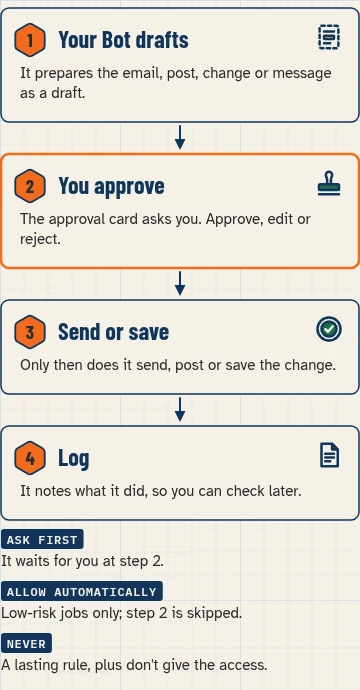
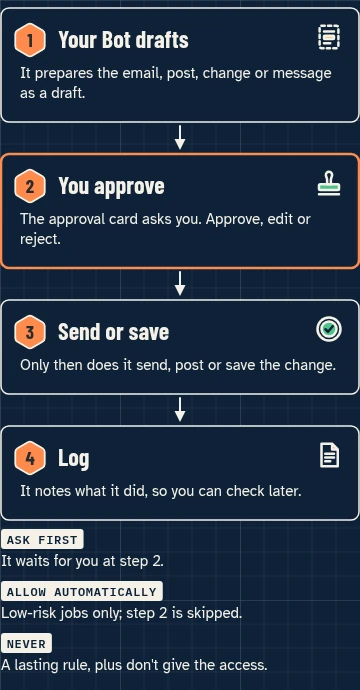
Bots draft outgoing messages for your review by default. An email or Slack draft shows Needs approval. You review the recipients and body, then choose Send (or Send message for a Slack draft on desktop), or Discard.
There’s a menu option called Disable drafts for Bot. It lets that Bot send directly, subject to your Auto Review settings. We advise against it while you’re learning, and for any Bot that writes to customers. To get drafts back, choose Needs approval on a draft card or ask the Bot.
Email from the Bot’s own address follows these rules:
- An email you ask for in chat goes out once Auto Review allows it. If Auto Review needs you, you see a card first.
- Email from a routine, an incoming message or other work you didn’t start waits as a draft until you press Send.
- A forward, or an email with an attachment Auto Review can’t fully read, always waits for your OK.
Want the short version? See can Grok Bot send emails on its own? in our FAQ.


When a card expires
- From a chat you’re in: the card waits for your answer. It doesn’t expire on a timer.
- From background work (a routine, an incoming message, another Bot): the card expires after 30 minutes if you don’t answer. The troubleshooting page says “about 30 minutes”.
- If you send a new message instead of answering, any open card in that chat closes.
- If you change your Auto Review settings, open cards close too.
A closed card shows Expired and says the Bot didn’t do the action. If the card offered a rule, you can still press Always allow next time. To finish the task now, ask the Bot to try again.
Catch cards in time: turn on notifications for Bots that run routines. On desktop, ask the Bot to turn its notifications on. On the phone, the switch is in the Bot’s profile.
Limits of rules
- Up to 20 Allow automatically rules and up to 20 Ask first rules (docs, checked Nov 4, 2026).
- Each rule can be up to 1,000 characters.
- If you already have 20 Allow rules, Always allow on a card removes your oldest Allow rule and tells you which one.
- If both kinds of rule match, Ask first wins.
- Your rules are saved to your account, so they apply on every desktop and on the phone.
- On a team, your admin may require Auto Review or add team rules. Those show Required by your admin. Your own rules can only make things stricter.
- Approving doesn’t undo anything. An approval controls the next action, not work already done.
- Separate Bots aren’t a security boundary. All your Bots share one computer, its files and its logins. To learn which apps can act for you, see which connected apps can act for you.
Turning Auto Review off
You can turn the Auto-review switch off. Then the Bot runs actions without checking them first. Your Custom Rules are hidden and not used, but kept. Turn it back on to use them again. We don’t recommend turning it off.
Common mistakes
- Broad rules. “Allow everything in the browser” lets too much through. Write one narrow rule per action.
- Always allow by reflex. Each click saves a rule. Choose Allow once while you’re learning.
- Approving cards you don’t understand. Ask the Bot to explain first.
- Thinking a “never” rule is a lock. Back it up with limited access.
- Missing background cards. They expire. Turn on notifications.
- Turning off drafts too early. Stay on the draft rung for customer messages.
Stuck? See our help page.
Safety and approvals
- Keep sending, buying, deleting and publishing behind Ask first.
- Text from emails and websites is never your permission.
- Logins and cards go in Vault, never in chat.
- For a full example where nothing is sent without staff approval, see a build where nothing is sent without staff approval.
- Security in depth is lesson 3.9 (see Advanced lessons).
Usage note: approvals don’t add usage by themselves, but a task the Bot retries after an expired card runs again and uses usage again.
Saved in this browser only; no account needed.
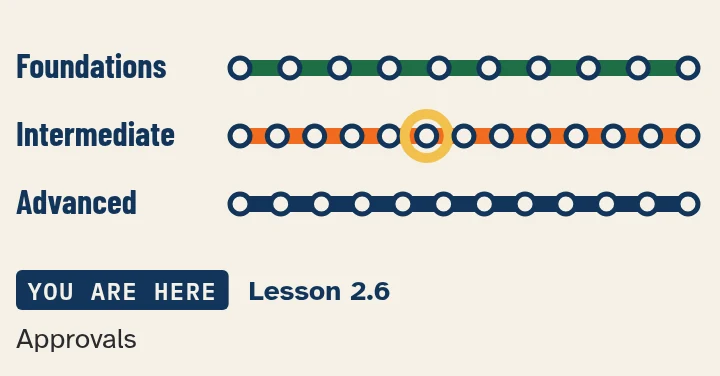
Level progress: Intermediate, lesson 2.6.
Related builds: Dental recall bot (Dental clinic), Front Desk Bot (Hair salon)
FAQ
Can Grok Bot send emails on its own?
It depends on who started the email and your settings. Read the short answer in our FAQ.
What happens if I don't answer a card?
A card from a chat you’re in waits for you. A card from a routine or other background work expires after 30 minutes, and the action doesn’t run.
Can I turn Auto Review off?
Yes, in Settings → General, under Bot. Your rules are hidden but kept. We don’t recommend it.
What if both rule types match?
Ask first wins.
Does approving undo anything?
No. An approval controls the action it asks about. It doesn’t reverse work already done.
Product facts were checked against these pages on Nov 4, 2026. Nothing in this lesson has been tested yet. The trust ladder is Bot Agents 24’s own framework, not a Grok Bot feature.