Grok Bot skills are saved instructions for how to do a task. You make one in two ways: describe the job in chat and save it once the result is right, or show the Bot by doing the task yourself on its computer with Teach a task. This lesson covers both, with a worked example and the prompt to copy.
What you’ll build
By the end of this lesson you will have:
- One saved skill called “Weekly order summary”, made from a task you got right in chat.
- A skill you can run by name from any of your Bots.
- If Teach a task is on for your account: a second skill learned from a short demonstration.
Before you start
- A Bot with a role and lasting rules (lesson 1.8).
- A test sheet with made-up orders: date, customer, item, amount, status.
- Approvals set up (lesson 2.6), so the skill can’t send anything without you.
- For Way 2 only: the desktop app and a website you can use with test data.
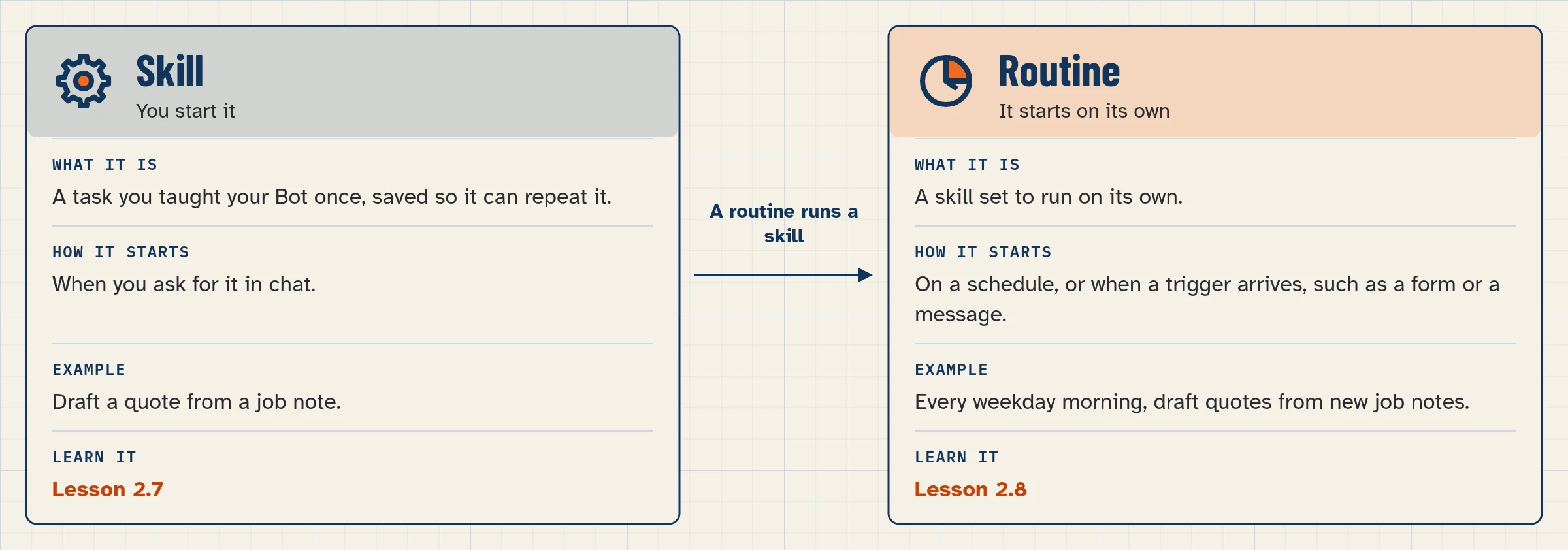
Skill or routine?
| Skill | Routine | |
|---|---|---|
| What it is | How to do a task | When a Bot runs a task |
| Example | “Weekly order summary: read the sheet, total by status, flag late orders” | “Every Monday at 08:00, run Weekly order summary” |
| Who can use it | All your Bots (private skills are one shared library) | The one Bot that owns it |
Do the task once, make it reliable, save it as a skill, and only then automate it with a routine (lesson 2.8).
Step by step
Way 1: get a good result in chat, then save it
#### Step 1: Do the task once in chat
Use a five-part prompt (see lesson 2.1):
Paste this into: Grok Bot chat, message box.
Job: summarise this week's orders.
Sources: use only the "Test orders" sheet.
Output: a short table with total orders and amount by status, then a list of any order that's still "pending" after 3 days.
Boundaries: don't edit the sheet or contact anyone.
Finish line: stop after the summary and show the rows you counted as late.
#### Step 2: Correct it until it’s right
Check the totals against the sheet. If something’s off, say so plainly: “Count ‘on hold’ as pending too.” Repeat until you’d be happy getting this result every week.
#### Step 3: Save the method as a skill
Send the save prompt (below). A useful skill states six things:
- When to use it
- What inputs and access it needs
- The steps, in order
- How to check the result
- What to hand back
- What needs your approval
#### Step 4: Run the skill by name
In a new chat, or with a different Bot, ask: “Run the Weekly order summary skill on the Test orders sheet.”
If a Bot can’t find it: open Connect apps, select the connected count next to the title, and turn the skill on for that Bot under Private skills.
Way 2: Teach a task by showing the Bot (desktop)
#### Step 5: Record a short demonstration
Use this for browser jobs that are easier to show than to describe, like checking a price on a supplier’s website.
- Open a one-to-one chat with the Bot on the desktop app, and open its computer view.
- Choose Teach a task.
- Describe the result you’re about to show, for example: “Find the current price of the item on this page and add it to the Test prices sheet.”
- Do the task once on the Bot’s computer, using test data.
- Stop the recording.
- Review the skill the Bot drafts. Add the rules one example can’t show: what to do if the page won’t load, and what needs your approval.
- Test it on a safe example before you schedule it.
Teaching records what’s on the screen for up to ten minutes. It doesn’t record your microphone. Use a Secure Form for any password, not the screen.
Copy-paste prompts
Paste this into: Grok Bot chat, message box.
Save the process we just used as a skill called "Weekly order summary." Include: when to use it, the sheet it reads, the steps, how to check the totals add up, the table format to return, and the rule that it never edits the sheet or contacts anyone without my approval.
Paste this into: Grok Bot chat, message box.
Run the Weekly order summary skill on the Test orders sheet and show me the rows you counted as late.
Paste this into: Grok Bot chat, message box.
Update the Weekly order summary skill: count "on hold" orders as pending. Show me the changed step before you save it.
Paste this into: Grok Bot chat, message box.
Create a skill from the task we just completed. Write out each step, what to do if the page doesn't load, and what needs my approval.
Expected result
- “Weekly order summary” appears in your private skills.
- A second Bot runs it by name and returns the same table format.
- Nothing in the sheet changed.
We haven’t run this lesson on our test account yet.
Common mistakes
- Real data on screen while teaching. The recording sees everything visible. Use test data and close other windows.
- Teaching too much at once. Ten minutes is the limit. Teach one job per skill.
- Not reviewing the draft skill. A learned skill is a draft. Add the decision rules, failure steps and approval limits one example can’t show.
- Saving before the result is right. Correct it in chat first. A skill repeats mistakes faithfully.
- Teach a task isn’t showing. It may be switched on gradually. Use Way 1, or the fallback prompt above. It also only appears in a one-to-one chat on desktop.
Stuck? If a skill won’t run or a Bot can’t find it, see the help hub.
Safety and usage
- Put “what needs my approval” in every skill. The skill then carries your limits wherever it runs.
- Never type passwords or codes on screen while teaching. Use Vault or a Secure Form.
- A skill can only use apps and logins the running Bot has access to.
- Every Bot reply uses some of your plan’s usage. A clear skill usually means fewer retries (our judgment).
Saved in this browser only; no account needed.
Level progress: Intermediate, lesson 2.7.
More: ready-made skill templates and the five-part prompt formula.
FAQ
Can I teach a task on my phone?
No. Teach-by-demonstration isn’t available on mobile. Use the desktop app. You can still ask for a skill to be saved from chat on the phone (Way 1).
Does Teach a task record my voice?
No. It records visible screen activity, not microphone audio.
Can all my Bots use a skill?
Yes. Private skills are one library shared by all your Bots. If a Bot can’t find one, turn it on for that Bot under Private skills. A Bot may also need the right app or login to use it.
How long can a demonstration be?
Up to ten minutes.
Why don't I see Teach a task?
It may be switched on gradually, and it only shows in a one-to-one chat’s computer view on desktop. Until then, ask the Bot to create a skill from written steps and a task you’ve completed.
Written with Grok, checked against the docs on Nov 4, 2026. Nothing in this lesson has been run on our test account yet. – Skill vs routine, start with a one-time task, save prompt, the six things a skill states, run by name, private skills shared by all Bots, enable under Private skills, Teach a task steps, ten minutes, no microphone, draft skill, gradual rollout and fallback: https://docs.x.ai/grok-bot/skills-routines-and-automations – Teach a task makes a draft skill; rollout may be gradual; ten minutes: https://docs.x.ai/grok-bot/faq – Teach-by-demonstration not on mobile: https://docs.x.ai/grok-bot/mobile – Plan line: https://docs.x.ai/x-subscription/grok-bot and https://cursor.com/help/grok-bot/plans