What this tool does
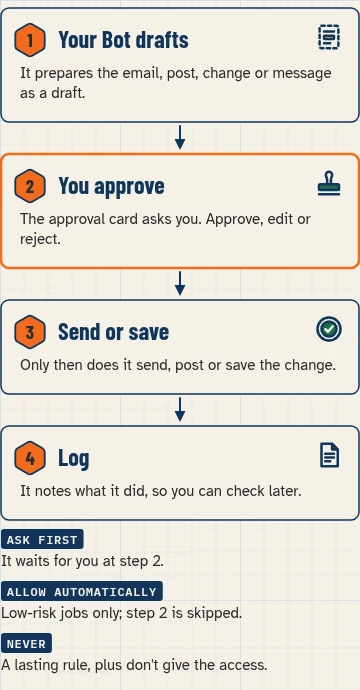
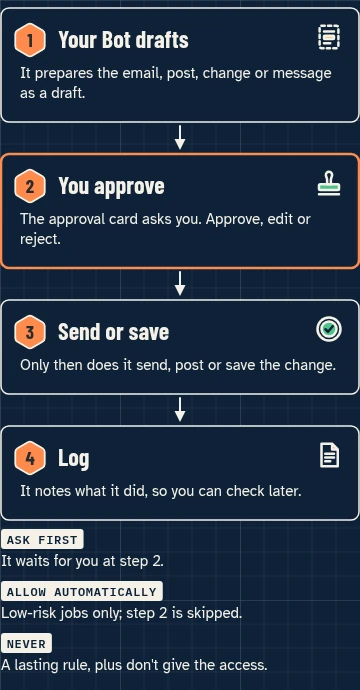
You list your Bot’s jobs and mark each one Ask first, Allow automatically or Never. The tool gives you two things:
- A checklist of your choices.
- Lasting-rule text you can paste into your Bot’s chat.
It’s for anyone about to let a Bot work with real email, files or customer data.
How the three choices map to Grok Bot
Grok Bot’s Auto Review has only two kinds of Custom Rule: Allow automatically and Ask first. If both kinds match an action, Ask first wins (source). There’s no “Never” setting.
So the planner handles each choice like this:
| Your choice | Where it goes |
|---|---|
| Ask first | An Ask first Custom Rule in Auto Review |
| Allow automatically | An Allow automatically Custom Rule. The automated review can still stop the action if it finds another reason (source). |
| Never | Two things together: a lasting rule the Bot remembers, and not giving the Bot the access in the first place |
Why both for Never? The docs say memory isn’t the source of truth. Back important limits with approvals and Auto Review (source). The surest “never” is an app, login or permission the Bot doesn’t have.


How to use it
- List each job your Bot does, one per line. For example: “draft replies to customer emails”.
- Mark each job Ask first, Allow automatically or Never. When unsure, choose Ask first.
- Copy the lasting-rule text, paste it into your Bot’s chat, and ask the Bot to remember it.
- In the app, open Settings → General, under Bot, then Custom Rules, and add your Ask first and Allow automatically rules (source).
- For each Never job, remove or don’t connect the access it would need.
The trust ladder
On Bot Agents 24 we teach a trust ladder: start with jobs where the Bot reads and drafts, then allow more only after it has done the job well for a while. This is our own teaching framework, not an xAI feature or rule. The planner’s default for anything new is Ask first.
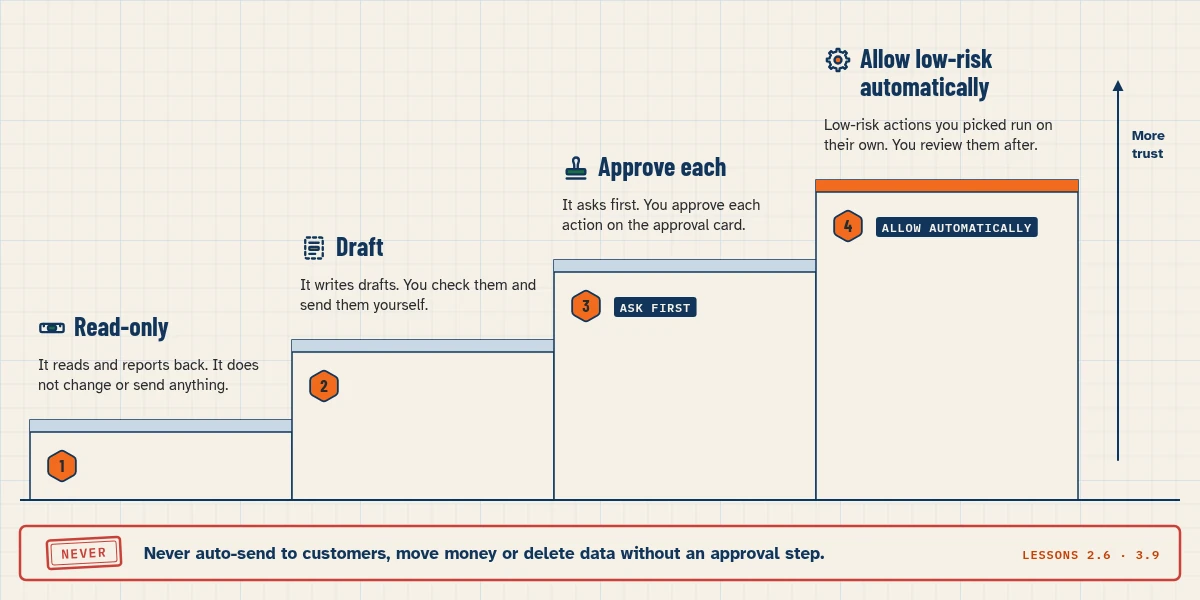
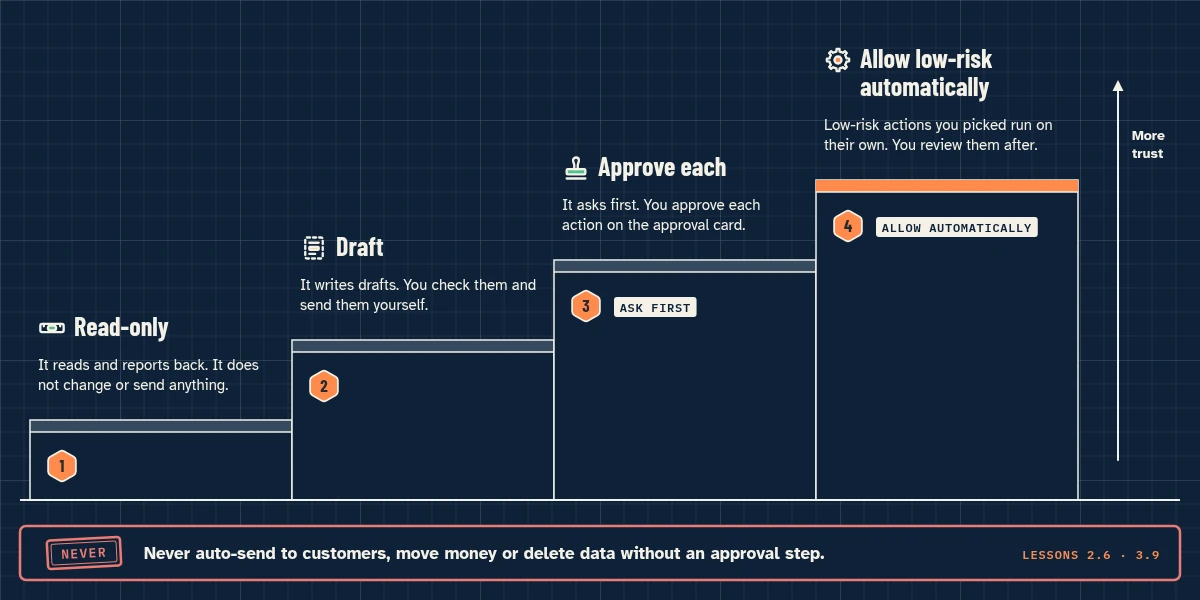
- Read-only. It reads and reports back. It does not change or send anything.
- Draft. It writes drafts. You check them and send them yourself.
- Ask first: approve each. It asks first. You approve each action on the approval card.
- Allow automatically: auto-send low-risk. Low-risk actions you picked run on their own. You review them after.
- Never: never auto-send to customers, move money or delete data without an approval step.
Runs in your browser only. Nothing you type is sent anywhere; answers are saved in this browser until you clear them.
Your privacy
This tool runs in your browser only. There are no form submissions, no accounts and no analytics on what you type, and it collects no personal data. Anything it remembers is kept in your browser’s local storage, with a visible Clear button. If JavaScript is off, you see the same content as a readable list or table.
FAQ
Is there a "Never" button in Auto Review?
No. Custom Rules are either Allow automatically or Ask first (source). A “Never” is a remembered rule plus limited access.
What if an Ask first rule and an Allow automatically rule both match?
Ask first wins (source).
How many rules can I add?
The docs say up to 20 of each kind, each up to 1,000 characters (source).
Does approving a card undo anything already done?
No. Approving doesn’t undo work that has already happened (source). Plan your Ask first rules before the Bot starts work.
Should I let my Bot send emails automatically?
We don’t recommend it. Keep sending on Ask first. By default, Bots draft outgoing email and Slack messages for your review (source).
Related lessons
- How to set approvals and Auto Review (lesson 2.6)
- How to give a Bot its role and lasting rules (lesson 1.8)
- How to connect your apps (lesson 2.2)
- Security (lesson 3.9)
Sources
- Approvals, security and privacy: https://docs.x.ai/grok-bot/approvals-security-and-privacy (fetched Nov 4, 2026, morning IST)
- Bots: https://docs.x.ai/grok-bot/bots (fetched Nov 4, 2026)
- Chat and collaboration: https://docs.x.ai/grok-bot/chat-and-collaboration (fetched Nov 4, 2026)