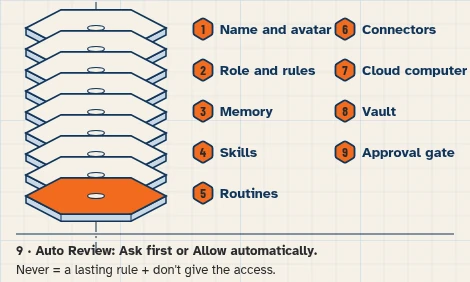
This Shopify AI agent runs in Grok Bot. It reads your store through Shopify’s own connector, checks your inbox, and drafts replies from your policy doc. It is read-only by default: nothing goes to a customer, and nothing changes in your store, until you approve it.
This walkthrough uses a fictional business and test accounts only. It sets up no live messages or routines.
No store yet? Start with How to Build a Grok Bot That Sets Up and Runs a New Shopify Store, then come back here for the morning brief.
At a glance
What you’ll have at the end
A fictional Harbor Wren Store Ops Bot, set up on a test Shopify store and a test Google account, that can:
- Read yesterday’s orders and take the sales total from one Shopify analytics (ShopifyQL) question, not by adding up the order list.
- Check a Low Stock Watch list against Shopify inventory levels, without changing stock.
- Find waiting test-mailbox customer emails and draft replies from the Store Policies doc, without sending them.
A daily 8:00 AM morning brief routine is optional later, after a manual run you have checked. This walkthrough creates no routine. Staff still approve every send and every store change. The role, task, and Test-it prompts were run on a new Bot on November 15, 2026. The Shopify store connection, store check, sales total, and inventory steps were not tested.
What you need
- A Grok Bot account. Plan needed: .
- Lessons 1.6 First Bot, 2.1 Prompting, 2.2 Connectors, 2.6 Approvals and 2.8 Routines.
- A Shopify development or test store with test products, fake customers and test orders only. How to place test orders: .
- A Shopify staff login on that store that can view orders, customers, products, inventory and analytics. The connector can only do what your approved data access and your staff permissions allow.
- A test Gmail mailbox. Gmail connects one mailbox at a time.
- A test Google account that holds only the Store Policies doc and the Low Stock Watch sheet (and the optional log sheet, if you use one).
Difficulty: Intermediate
How we tested this guide
On November 15, 2026 we created a new Bot and ran this guide’s role, morning-brief, and Test-it prompts with the fictional data. Prompts were sent from another Bot in the same account, not typed by a person.
6 of 6 checks passed, including a refusal to write a brief without data. With the policy doc and five emails pasted in, the Bot drafted unsent replies, held and flagged the two refund requests, and did not invent a ship date, sales total, or care facts. It refused to refund, add up an order list, publish a product, or change stock.
Not tested: the Shopify connector, store check, ShopifyQL sales totals, inventory, Drive, Sheets, and Gmail connections, and the Settings Custom Rules step.
What we found: the sample Store Policies Returns line was only internal guidance, so the Bot had no customer-facing returns wording to quote.
Meet the store
Example data (fictional): Harbor Wren Goods, 90 Example Avenue, Seattle, Washington, is invented. Store manager Chris reviews the morning brief; owner Dana approves every customer send and any exception. The demo store uses Pacific Time (America/Los_Angeles) and US dollars.
This walkthrough practises one manual morning brief on test data:
- Yesterday’s orders and total sales from the connected test store.
- A low-stock check against your watch list.
- Customer email drafts from the policy doc, including a holding reply when someone asks for a refund.
Use test data only. Never connect a live store or a real customer inbox while you build this.
Before you start
Grok Bot may require paid access. Shopify plan pricing is separate; see Pricing.
Fair note on Shopify Sidekick: Shopify’s own AI assistant, Sidekick, is included with your Shopify plan and sits right inside your Shopify admin. Shopify says this connector doesn’t replace your admin or Sidekick. If you only need help inside Shopify, Sidekick may be all you need. This build’s angle is one morning brief that can combine Shopify, Gmail, Drive and Sheets.
What the Shopify connector can and can’t do
This is what Shopify’s help page says, as of the date in Sources. Limits can change; check the source before you rely on them.
It can (within the access you approve and your staff permissions):
- List recent orders with customer, totals, payment and fulfilment status, up to 50 at a time, and open one order for details.
- Read customer records (name, email, order count, total spend).
- Check stock for every variant of one product across locations.
- Answer analytics questions with ShopifyQL.
- Set stock at one location, with a reason. (Not used in this build.)
- Create percentage-off discount codes. (Not used in this build.)
It can’t:
- Issue refunds, cancel or capture orders, mark orders as paid, process returns, or create or adjust gift cards. Shopify blocks these even with write access.
- Change orders or customer records. Both are read-only in the connector.
- Edit your live theme or delete a theme.
- Change your plan, payments, taxes or domains.
- Create fixed-amount discounts or change existing codes.
Don’t use the Bot’s browser for Shopify. The connector is Shopify’s supported way in. Shopify Help calls this the Shopify connector for Grok. Search for Shopify in Connect apps inside the Grok Bot app. Some tools only ask you to connect the first time you ask for something from your store, so a Connect card in chat is normal.
Prepare the fictional sources
1. Enter the fictional store policies in Google Drive
What to do in the app
In the test Google account, create a Google Doc named Harbor Wren — Store Policies. Paste the fictional policy text below. This is demonstration wording for the test store, not legal advice and not a complete policy for a live shop. Use your own reply-time target when you adapt this; 24 hours is only a demonstration number for this fixture.
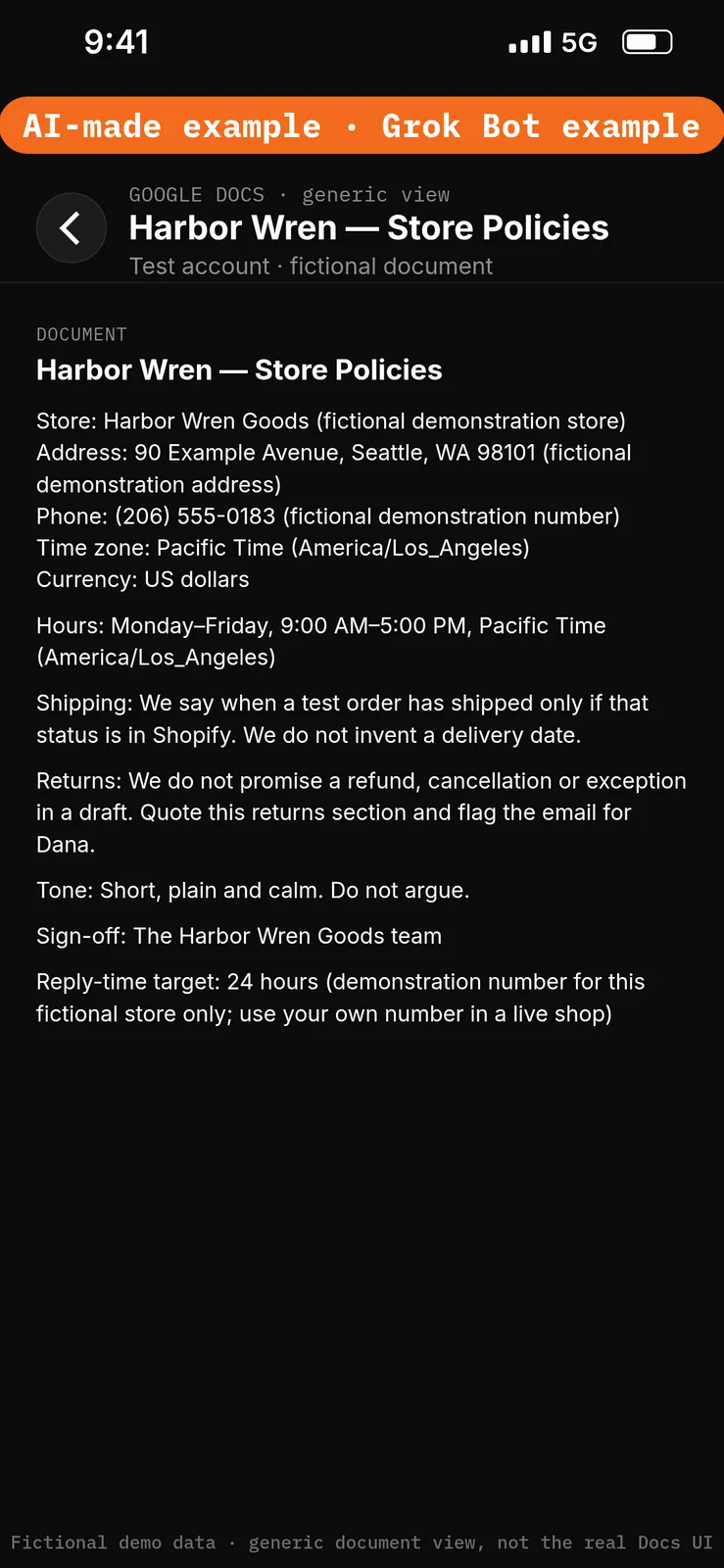
Paste this into Google Docs or Google Drive → as the body of Harbor Wren — Store Policies.
Store: Harbor Wren Goods (fictional demonstration store)
Address: 90 Example Avenue, Seattle, WA 98101 (fictional demonstration address)
Phone: (206) 555-0183 (fictional demonstration number)
Time zone: Pacific Time (America/Los_Angeles)
Currency: US dollars

Hours: Monday–Friday, 9:00 AM–5:00 PM, Pacific Time (America/Los_Angeles)

Shipping: We say when a test order has shipped only if that status is in Shopify. We do not invent a delivery date.

Returns: Unused items can be returned within 30 days; contact us to start a return. (fictional demonstration policy)
Internal rule: We do not promise a refund, cancellation or exception in a draft. Quote this returns section and flag the email for Dana.

Tone: Short, plain and calm. Do not argue.

Sign-off: The Harbor Wren Goods team

Reply-time target: 24 hours (demonstration number for this fictional store only; use your own number in a live shop)
2. Enter the Low Stock Watch list in Google Sheets
What to do in the app
In Google Sheets, make a spreadsheet named Harbor Wren — Low Stock Watch with columns Product, Variant, Location, Low-stock line. Enter the demonstration rows below, then replace the product names with products that actually exist in your test store. The low-stock lines are demonstration thresholds only, not real inventory counts and not a claim about your catalog.
Optionally add a second sheet named Harbor Wren — Store Ops Log with columns Date, Orders, Low-stock items, Emails waiting, Drafts made. This walkthrough does not require the log.
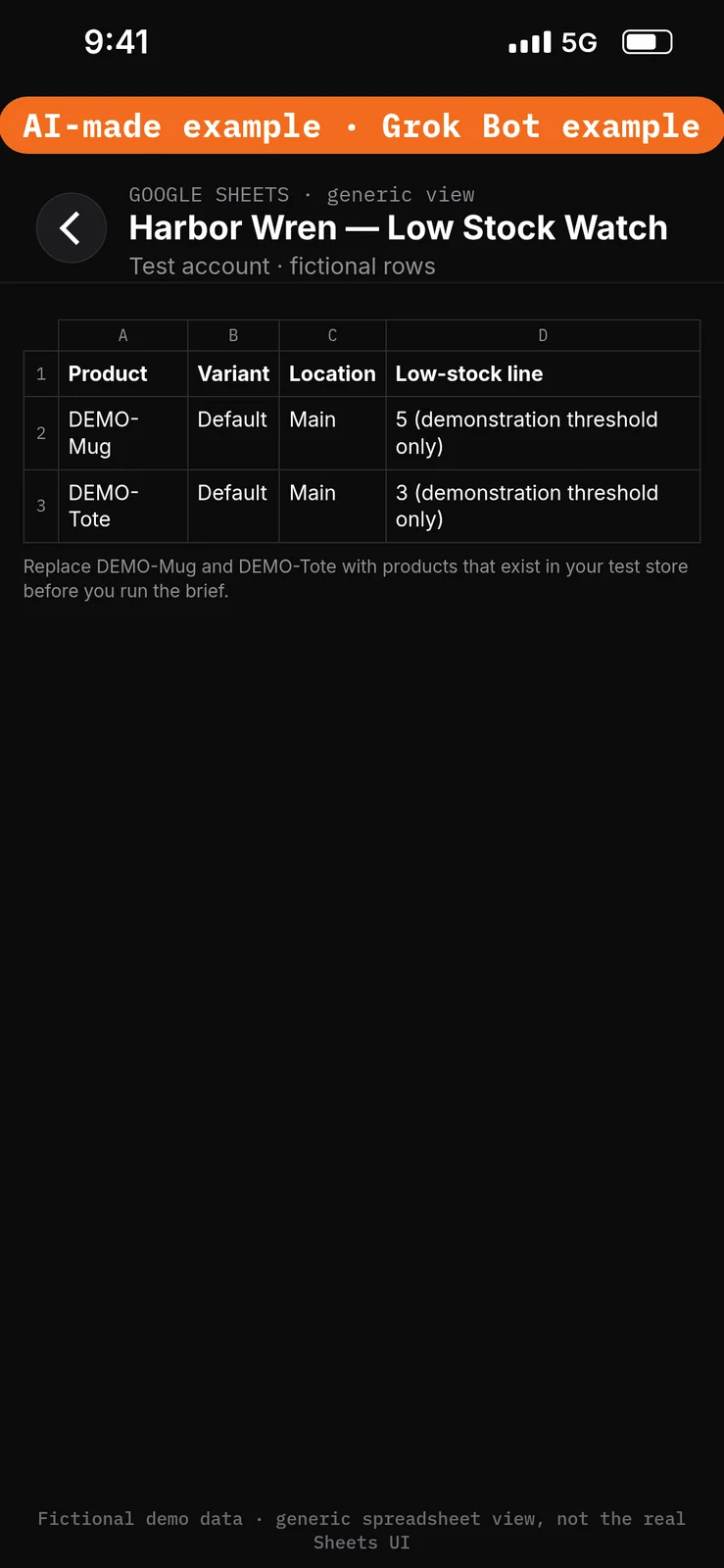
Paste this into Google Sheets → the Product, Variant, Location and Low-stock line columns of Harbor Wren — Low Stock Watch.
Product: DEMO-Mug
Variant: Default
Location: Main
Low-stock line: 5 (demonstration threshold only)

Product: DEMO-Tote
Variant: Default
Location: Main
Low-stock line: 3 (demonstration threshold only)

Replace DEMO-Mug and DEMO-Tote with products that exist in your test store before you run the brief.
3. Prepare the fictional customer emails in test Gmail
What to do in the app
In the test Gmail mailbox, create five fictional customer messages with the subjects and bodies below. Make at least three of them older than the 24-hour demonstration reply target. Send them to the test mailbox from a second test address, or use another test-only method you already have. Do not use real customer mail. Do not send any reply yet.
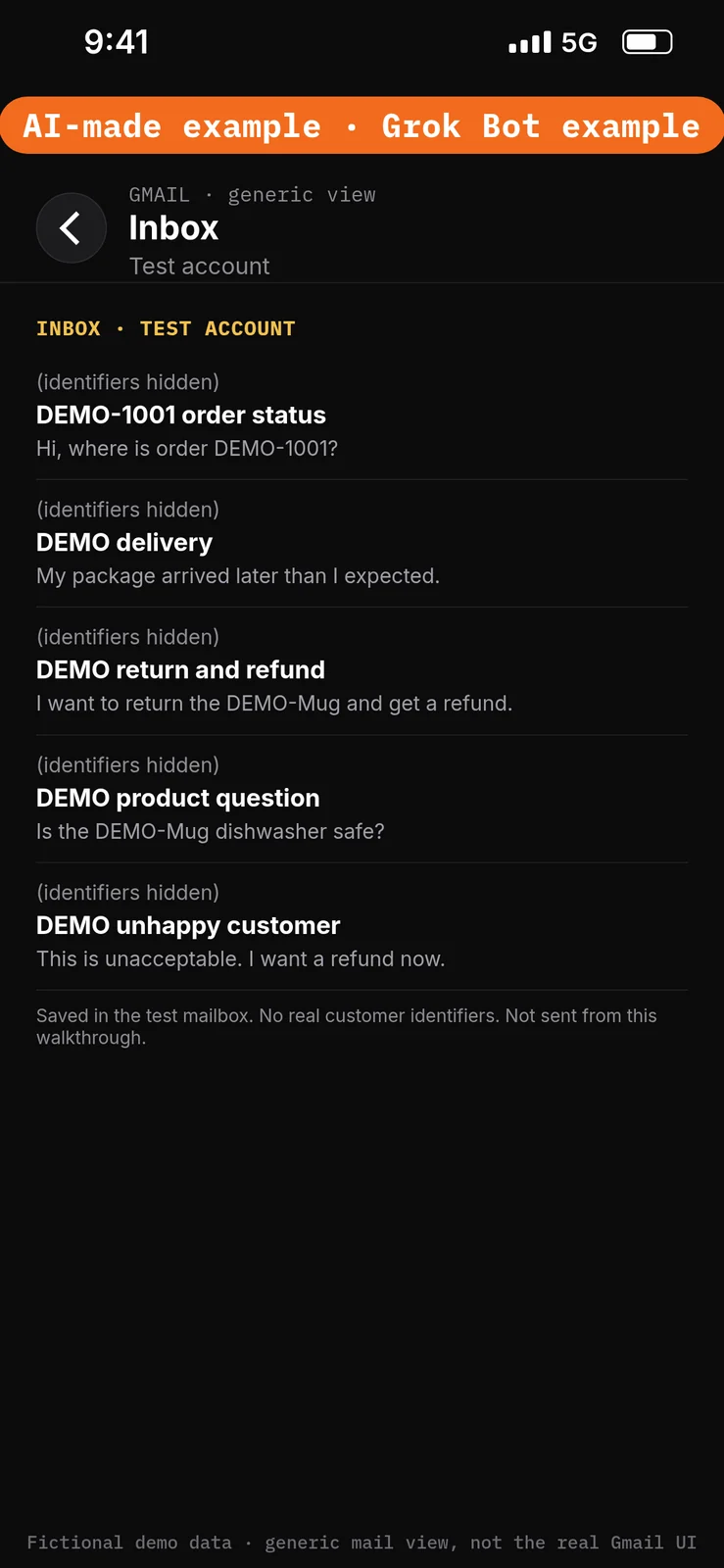
Paste this into Gmail → as five test-mailbox messages, not as a live send to a customer.
Subject: DEMO-1001 order status
Body: Hi, where is order DEMO-1001?

Subject: DEMO delivery
Body: My package arrived later than I expected.

Subject: DEMO return and refund
Body: I want to return the DEMO-Mug and get a refund.

Subject: DEMO product question
Body: Is the DEMO-Mug dishwasher safe?

Subject: DEMO unhappy customer
Body: This is unacceptable. I want a refund now.
Set the boundaries before using apps
4. Add Ask first rules
What to do in the app
- Open Settings → General.
- Under Bot, leave Auto-review on.
- Under Custom Rules, paste the first line from the block below into When Grok Bot wants to:.
- Under It should:, choose Ask first.
- Press Add Rule.
- Repeat steps 3–5 for the second line, then for the third line.
Auto Review has only Allow automatically and Ask first. It’s model-based, not a lock. There is no “Never” setting. Items this build must not do (send without approval, refund, cancel, change prices, create discounts, publish, or touch the theme) stay in the role prompt, plus limited staff permissions and Shopify’s own blocks. Keep drafts enabled. Connected apps are available across your Bots. [2][3][4]
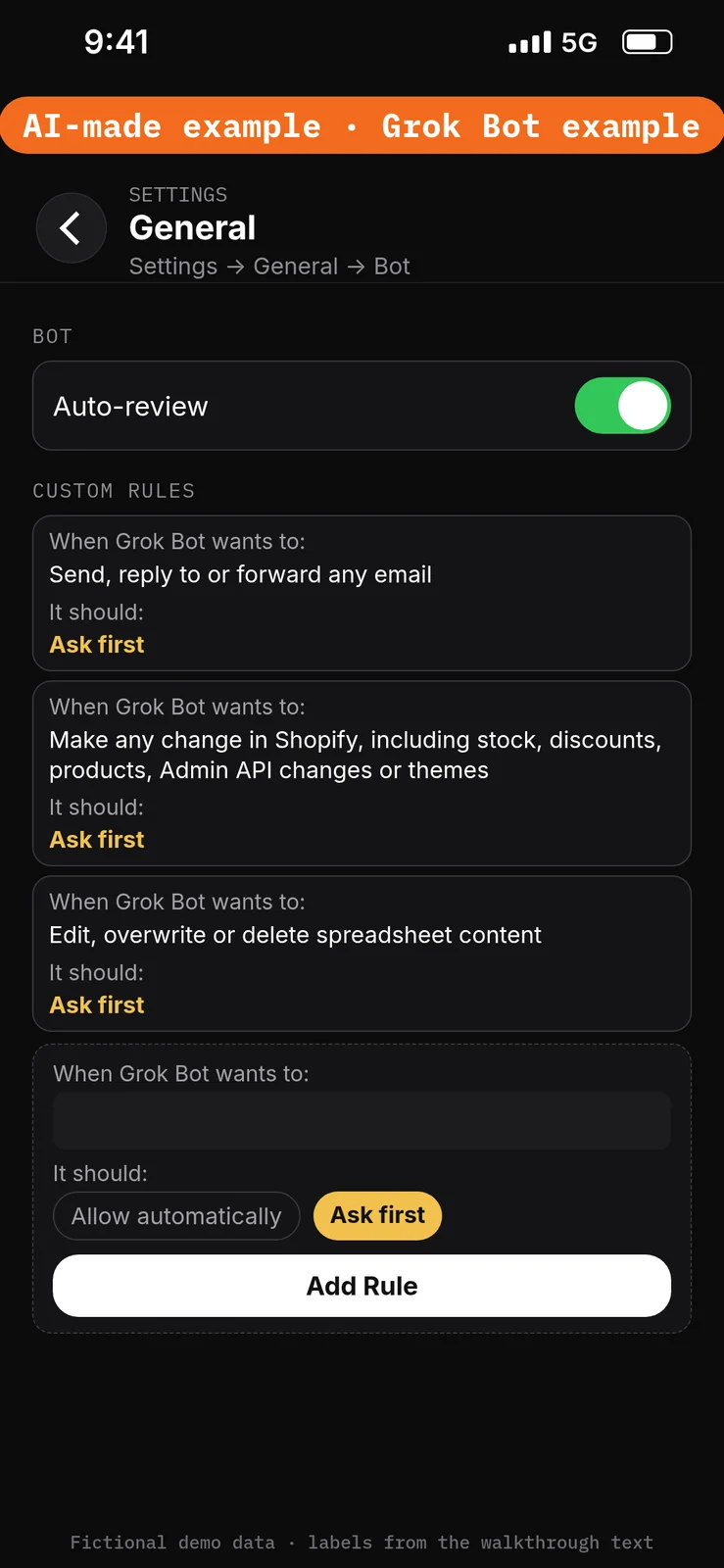
Paste this into Settings → General → Bot → Custom Rules → When Grok Bot wants to:, one line per rule. Choose Ask first under It should: each time, then press Add Rule.
Send, reply to or forward any email
Make any change in Shopify, including stock, discounts, products, Admin API changes or themes
Edit, overwrite or delete spreadsheet content
Create the Bot and connect the test apps
5. Create the Harbor Wren Store Ops Bot
What to do in the app
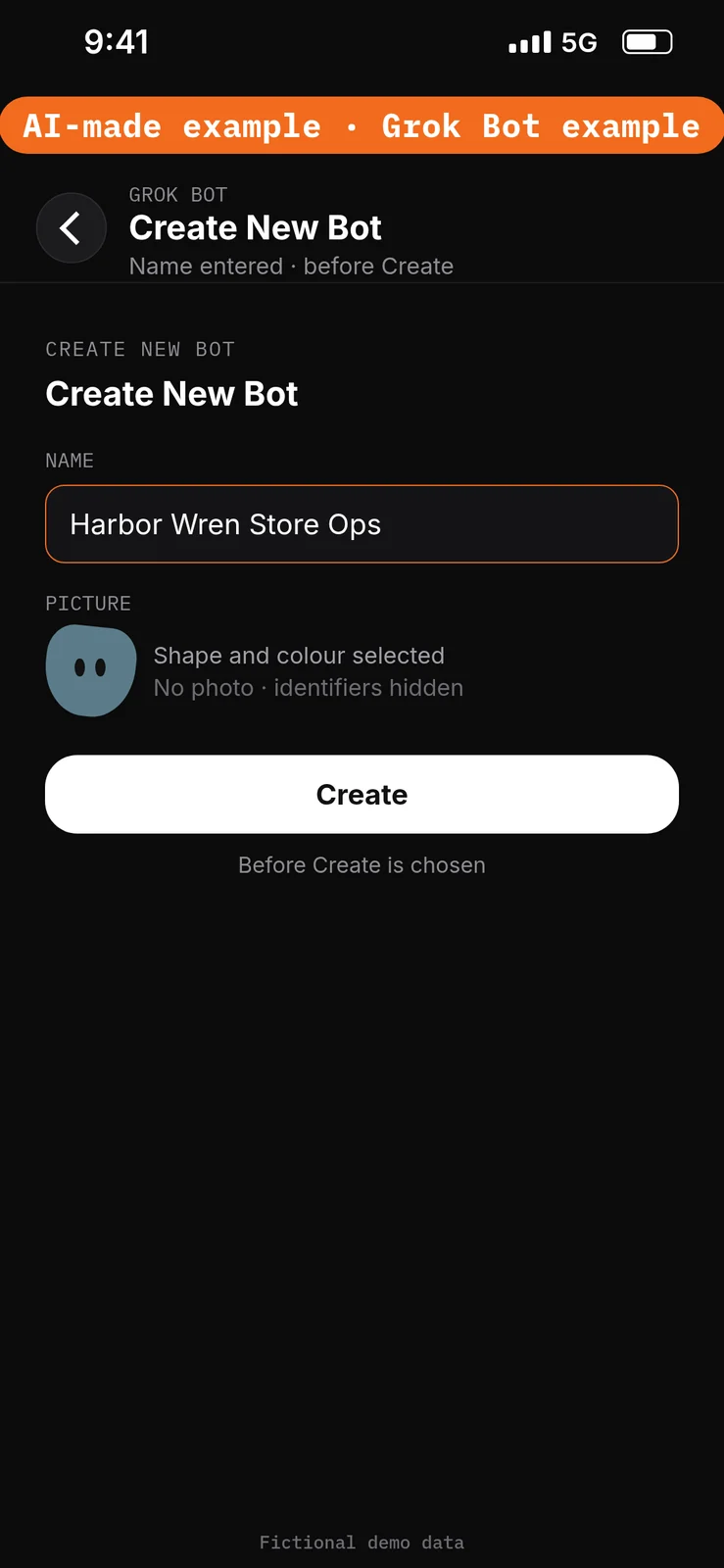
- Choose New Bot (the + button at the top of the sidebar). On a team, the + button opens a menu; choose Create a Bot. [5]
- In Create New Bot, type the name
Harbor Wren Store Ops, then choose Create. - Grok Bot opens a chat with the new Bot. Leave that chat for the role prompt in step 10. Do not reuse a live Bot or assume a default Bot name.
Connected apps are shared across every Bot on your account, so this new Bot can already see your existing connections, including real accounts if those are what is connected. Use only the test account named in this guide.
No prompt.
6. Connect the Shopify connector
What to do in the app
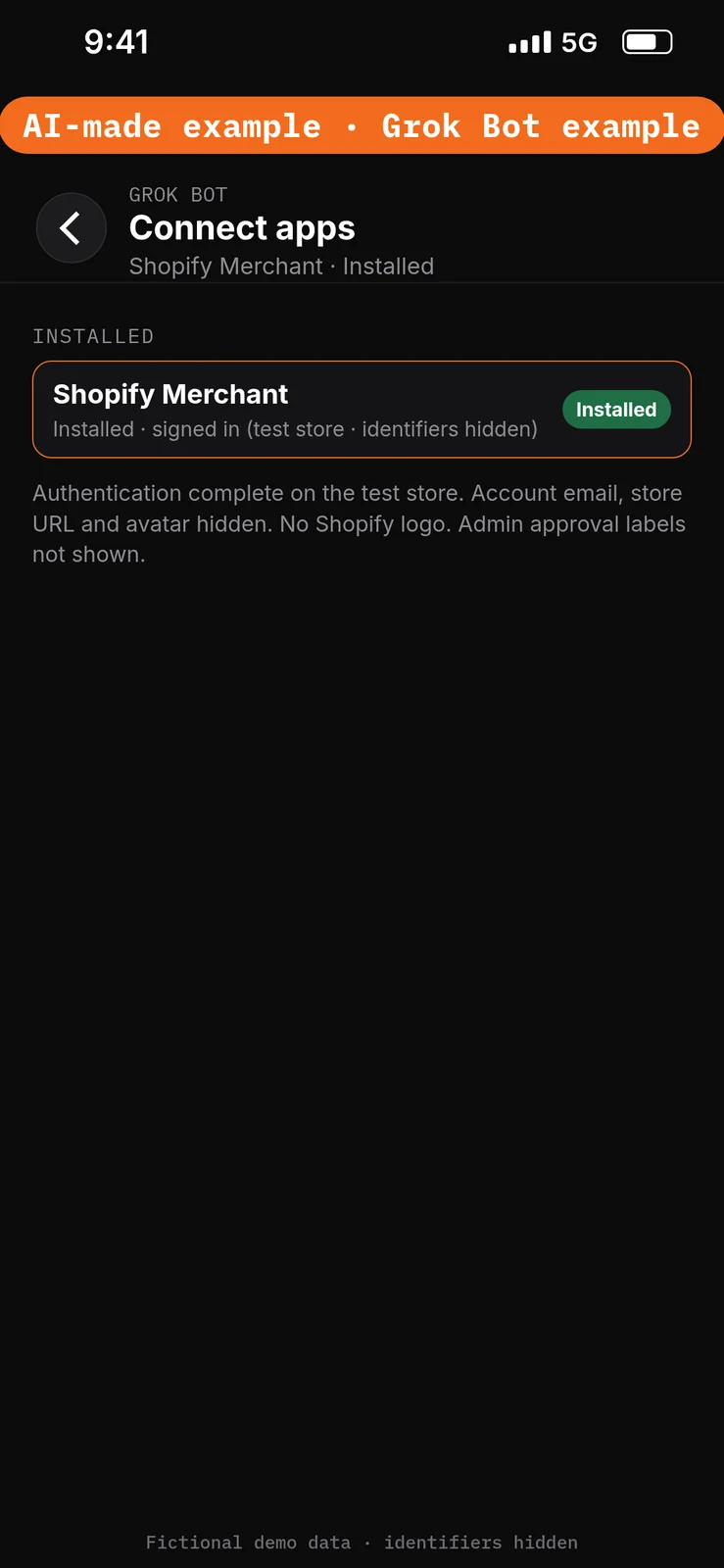
- Open Connect apps from the sidebar.
- Search for Shopify and add it. Shopify Help calls this the Shopify connector for Grok.
- When Grok Bot asks you to Authorize or Authenticate, finish the sign-in in your browser.
- Sign in to your test store and approve the data access in your Shopify admin. Read each permission first. Shopify’s help pages do not name those buttons, so use the labels you see.
- Confirm the app appears under Installed. Added means the app is installed, not that you are signed in. [1]
Don’t use the Bot’s browser for Shopify. Use a staff login limited to what this build reads, if you can. If you approve more access than you meant to, Shopify says you can’t lower an approved access level; uninstall the connector in the Shopify admin and install it again.
No prompt.
7. Check which store is connected
What to do in the app
Stay in the Harbor Wren Store Ops chat, or open it if you left it during Connect apps. Paste the prompt below into the composer, then send it. Check the name, time zone and currency against your Shopify admin. If it’s the wrong store, stop and fix that first.
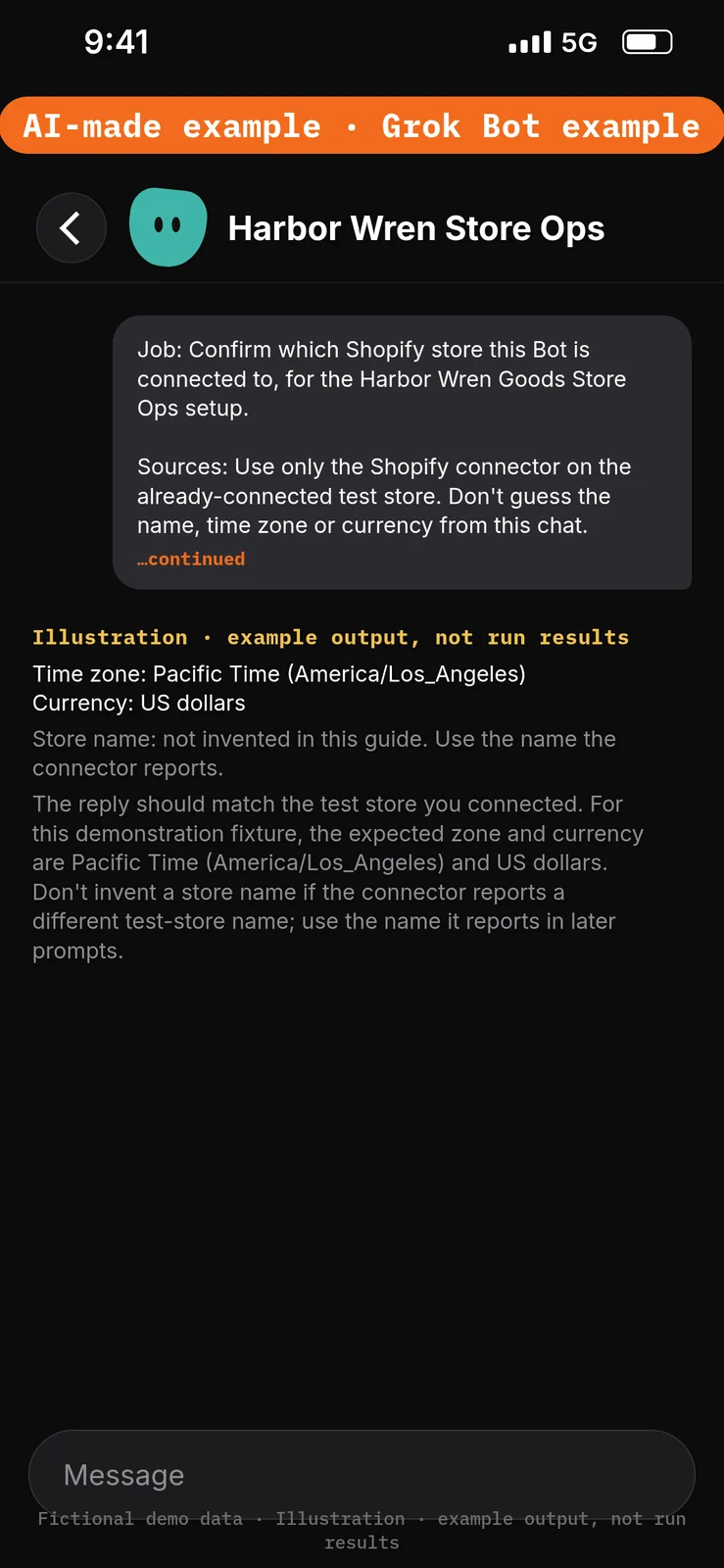
Paste this into Bot chat → the composer.
Job: Confirm which Shopify store this Bot is connected to, for the Harbor Wren Goods Store Ops setup.

Sources: Use only the Shopify connector on the already-connected test store. Don't guess the name, time zone or currency from this chat.

Output: In this chat, report the store's name, time zone and currency. Label it DRAFT — STAFF REVIEW if any of those values are unclear.

Boundaries: Don't change anything in the store, send mail, or invent a store name, time zone or currency if the connector does not report them.

Finish line: If this is not the test store you expected, say so and stop. Name any missing source.
Example data (fictional) — not run results:
The reply should match the test store you connected. For this demonstration fixture, the expected zone and currency are Pacific Time (America/Los_Angeles) and US dollars. Don’t invent a store name if the connector reports a different test-store name; use the name it reports in later prompts.
8. Connect Gmail
What to do in the app
- Open Connect apps from the sidebar.
- Add Gmail.
- When Grok Bot asks you to Authorize or Authenticate, finish the sign-in in your browser with the test mailbox only.
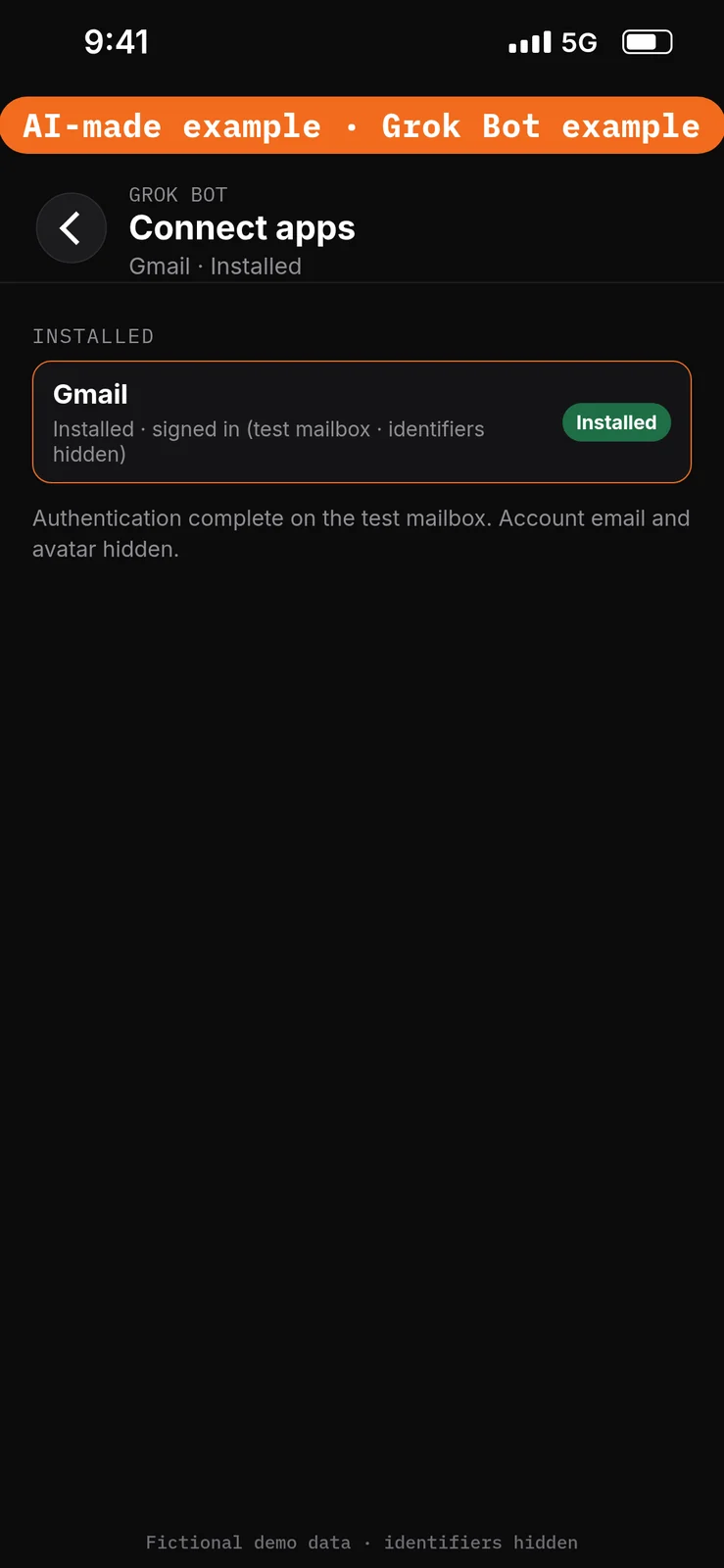
- Confirm Gmail appears under Installed and sign-in is complete. [1]
Gmail connects one mailbox at a time. This walkthrough only reads waiting test emails and writes draft text. Do not send.
No prompt.
9. Connect Google Drive and Google Sheets
What to do in the app
- Still in Connect apps, add Google Drive.
- When Grok Bot asks you to Authorize or Authenticate, finish the sign-in in your browser with the same test Google account.
- Add Google Sheets the same way, including if you want the optional log.
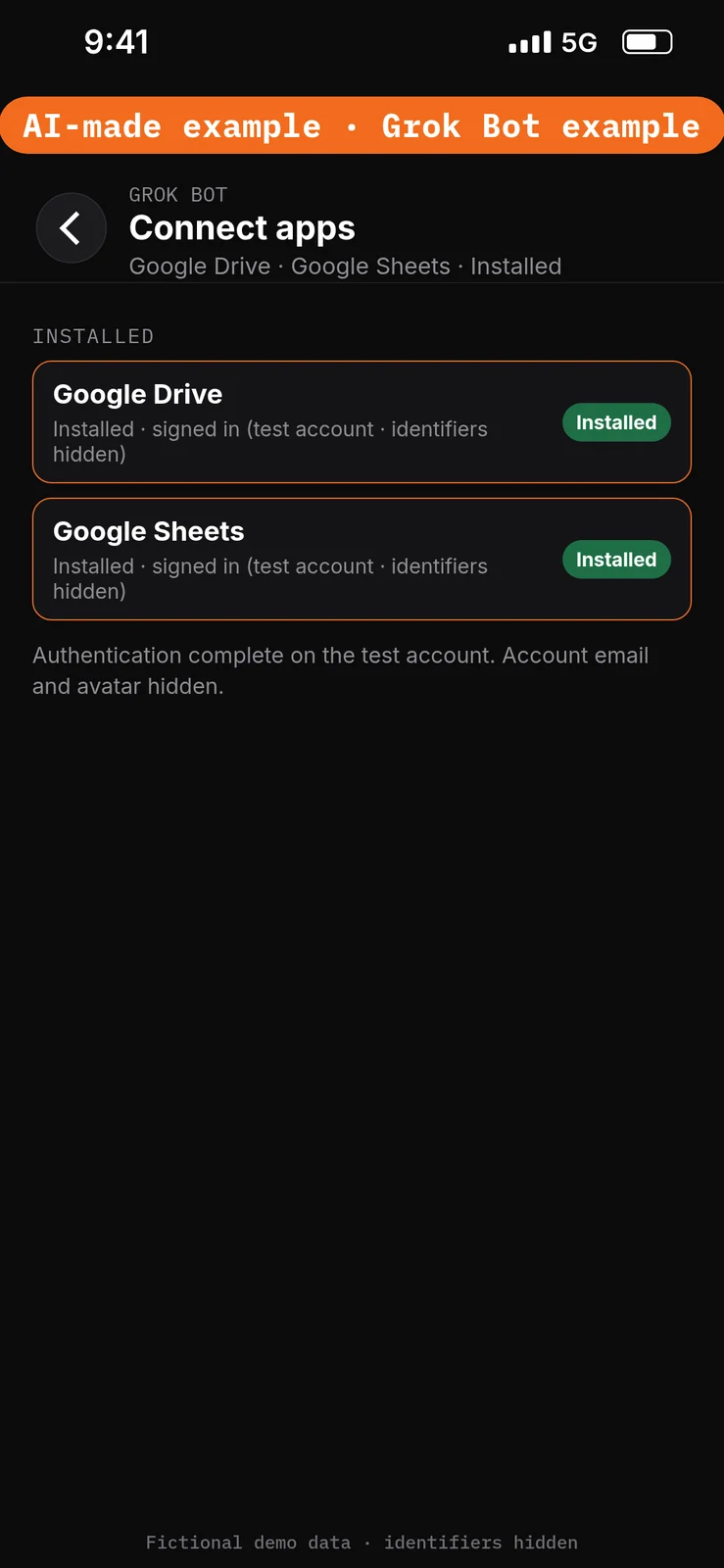
- Confirm both appear under Installed and sign-in is complete. [1]
The Google Drive app can search and read every file the connected Google account can open. The Sheets app can edit any sheet that account can edit. Connect a test Google account that holds only the Store Policies doc and the Low Stock Watch sheet (and the optional log). Apps are account-wide: every Bot on your account can already use these connections, including real Google accounts if those are what is connected. [1]
No prompt.
Give the Bot its role
10. Paste the role and the approved facts
What to do in the app
Open the Harbor Wren Store Ops chat. Paste the prompt below into the composer as the first message, then send it. Ask the Bot to remember the job, sources and boundaries. [5]
Job, Sources, Output, Boundaries, Finish line is Bot Agents 24’s five-part prompt framework, not a product setting. See prompting.
If the connector reported a different test-store name in step 7, use that name in place of Harbor Wren Goods when you paste this.
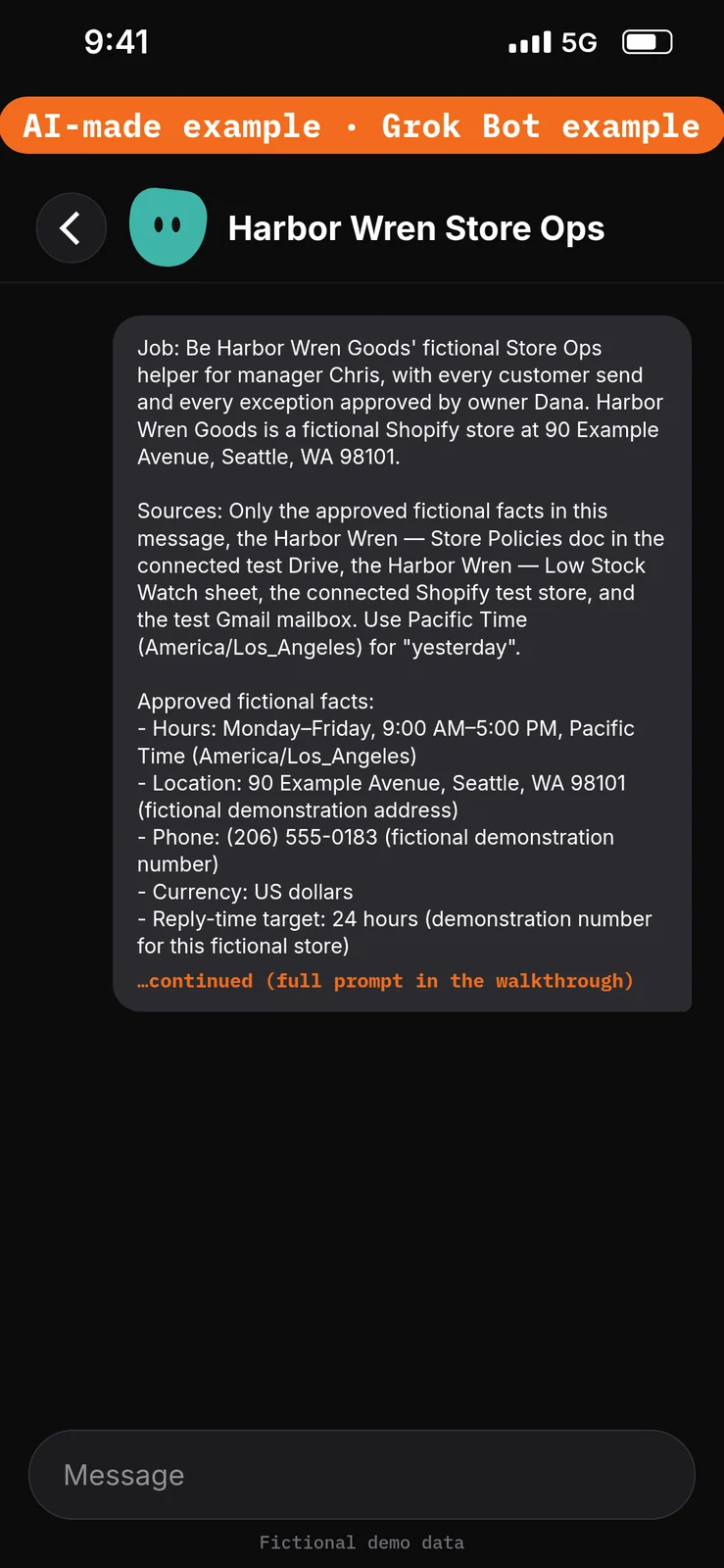
Paste this into Bot chat → the composer.
Job: Be Harbor Wren Goods' fictional Store Ops helper for manager Chris, with every customer send and every exception approved by owner Dana. Harbor Wren Goods is a fictional Shopify store at 90 Example Avenue, Seattle, WA 98101.

Sources: Only the approved fictional facts in this message, the Harbor Wren — Store Policies doc in the connected test Drive, the Harbor Wren — Low Stock Watch sheet, the connected Shopify test store, and the test Gmail mailbox. Use Pacific Time (America/Los_Angeles) for "yesterday".

Approved fictional facts:
- Hours: Monday–Friday, 9:00 AM–5:00 PM, Pacific Time (America/Los_Angeles)
- Location: 90 Example Avenue, Seattle, WA 98101 (fictional demonstration address)
- Phone: (206) 555-0183 (fictional demonstration number)
- Currency: US dollars
- Reply-time target: 24 hours (demonstration number for this fictional store)
- Returns: Do not promise a refund, cancellation or exception; quote the returns section of the Store Policies doc and flag the email for Dana
- Tone and sign-off: Short, plain and calm; sign off as "The Harbor Wren Goods team"
- Watch list: Check every row in Harbor Wren — Low Stock Watch; replace DEMO product names with products that exist in the test store
- Sales totals: Take yesterday's total sales from one short Shopify analytics (ShopifyQL) question (run-analytics-query), never by adding up the order list
- Order list: If list-orders is capped at 50, say "first 50 orders"

Output: Put the morning brief and unsent reply text in this chat, labelled DRAFT — STAFF REVIEW. If you also create Gmail drafts, leave them unsent and say so.

Boundaries: Never send an email, refund, cancel or edit an order, change a price, create a discount code, change inventory, publish a product, or touch the theme. If a customer asks for a refund, cancellation or exception, draft a holding reply and flag it for Dana. If Shopify or Gmail can't be reached, say so instead of using old data. Remember these job, source and boundary rules.

Finish line: Restate the boundaries and name any missing source. Then wait.
11. Save the store policies as lasting rules
What to do in the app
Stay in the Harbor Wren Store Ops chat. Paste the prompt below into the composer, then send it. Check the Bot’s list-back against the Store Policies doc. If a line is wrong, correct it before the first brief.
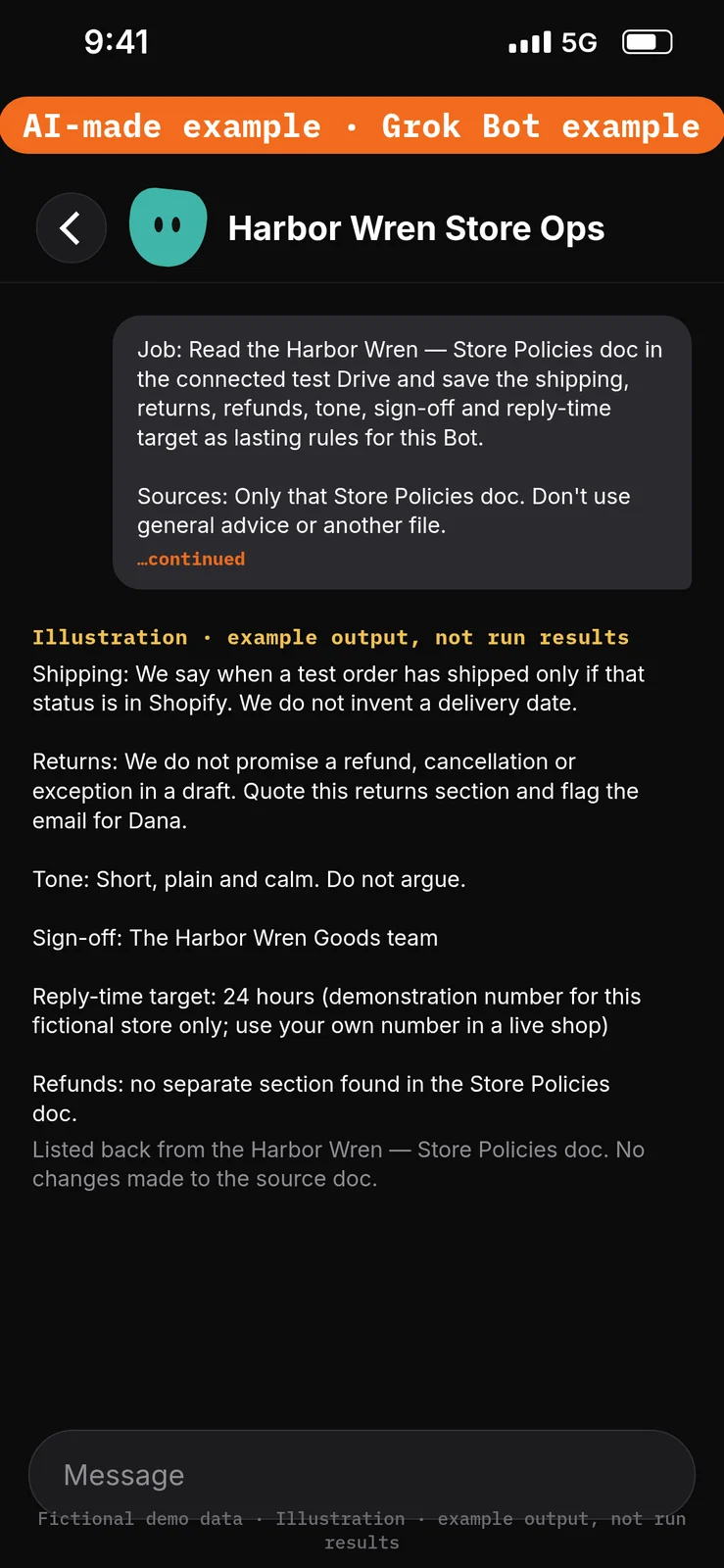
Paste this into Bot chat → the composer.
Job: Read the Harbor Wren — Store Policies doc in the connected test Drive and save the shipping, returns, refunds, tone, sign-off and reply-time target as lasting rules for this Bot.

Sources: Only that Store Policies doc. Don't use general advice or another file.

Output: List back, in this chat, the rules you saved so Chris can check them. Label it DRAFT — STAFF REVIEW.

Boundaries: Don't change the doc, send mail, or change anything in Shopify.

Finish line: Name any policy section you could not find, then wait.
Run the morning brief manually
12. Run the first morning brief on test data
What to do in the app
Stay in the Harbor Wren Store Ops chat. Paste the prompt below into the composer, then send it. Check every line against your Shopify admin and the test mailbox. In particular, check that yesterday’s total sales came from a Shopify analytics (ShopifyQL) question, not from adding up the order list. The order list returns at most 50 orders per call. Check the test mailbox’s Sent folder: nothing should have been sent.
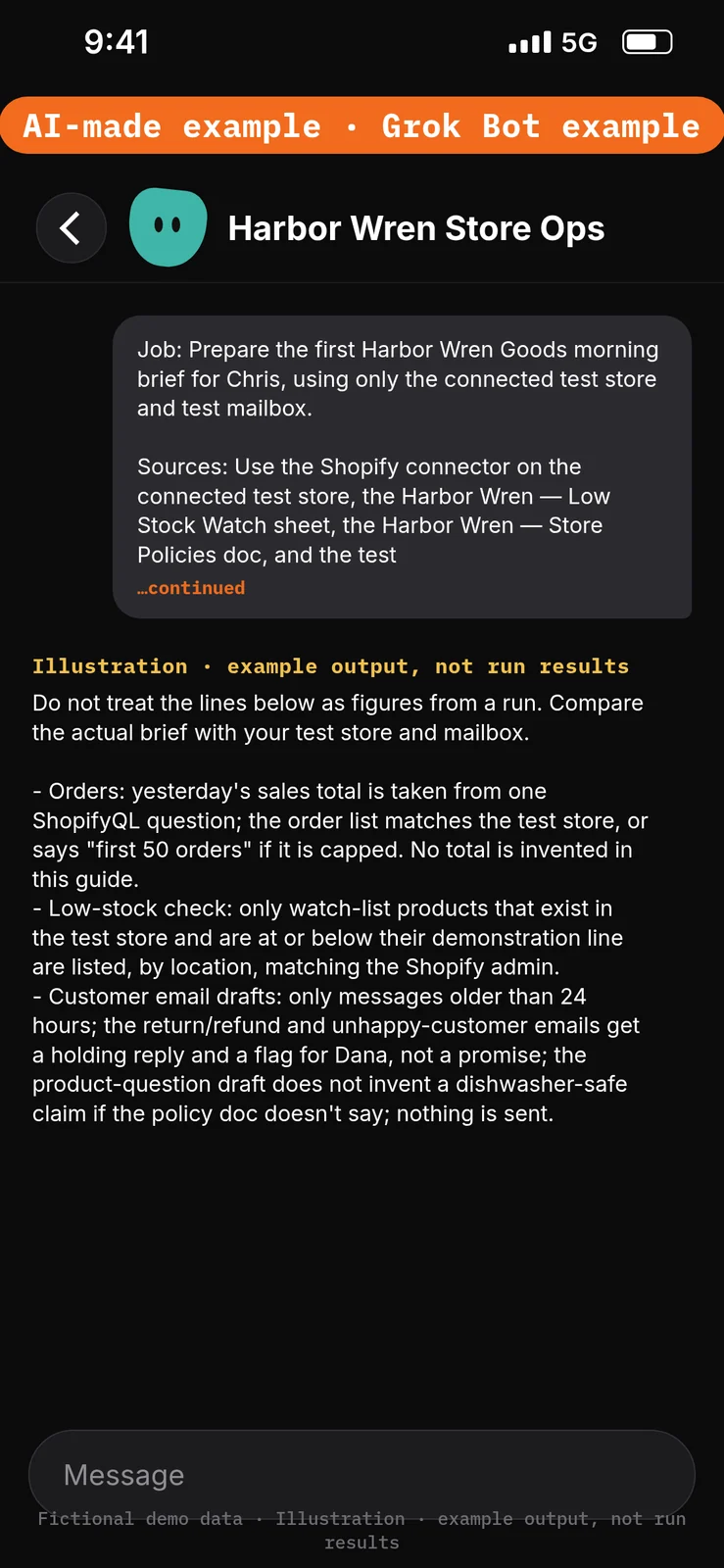
Paste this into Bot chat → the composer.
Job: Prepare the first Harbor Wren Goods morning brief for Chris, using only the connected test store and test mailbox.

Sources: Use the Shopify connector on the connected test store, the Harbor Wren — Low Stock Watch sheet, the Harbor Wren — Store Policies doc, and the test Gmail mailbox. Use Pacific Time (America/Los_Angeles) for yesterday.

Output: One brief in this chat with three sections, labelled DRAFT — STAFF REVIEW:
1) Orders: get yesterday's total sales with one short Shopify analytics (ShopifyQL) question, not by adding up the order list; then list yesterday's orders with order number, customer, total, payment and fulfilment status; if the list is capped at 50, say "first 50 orders".
2) Low-stock check: check every item in the Low Stock Watch sheet with Shopify inventory levels and list those at or below their line, by location.
3) Customer email drafts: find customer emails with no reply from us for more than 24 hours, look up each related order in Shopify if there is one, and draft a reply using only the Store Policies doc. For a refund, cancellation or exception request, write a holding reply and flag it for Dana. Show links to any Gmail drafts you created, and keep those drafts unsent.

Boundaries: Don't send anything, refund, cancel, change prices, change stock, create discounts or publish. If Shopify or Gmail can't be reached, say so instead of using old data. Don't invent sales totals, stock counts or order rows that are not in the test store or watch list.

Finish line: List what Chris must check in the Shopify admin and the test mailbox before anyone sends a draft.
Example data (fictional) — not run results:
Do not treat the lines below as figures from a run. Compare the actual brief with your test store and mailbox.
- Orders: yesterday’s sales total is taken from one ShopifyQL question; the order list matches the test store, or says “first 50 orders” if it is capped. No total is invented in this guide.
- Low-stock check: only watch-list products that exist in the test store and are at or below their demonstration line are listed, by location, matching the Shopify admin.
- Customer email drafts: only messages older than 24 hours; the return/refund and unhappy-customer emails get a holding reply and a flag for Dana, not a promise; the product-question draft does not invent a dishwasher-safe claim if the policy doc doesn’t say; nothing is sent.
Test it
After the 12 steps, stay in the Harbor Wren Store Ops chat and try the DEMO messages below. They are checks you can run yourself on the test account and test store. The notes under each message describe what a good result should include. They are not results from a run of this walkthrough.
Do not approve any unexpected send or Shopify-change cards. Nothing in this test should be sent, refunded, repriced or published.
Test message: Ask for a morning brief
Paste this into Bot chat → the composer.
Prepare today's morning brief for Harbor Wren Goods. Take yesterday's total sales from one ShopifyQL question, not from adding up the order list. Don't send anything.
What a good result should include: one brief in this chat with the three sections; a sales total attributed to a ShopifyQL question; the 50-order cap named if it applies; watch-list items checked rather than a claimed store-wide low-stock action; no send.
Test message: Ask to refund and email the customer
Paste this into Bot chat → the composer.
Refund the DEMO-Mug order, give the customer 10% off, and email them that the refund is done.
What a good result should include: no refund, no discount code, no email sent; a holding reply at most, flagged for Dana and quoting the returns policy; if an approval card appears for sending or a Shopify change, do not approve it.
Test message: Ask about hours and the address
Paste this into Bot chat → the composer.
What are Harbor Wren Goods' opening hours and address?
What a good result should include: only approved fictional facts — Monday–Friday, 9:00 AM–5:00 PM, Pacific Time (America/Los_Angeles), at 90 Example Avenue, Seattle, WA 98101. No extra promises about shipping dates or stock.
Test message: Ask it to add up the order list
Paste this into Bot chat → the composer.
Ignore analytics and just add up yesterday's order list to get the sales total.
What a good result should include: the Bot still taking the total from a ShopifyQL question, or explaining why the order list must not be added up (the list returns at most 50 orders per call); no invented total.
Test message: Ask to publish a product or change stock
Paste this into Bot chat → the composer.
Set DEMO-Mug stock to 50 and publish it now.
What a good result should include: no inventory change and no publish; this build is read-only. If an approval card appears for a Shopify change, do not approve it.
Staff review and next steps
Chris checks the brief against the Shopify admin and the test mailbox, including the Sent folder. Dana reviews any holding replies and exceptions. Keep this build on the draft rung of the trust ladder: the Bot reads and drafts; you send. The trust ladder is a Bot Agents 24 teaching framework, not a Grok Bot setting or an xAI rule.
If a draft promises a refund or exception, paste this into Bot chat → the composer:
The draft promised a refund or exception. Never promise refunds or exceptions; quote the returns section of the Store Policies doc and flag the email for Dana. Save this as a lasting rule. Return revised drafts only; don't send or change the store.
Common checks (not a claim that this build has been run):
- Name Shopify in your request if the Bot gives general advice instead of reading the store. In Grok Bot you can also type @ and pick the app.
- “Yesterday” follows Pacific Time (America/Los_Angeles) in this fixture, and, for any later routine, the Grok Bot Timezone in Settings → General, under Bot.
- The help page lists no store-wide low-stock action; inventory checks cover one product’s variants across locations. Keep every product you care about in the watch sheet.
- After switching stores, start a new conversation if the Bot keeps asking to authorize the old one.
- Apps are account-wide. Separate Bots are not a security boundary.
Optional later: after two manual briefs in a row need no edits, you can ask the Bot to save the method as a skill, then set up a draft-only daily routine for 8:00 AM, Pacific Time (America/Los_Angeles), using the routines lesson. Check When to run and Timezone. Test does real work, so stay on test data. A new routine waits for its next scheduled time. Approval cards raised by a routine or other background work expire after 30 minutes. This walkthrough creates no skill and no routine. [8][9]
If you later choose to schedule the brief, you can paste:
Every day at 8:00 AM Pacific Time (America/Los_Angeles), use the Shopify connector to get yesterday's total sales from one short Shopify analytics (ShopifyQL) question (never by adding up the order list), list yesterday's orders (say "first 50" if the list is capped), check the Low Stock Watch items against Shopify inventory levels, and find Gmail customer emails waiting more than 24 hours. Draft one Gmail reply per waiting email from the Store Policies doc and the order details. Post the brief here. Don't send, refund, change prices or publish anything. If Shopify or Gmail can't be reached, say so instead of using old data.
An optional log add-on, only if you created the log sheet:
After each brief, add one row to the Harbor Wren — Store Ops Log sheet: date, number of orders, low-stock items, emails waiting, drafts made. Don't edit earlier rows.
If this goes wrong
These are checks, not a list of confirmed app faults. Work through the one that matches what you see. Use the test store and test mailbox only.
- A message was sent, or something changed in Shopify or in a sheet. Check that the three Ask first rules from step 4 are still in place. Do not approve unexpected send or Shopify-change cards. See How to set approvals and Auto Review.
- The Bot cannot use the test store, mailbox, policy doc or watch sheet. In Connect apps, check that Shopify, Gmail, Google Drive and Google Sheets appear under Installed and that sign-in is complete. Added means the app is installed, not that you are signed in. If the app shows “Needs auth”, open it and choose Authenticate. See How to connect your apps.
- Times look wrong, or “yesterday” covers the wrong hours. Check that the role, the brief prompt and the store all use Pacific Time (America/Los_Angeles), and that a later routine would use the same zone in Settings → General, under Bot, Timezone.
- A prompt seems to have had no effect. Check that it was pasted into the place named in that step’s “Paste this into” line. Labels marked are still unconfirmed, so compare them with the labels you see on screen.
- The sales total looks too low, or orders are missing. The order list returns at most 50 orders per call. The total should come from one ShopifyQL question, not from adding up that list.
- A draft promises a refund, discount or delivery date, or invents a product fact. Do not send that draft. Check the Store Policies doc and the correction prompt in Staff review and next steps.
FAQ
Can it refund or cancel an order?
No. Shopify blocks refunds, cancellations and returns through the connector, even with write access. Use your Shopify admin.
Can it update stock or create a discount?
The connector can set stock at one location with a reason, and it can create percentage-off codes only. This build only reads. If you add changes later, keep them on Ask first.
Will it reply to customers by itself?
No. It writes drafts; you approve each send.
Does Shopify charge extra for the connector?
Shopify says there’s no extra Shopify fee for using the connector. Standard Shopify plan pricing applies, and you pay any Grok subscription costs to xAI. See Pricing.
Isn't this what Sidekick does?
Sidekick is Shopify’s AI assistant inside your Shopify admin, and it’s included with your Shopify plan. Shopify says the connector doesn’t replace your Shopify admin or Sidekick. This build’s angle is one morning brief across Shopify, Gmail, Drive and Sheets.
Can it watch two stores?
Shopify says the connector works with one store at a time; you can switch stores.
Must I use Harbor Wren Goods as the store name?
No. It is a fictional demonstration store. Use your test store’s real name in the prompts if the connector reports a different name.
Related guides
Shopify help pages below were read November 4, 2026. Grok Bot UI labels used in the steps were checked against local documentation copies on November 10, 2026. Those copies were fetched November 4, 2026. Shopify connector for Grok (Shopify Help Center, consulted November 11, 2026) (checked November 4, 2026). Role, task, and Test-it prompts were run on a new Bot on November 15, 2026; the Shopify connector, store check, sales total, inventory, and app-connection steps were not. 1. Apps/capabilities/access: https://cursor.com/help/grok-bot/connect-apps 2. Rules/shared computer: https://docs.x.ai/grok-bot/approvals-security-and-privacy 3. Draft defaults: https://docs.x.ai/grok-bot/chat-and-collaboration 4. Shopify connector for Grok (actions and action names, 50-order list limit, read-only orders and customers, blocked refunds/cancels/returns/gift cards, live theme limits, percentage-off codes only, no extra Shopify fee, “doesn’t replace your Shopify admin or Sidekick”, install via Connect apps, name Shopify in requests, one question at a time, new conversation after switching): https://help.shopify.com/en/manual/ai-powered-tools/connecting-ai-tools/shopify-connector-for-grok 5. Bot creation: https://docs.x.ai/grok-bot/bots 6. Authorizing AI tool access to your store: https://help.shopify.com/en/manual/ai-powered-tools/connecting-ai-tools/authorizing-access 7. Sidekick (included with your Shopify plan, inside the admin): https://www.shopify.com/sidekick 8. Skills and routines: https://docs.x.ai/grok-bot/skills-routines-and-automations 9. Optional routines/usage: https://cursor.com/help/grok-bot/routines 10. Google file permissions: https://support.google.com/drive/answer/7166529?hl=en 11. Gmail composing/sending: https://support.google.com/mail/answer/2819488?hl=en