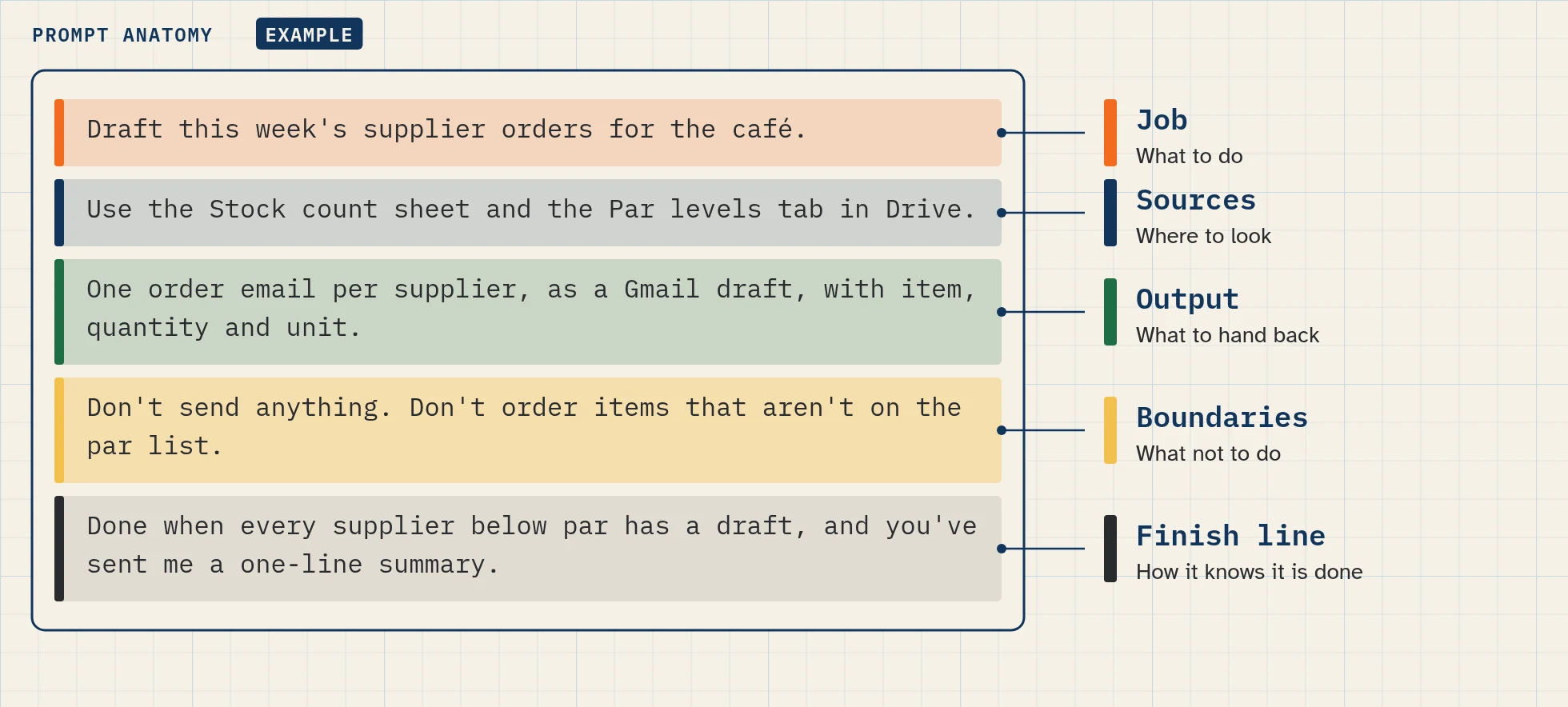
This is how to prompt Grok Bot so it gets the job right the first time. A Bot does real work across your apps and websites, so a vague request leads to guesses. A clear one has five parts. We call it the five-part formula. It’s Bot Agents 24’s own way of teaching the advice in the Grok Bot docs, not an xAI method.
What you’ll build
By the end of this lesson you will have:
- One prompt for a real task, written with all five parts.
- A before-and-after comparison: a weak prompt and the five-part version, run on test data.
- A habit for steering work in progress.
Before you start
- You have a Bot with a role and lasting rules (lesson 1.8).
- You have a small test file or sheet with made-up data, for example 10 fake customer emails pasted into a document.
- You know one real task you’d like to hand off.
The five parts at a glance


| Part | Question it answers | Example |
|---|---|---|
| Job | What result do you need? | “Sort this week’s customer emails into urgent, normal and no reply needed.” |
| Sources | Where should it look? | “Use only the ‘Inbox test’ document.” |
| Output | What should it hand back, and where? | “A table with sender, topic, group and a one-line reason, in this chat.” |
| Boundaries | What may it change, and what needs your OK? | “Don’t reply to anyone. Don’t edit the document.” |
| Finish line | When is it done, and what proof do you want? | “Stop after the table. Quote the line that made each one urgent.” |
The Grok Bot docs say a strong request states the outcome, the sources, the constraints, the deliverable and where the Bot should stop for you. The formula gives those five things short names so they’re easy to remember.
Job: lead with the result you need
Start with the result, not the clicks. “Find every overdue invoice” beats “Open the sheet, go to column D, sort by date…”. The Bot figures out the steps.
Sources: link the source of truth
Name the exact file, sheet, folder or inbox label. Paste the link or attach the file. If you don’t, the Bot may search more widely than you want, or use memory that’s out of date.
Output: format, length and where it goes
Say what shape you want: a table, five bullets, a draft email, a new sheet tab. Give a length limit. Say where to put it: in the chat, in a file, or as a draft.
Boundaries: what it may change and what needs approval
Say what’s read-only and what needs your OK. “Don’t send, don’t delete, don’t change the source file.” Your lasting rules already cover the usual limits; add anything specific to this task.
Finish line: when to stop and what evidence to show
Tell it when the job is done and what proof you want: links, a screenshot, a short log of what it did, or the quote that supports each point. Evidence makes the result quick to check.
Step by step: rewrite a weak prompt
Step 1: Write the job
Start with the weak prompt most people send:
Paste this into: Grok Bot chat, message box.
Look at my emails and deal with the customers.
Rewrite the first line as a result: “Sort these customer emails into urgent, normal and no reply needed.”
Step 2: Add sources
Attach your test document, or paste its link. Add: “Use only this document.”
Step 3: Set the output
Add: “Give me a table with sender, topic, group and a one-line reason.”
Step 4: Add boundaries
Add: “Don’t reply to anyone and don’t edit the document.”
Step 5: Set the finish line
Add: “Stop after the table. For each urgent email, quote the line that made it urgent.”
Step 6: Run it and compare
Send the full prompt (below). Then send the weak prompt in a new message and compare the two results. Note which one you could check faster.
Copy-paste prompts
Paste this into: Grok Bot chat, message box.
Job: sort these customer emails into urgent, normal and no reply needed.
Sources: use only the attached "Inbox test" document.
Output: a table with sender, topic, group and a one-line reason, here in the chat.
Boundaries: don't reply to anyone and don't edit the document.
Finish line: stop after the table. For each urgent email, quote the line that made it urgent.
Paste this into: Grok Bot chat, message box.
Job: [the result you need]
Sources: use only [file, sheet, folder or label]
Output: [format, length, where to put it]
Boundaries: don't [actions it must not take]. Ask me before [actions that need approval].
Finish line: stop when [done condition]. Show [links, quotes, screenshot or a short log].
Paste this into: Grok Bot chat, message box.
Summarize this document in five bullets. List every date, decision, and open question in a separate section, and cite the section for each item. Don't change the source file.
You don’t have to write the labels (“Job:”, “Sources:”). They just help you check nothing’s missing.
Expected result
- The five-part prompt returns a table in the format you asked for.
- Each urgent row has a quote you can check.
- Nothing was sent or edited.
We haven’t run this lesson on our test account yet.
Steer work in progress
- Change course: send a new message. A message from you takes priority over background work and can redirect the current turn.
- Stop: send “Stop now”. The Bot stops, but this doesn’t undo anything it already finished.
- Talk instead of typing: on desktop press
Cmd/Ctrl+D(or choose Start voice input) to dictate into the composer, or choose Start voice chat for a live call. - Point at an app or skill: type
@to attach an app, Bot or routine, or ask for a saved skill by name.
Common mistakes
- Describing every click. Lead with the result. Step-by-step clicks break when a website changes.
- No source. Without one, the Bot may rely on memory or search too widely. Name the file.
- No boundary. If you don’t say “don’t send”, you’re relying on your lasting rules and Auto-review alone. Say it for risky tasks.
- Asking for “everything”. “Analyse all my business data” has no finish line. Pick one result.
- Repeating your lasting rules every time. Put rules in memory once (lesson 1.8). Only add task-specific limits.
- Pasting secrets. Never put passwords or codes in a prompt. Use Vault or a secure form.
Stuck? If the Bot goes quiet or stops halfway, see the help hub.
Safety and usage
- Every Bot reply uses some of your plan’s usage. A clear prompt usually means fewer retries and corrections (our judgment, not a measured figure).
- Text inside an email or web page doesn’t count as your instruction. Only your own messages do.
- Keep sends and deletes behind approval. Lesson 2.6 sets this up: set approvals.
Saved in this browser only; no account needed.
Later: 2.7 turn a good prompt into a reusable skill
Level progress: Intermediate, lesson 2.1.
More: browse the prompt library.
FAQ
Do I need special syntax to prompt Grok Bot?
No. Write in plain words. The five labels are optional; they just help you check nothing’s missing.
Should my rules go in every prompt?
No. Put lasting rules in the Bot’s memory once (lesson 1.8). Add only limits that are specific to the task.
Can I talk to my Bot instead of typing?
Yes. On desktop, press Cmd/Ctrl+D to dictate into the composer, or choose Start voice chat for a live conversation. On iPhone and Android, use Start dictation or Start voice chat.
Where can I find ready-made prompts?
In our prompt library.
What if the Bot does the wrong thing mid-task?
Send a new message to redirect it, or send “Stop now”. Stopping doesn’t undo anything it already finished.
Written with Grok, checked against the docs on Nov 4, 2026. Nothing in this lesson has been run on our test account yet. – Strong request = outcome, sources, constraints, deliverable, where to stop; sample “Summarize this document…” prompt: https://docs.x.ai/grok-bot/get-started – Lead with the result, link the source of truth, state what may change, ask for evidence, correct lasting preferences; redirect and “Stop now”; dictation and voice chat; @ mentions; skills by name; every Bot reply counts toward usage: https://docs.x.ai/grok-bot/chat-and-collaboration – Auto Review counts only your own messages, not text from an email or web page: https://docs.x.ai/grok-bot/approvals-security-and-privacy – Plan line: https://docs.x.ai/x-subscription/grok-bot and https://cursor.com/help/grok-bot/plans The five-part formula (Job, Sources, Output, Boundaries, Finish line) is Bot Agents 24’s own framework, built on the docs’ advice above.