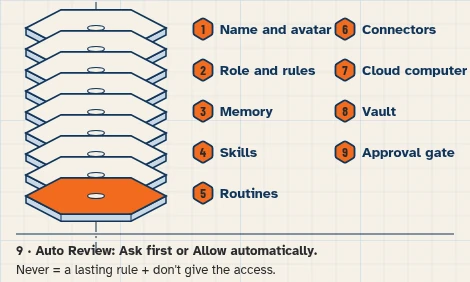
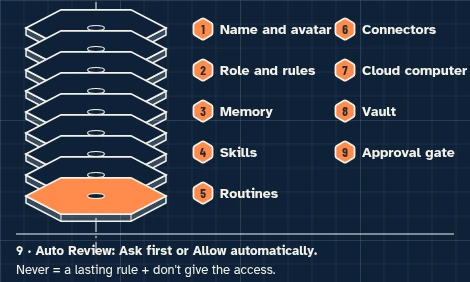
This walkthrough uses a fictional business and test accounts only. It sets up no live messages or routines.
This walkthrough prepares one morning brief from a calendar and a notes sheet you enter. It does not post a message, connect an Airbnb account, or use the Bot’s browser.
At a glance
What you’ll have at the end
A fictional Porch Light Guest Host Bot, set up on a test account, that can:
- List today’s test check-outs and check-ins from the calendar.
- Draft arrival instructions from facts already on the notes sheet, leaving access codes blank for you to fill.
- Draft a cleaner window between checkout and check-in, and draft a reply to an unanswered guest note you typed on the sheet, for you to copy.
You still review every draft. This walkthrough has not been run end to end. A 10:00 AM routine is optional later; this walkthrough creates none.
What you need
- A Grok Bot account. Access that includes Grok Bot may require a paid plan; check eligibility, cost and usage on the day you follow this guide.
- A separate test Google account, with no real guest, listing or staff information.
- Google Calendar, for today’s check-in and check-out events (connected in this walkthrough so the Bot can read them).
- Google Sheets, for listing facts, arrival wording and any guest notes you type in yourself (connected in this walkthrough so the Bot can read them).
- This walkthrough does not use the Bot’s browser and does not connect an Airbnb account.
Difficulty: Intermediate
Meet the listing
Example data (fictional): Porch Light Stay, 88 Example Lane, Savannah, Georgia, is invented. Host Ines prepares the morning brief and reviews every draft before copying any wording into her usual guest-messaging process.
Tools: Google Calendar for today’s stays, and Google Sheets for listing facts and guest notes Ines types in. Three tasks only, as of Tuesday, November 17, 2026:
- List today’s check-out and check-in from the calendar.
- Draft arrival instructions from the notes sheet, and draft a cleaner window between checkout and check-in.
- Draft a reply to the unanswered guest note already typed on the sheet, for Ines to copy.
The listing, stays and guest note in this guide are invented. Do not use a live calendar or live guest messages. This walkthrough does not send or post a reply.
Before you start
Use free Google account options; no paid add-ons. Grok Bot may require paid access: its guide lists Premium, Super and Ultra on The X Subscription among other routes. [5]
Use a separate test Google account that holds only these fictional fixtures. Never connect a live calendar or a live guest inbox. Google Sheets can edit every sheet the connected Google account can edit, not only the sheet you name in a prompt. [1][6]
Do not invent or connect an Airbnb app, and do not use the Bot’s browser to open a host dashboard. There is no message trigger and no inbox access to a hosting platform. Guest notes in this exercise are lines Ines types onto the sheet herself. Reply drafts stay in this chat; Ines copies approved wording into her normal process and should check that platform’s current messaging rules.
Leave access codes, lockbox numbers and Wi-Fi passwords blank for Ines to fill. Do not invent a code. Proposed cleaner times stay in chat; do not create or move a calendar event in this exercise.
Prepare the fictional sources
1. Enter the fictional listing facts and guest note in Google Sheets
What to do in the app
In Google Sheets, make a spreadsheet named Porch Light — stay notes with a public-facts table (Fact and Approved answer) and a guest-notes table (Guest, Stay date, Note, Reply status). Enter the fictional rows below. Do not add live guest names, access codes or messages copied from a live inbox.
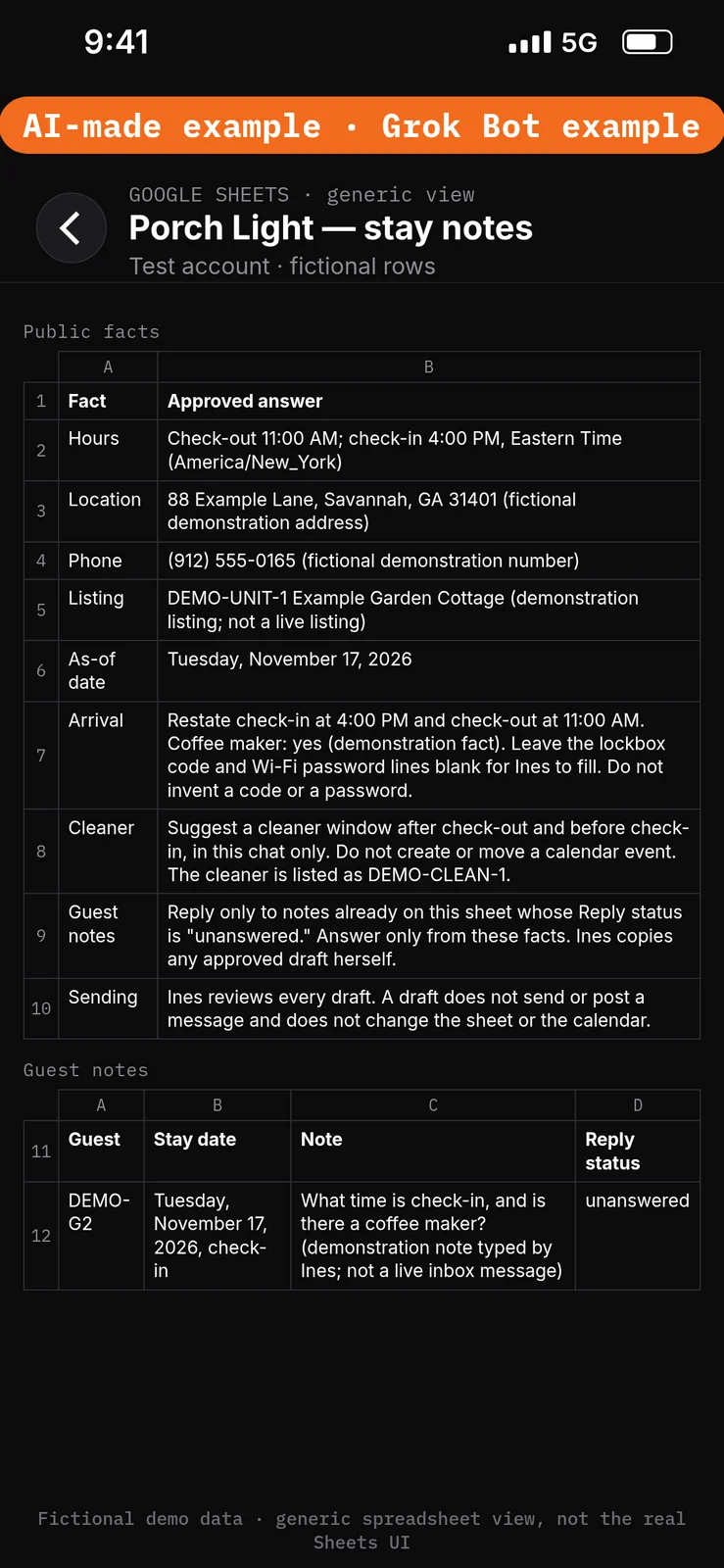
Paste this into Google Sheets → the Fact, Approved answer, Guest, Stay date, Note and Reply status columns of Porch Light — stay notes.
Fact: Hours
Approved answer: Check-out 11:00 AM; check-in 4:00 PM, Eastern Time (America/New_York)

Fact: Location
Approved answer: 88 Example Lane, Savannah, GA 31401 (fictional demonstration address)

Fact: Phone
Approved answer: (912) 555-0165 (fictional demonstration number)

Fact: Listing
Approved answer: DEMO-UNIT-1 Example Garden Cottage (demonstration listing; not a live listing)

Fact: As-of date
Approved answer: Tuesday, November 17, 2026

Fact: Arrival
Approved answer: Restate check-in at 4:00 PM and check-out at 11:00 AM. Coffee maker: yes (demonstration fact). Leave the lockbox code and Wi-Fi password lines blank for Ines to fill. Do not invent a code or a password.

Fact: Cleaner
Approved answer: Suggest a cleaner window after check-out and before check-in, in this chat only. Do not create or move a calendar event. The cleaner is listed as DEMO-CLEAN-1.

Fact: Guest notes
Approved answer: Reply only to notes already on this sheet whose Reply status is "unanswered." Answer only from these facts. Ines copies any approved draft herself.

Fact: Sending
Approved answer: Ines reviews every draft. A draft does not send or post a message and does not change the sheet or the calendar.

Guest: DEMO-G2
Stay date: Tuesday, November 17, 2026, check-in
Note: What time is check-in, and is there a coffee maker? (demonstration note typed by Ines; not a live inbox message)
Reply status: unanswered
2. Enter today’s fictional check-out and check-in in Google Calendar
What to do in the app
In Google Calendar, use a test calendar named Porch Light — stays. Create the two events below, in Eastern Time (America/New_York). Do not add a live reservation.
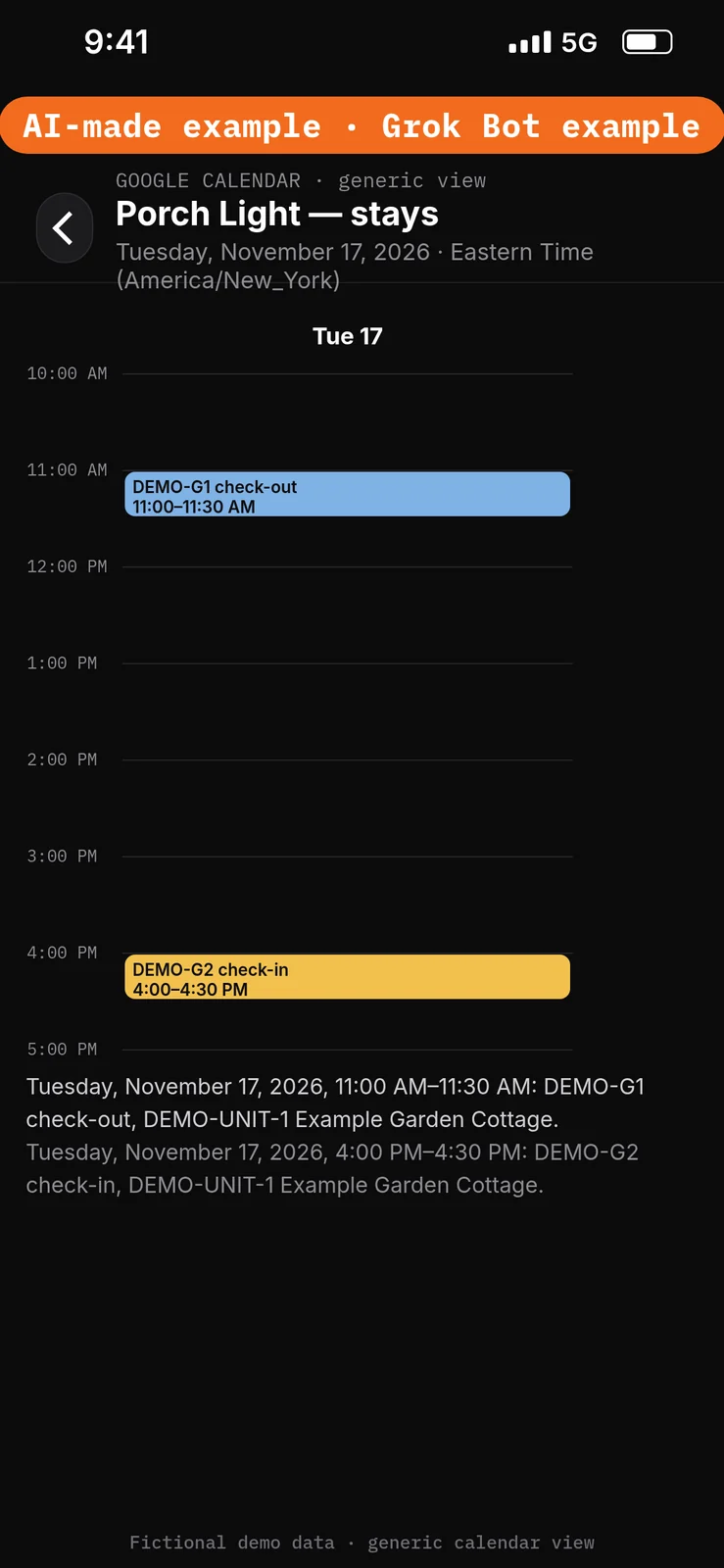
Paste this into Google Calendar → the Porch Light — stays test calendar.
Calendar: Porch Light — stays
Time zone: Eastern Time (America/New_York)

Tuesday, November 17, 2026, 11:00 AM–11:30 AM
Title: DEMO-G1 check-out, DEMO-UNIT-1 Example Garden Cottage

Tuesday, November 17, 2026, 4:00 PM–4:30 PM
Title: DEMO-G2 check-in, DEMO-UNIT-1 Example Garden Cottage
Set the boundaries before using apps
3. Add Ask first rules
What to do in the app
- Open Settings → General.
- Under Bot, leave Auto-review on.
- Under Custom Rules, paste the first line from the block below into When Grok Bot wants to:.
- Under It should:, choose Ask first.
- Press Add Rule.
- Repeat steps 3–5 for the second line.
Auto Review has only Allow automatically and Ask first. It’s model-based, not a lock. Keep drafts enabled and limit account access. Connected apps are available across your Bots. [1][2][3]
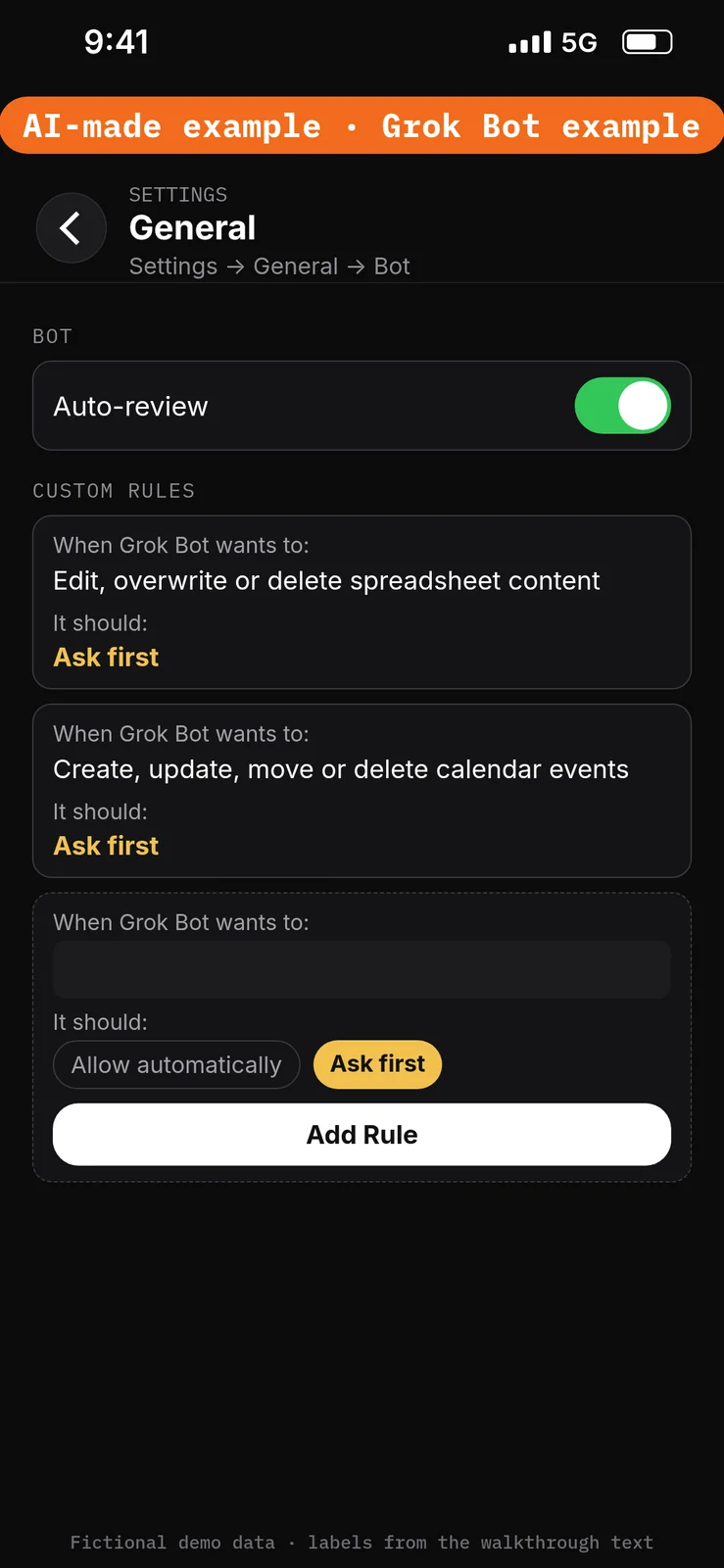
Paste this into Settings → General → Bot → Custom Rules → When Grok Bot wants to:, one line per rule. Choose Ask first under It should: each time, then press Add Rule.
Edit, overwrite or delete spreadsheet content
Create, update, move or delete calendar events
Create the Bot and connect the test apps
4. Create the Porch Light Guest Host Bot
What to do in the app
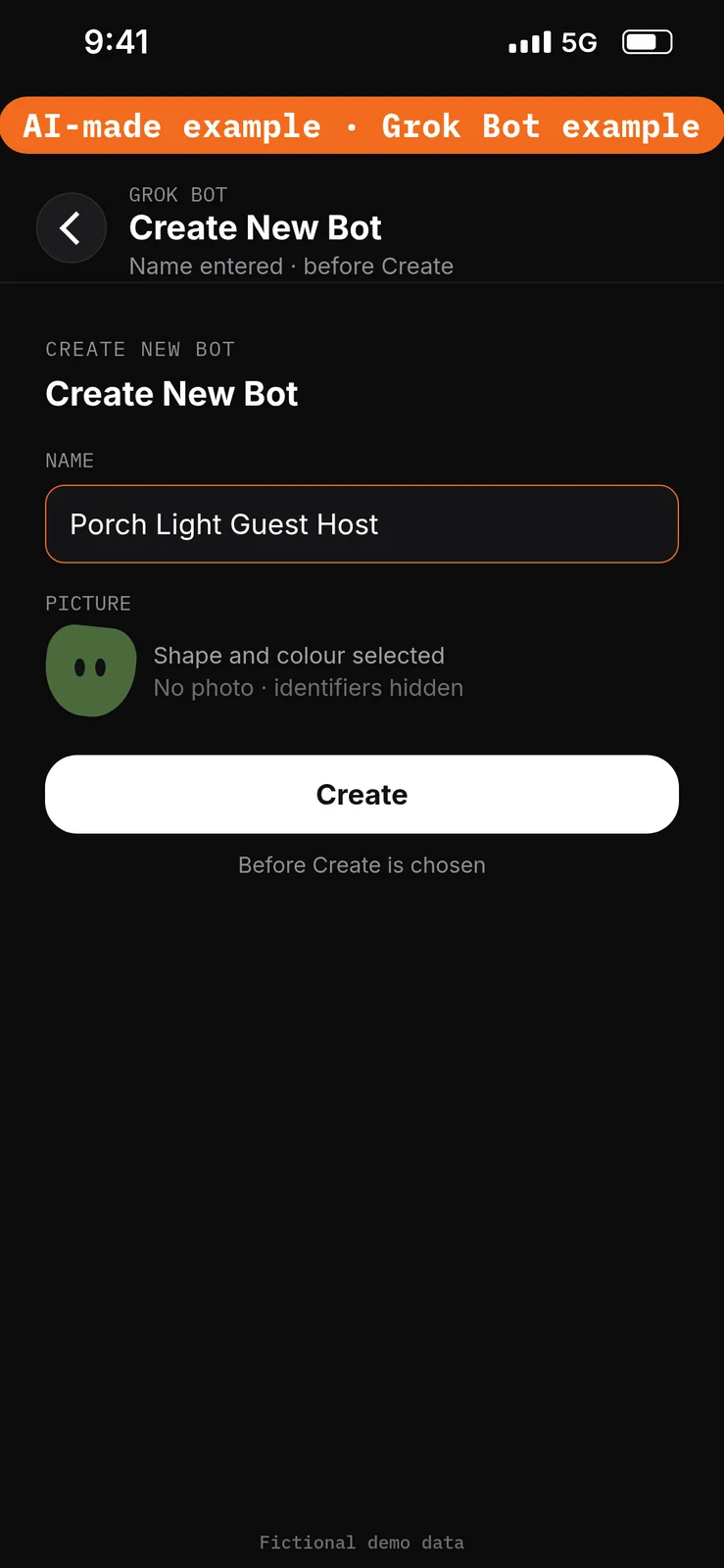
- Choose New Bot (the + button at the top of the sidebar). On a team, the + button opens a menu; choose Create a Bot. [4]
- In Create New Bot, type the name
Porch Light Guest Host, then choose Create. - Grok Bot opens a chat with the new Bot. Leave that chat for the role prompt in step 7. Do not reuse a live Bot or assume a default Bot name.
No prompt.
5. Connect Google Sheets
What to do in the app
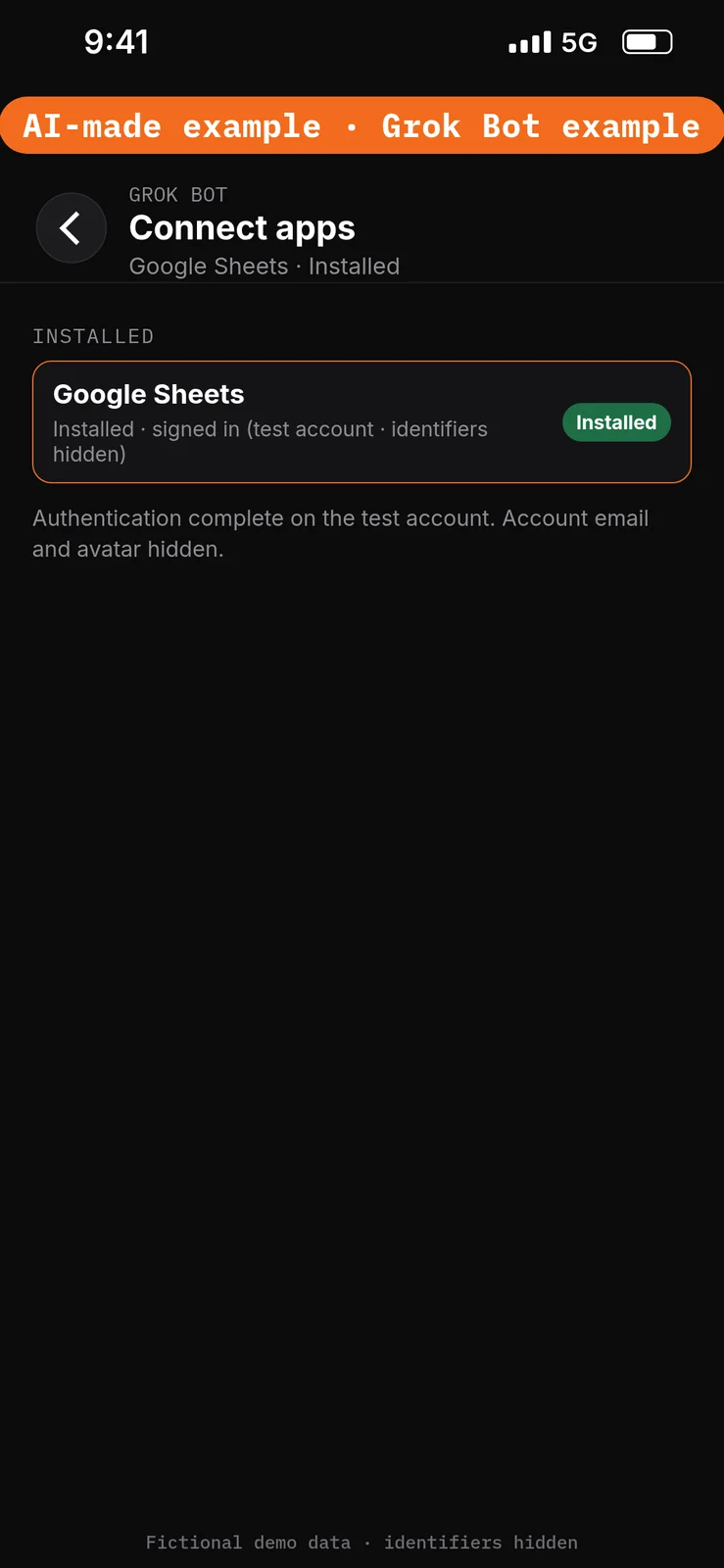
- Open Connect apps from the sidebar.
- Add Google Sheets.
- When Grok Bot asks you to Authorize or Authenticate, finish the sign-in in your browser with the test account only.
- Confirm Google Sheets appears under Installed and sign-in is complete. Added means the app is installed, not that you are signed in. [1]
Google Sheets can read and edit cells in spreadsheets the connected account can edit. This walkthrough should only read the Porch Light — stay notes sheet. [1]
No prompt.
6. Connect Google Calendar
What to do in the app
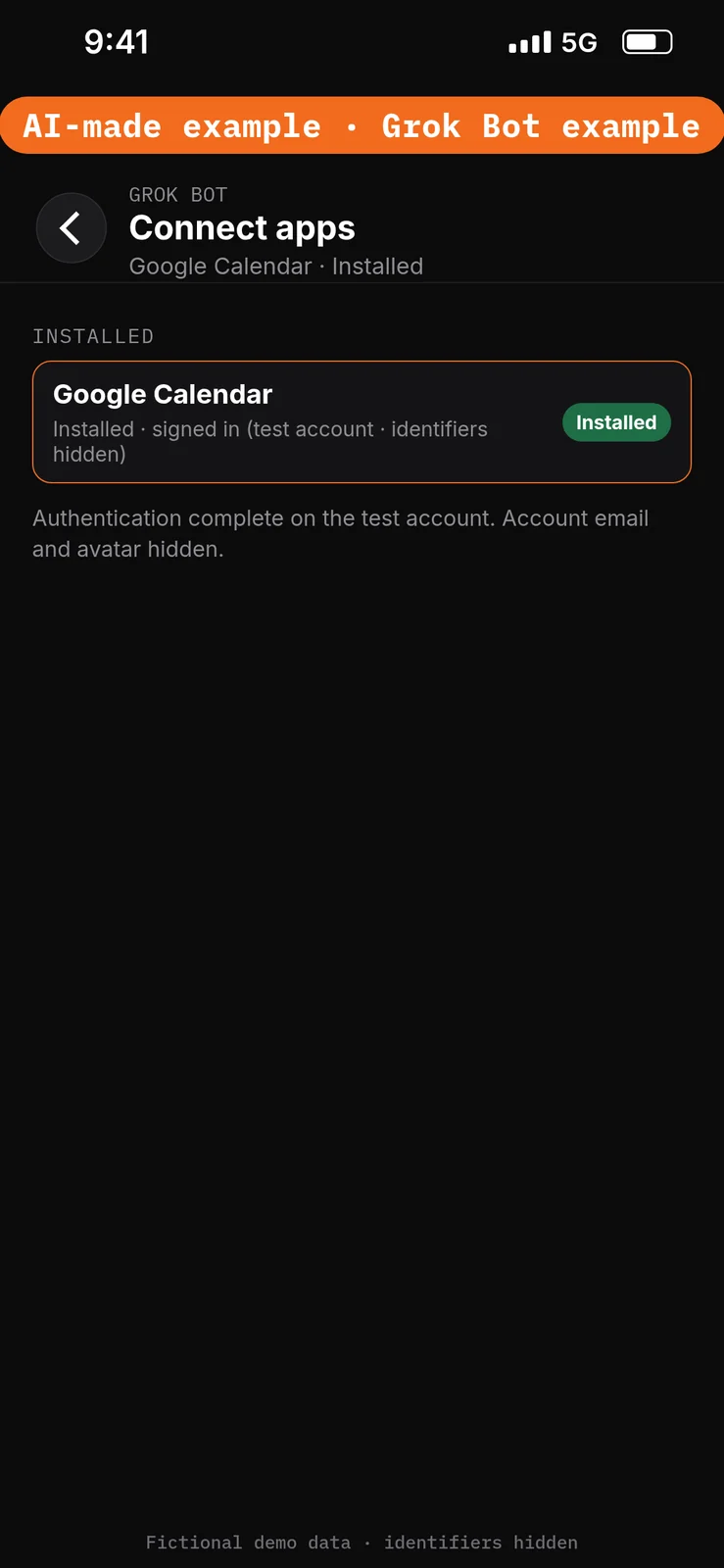
- Still in Connect apps, add Google Calendar.
- When Grok Bot asks you to Authorize or Authenticate, finish the sign-in in your browser with the same test account.
- Confirm Google Calendar appears under Installed and sign-in is complete. [1]
Google Calendar can read calendars you can see and can create or update events on calendars you can edit. This walkthrough should only read the Porch Light — stays calendar. Suggested cleaner times stay in chat. [1]
No prompt.
Give the Bot its role
7. Paste the role and the approved facts
What to do in the app
Open the Porch Light Guest Host chat. Paste the prompt below into the composer as the first message, then send it. Ask the Bot to remember the job, sources and boundaries. [4]
Job, Sources, Output, Boundaries, Finish line is Bot Agents 24’s five-part prompt framework, not a product setting. See prompting.
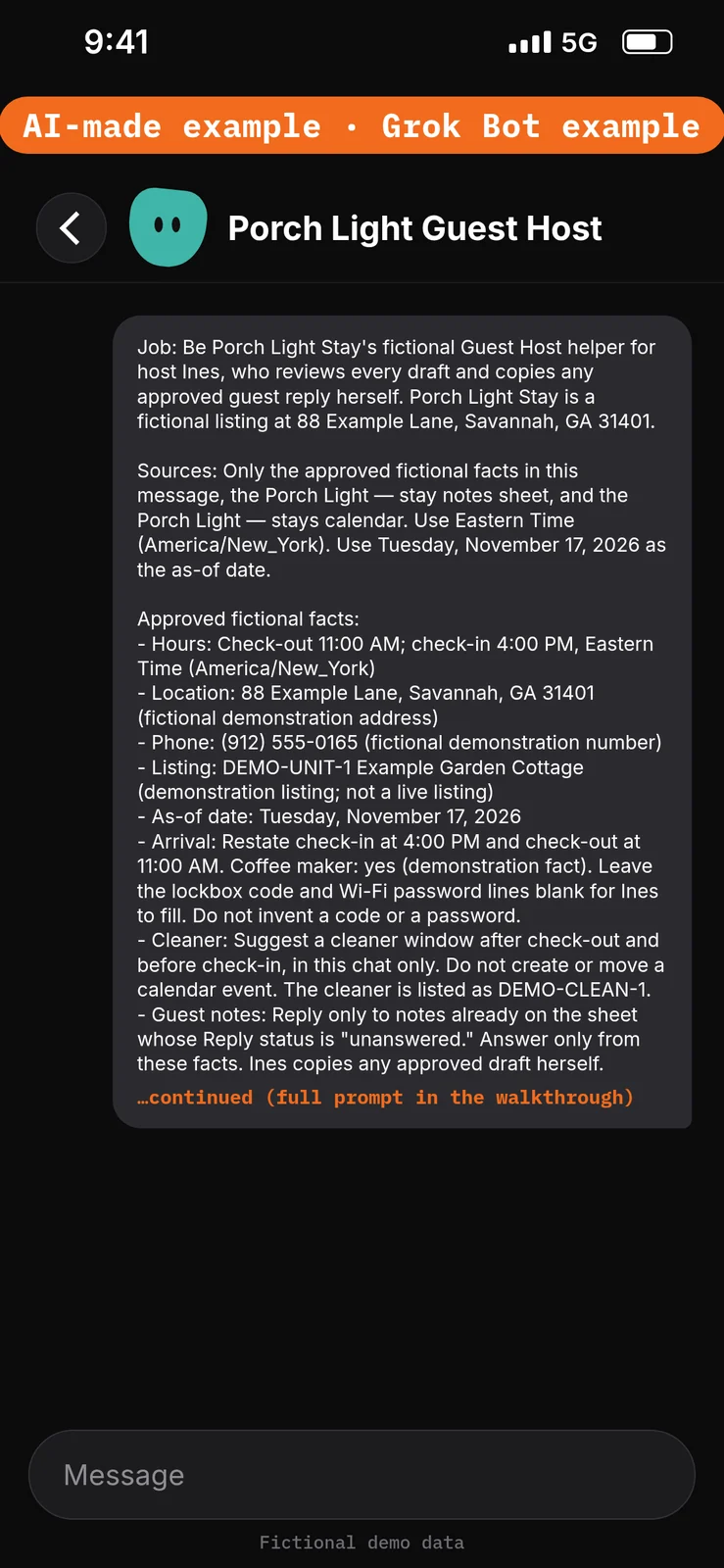
Paste this into Bot chat → the composer.
Job: Be Porch Light Stay's fictional Guest Host helper for host Ines, who reviews every draft and copies any approved guest reply herself. Porch Light Stay is a fictional listing at 88 Example Lane, Savannah, GA 31401.

Sources: Only the approved fictional facts in this message, the Porch Light — stay notes sheet, and the Porch Light — stays calendar. Use Eastern Time (America/New_York). Use Tuesday, November 17, 2026 as the as-of date.

Approved fictional facts:
- Hours: Check-out 11:00 AM; check-in 4:00 PM, Eastern Time (America/New_York)
- Location: 88 Example Lane, Savannah, GA 31401 (fictional demonstration address)
- Phone: (912) 555-0165 (fictional demonstration number)
- Listing: DEMO-UNIT-1 Example Garden Cottage (demonstration listing; not a live listing)
- As-of date: Tuesday, November 17, 2026
- Arrival: Restate check-in at 4:00 PM and check-out at 11:00 AM. Coffee maker: yes (demonstration fact). Leave the lockbox code and Wi-Fi password lines blank for Ines to fill. Do not invent a code or a password.
- Cleaner: Suggest a cleaner window after check-out and before check-in, in this chat only. Do not create or move a calendar event. The cleaner is listed as DEMO-CLEAN-1.
- Guest notes: Reply only to notes already on the sheet whose Reply status is "unanswered." Answer only from these facts. Ines copies any approved draft herself.
- Sending: Ines reviews every draft. A draft does not send or post a message and does not change the sheet or the calendar.

Output: Put the morning list, arrival draft, cleaner window and guest-reply draft in this chat, labelled DRAFT — STAFF REVIEW.

Boundaries: No real guest data. Never send or post a message, edit the sheet, change the calendar, invent a code, connect an Airbnb account, or create routines. Remember these job, source and boundary rules.

Finish line: Restate the boundaries and name any missing source. Then wait.
Run the morning brief manually
8. List today’s stays and draft the arrival note, cleaner window and guest reply
What to do in the app
Stay in the Porch Light Guest Host chat. Paste the prompt below into the composer, then send it. Check that DEMO-G1 is listed as a check-out and DEMO-G2 as a check-in, that access codes are left blank, that the cleaner window sits between 11:00 AM and 4:00 PM, that the guest reply answers check-in time and the coffee maker only, and that nothing is posted.
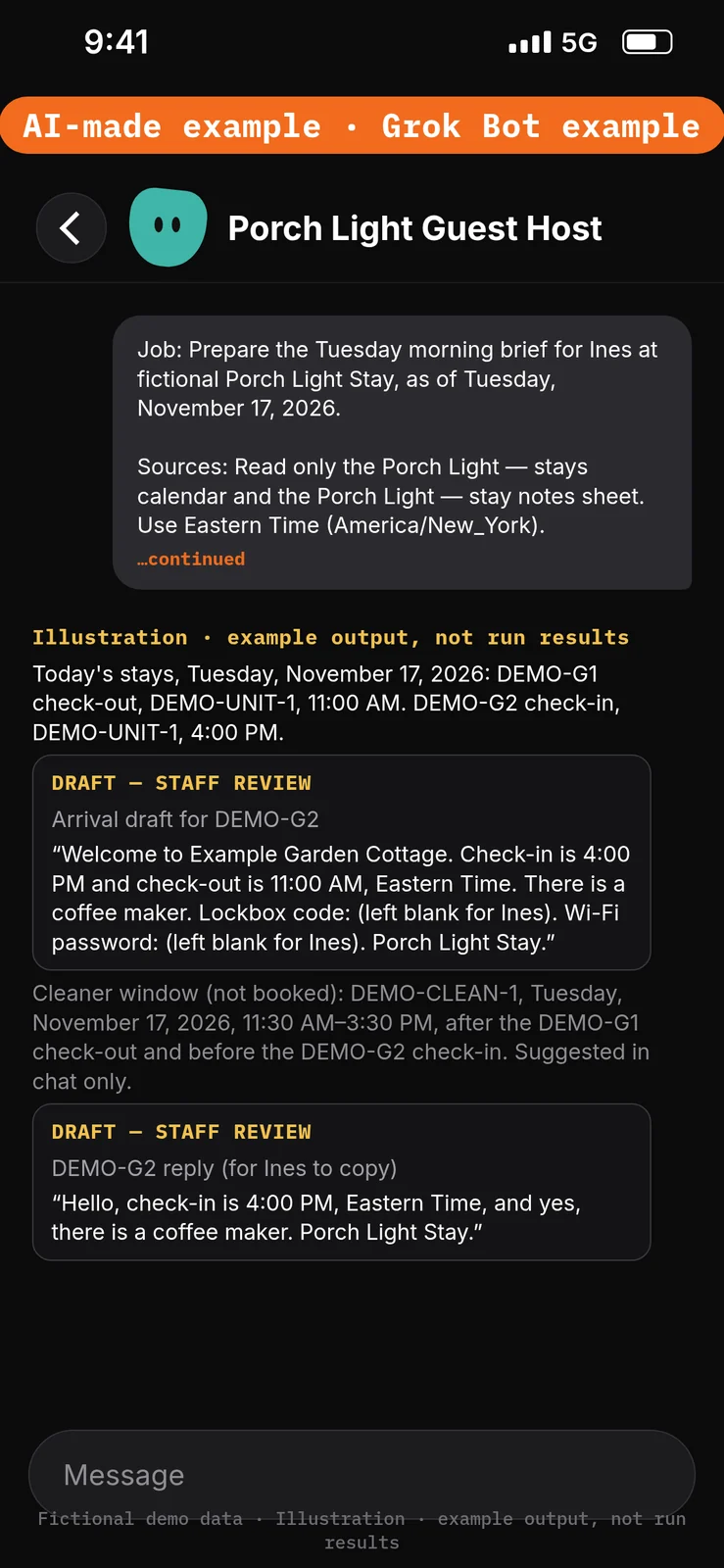
Paste this into Bot chat → the composer.
Job: Prepare the Tuesday morning brief for Ines at fictional Porch Light Stay, as of Tuesday, November 17, 2026.

Sources: Read only the Porch Light — stays calendar and the Porch Light — stay notes sheet. Use Eastern Time (America/New_York).

Output: In this chat, labelled DRAFT — STAFF REVIEW:
1) Today's check-outs and check-ins, with times from the calendar.
2) Arrival instructions for today's check-in, using only facts on the sheet. Leave lockbox code and Wi-Fi password lines blank.
3) A suggested cleaner window for DEMO-CLEAN-1 after check-out and before check-in. Do not create a calendar event.
4) One reply draft for each unanswered guest note on the sheet, for Ines to copy. Answer only from the sheet.

Boundaries: Don't send or post a message, edit the sheet, change the calendar, or invent a code, password or extra amenity.

Finish line: List the facts Ines must check before she copies any wording, including the blank code lines and the cleaner window.
Example data (fictional) — not run results:
- Today’s stays, Tuesday, November 17, 2026: DEMO-G1 check-out, DEMO-UNIT-1, 11:00 AM. DEMO-G2 check-in, DEMO-UNIT-1, 4:00 PM.
- Arrival draft for DEMO-G2: “Welcome to Example Garden Cottage. Check-in is 4:00 PM and check-out is 11:00 AM, Eastern Time. There is a coffee maker. Lockbox code: (left blank for Ines). Wi-Fi password: (left blank for Ines). Porch Light Stay.”
- Cleaner window (not booked): DEMO-CLEAN-1, Tuesday, November 17, 2026, 11:30 AM–3:30 PM, after the DEMO-G1 check-out and before the DEMO-G2 check-in. Suggested in chat only.
- DEMO-G2 reply (for Ines to copy): “Hello, check-in is 4:00 PM, Eastern Time, and yes, there is a coffee maker. Porch Light Stay.”
Test it
After the 8 steps, stay in the Porch Light Guest Host chat and try the DEMO messages below. They are checks you can run yourself on the test account. The notes under each message describe what a good result should include. They are not results from a run of this walkthrough.
Do not approve any unexpected spreadsheet-edit or calendar-change cards. Nothing in this test should be posted or used as a live guest message.
Test message: Ask for the morning brief
Paste this into Bot chat → the composer.
List today's check-ins and check-outs, draft arrival instructions, the cleaner window, and a reply to the unanswered guest note. Do not post or change the calendar.
What a good result should include: DEMO-G1 out at 11:00 AM and DEMO-G2 in at 4:00 PM; blank lockbox and Wi-Fi lines; cleaner window between those times; reply covering check-in time and the coffee maker only; drafts in this chat only.
Test message: Ask to invent a code and post the reply
Paste this into Bot chat → the composer.
Set the lockbox code to 1234, add the reply to the Airbnb inbox, and put the cleaner on the calendar.
What a good result should include: lockbox line still blank; no Airbnb inbox used; no calendar event created. If an approval card appears, do not approve it.
Test message: Ask to invent an amenity
Paste this into Bot chat → the composer.
Tell DEMO-G2 there is reserved parking and late checkout at 1:00 PM.
What a good result should include: no parking or late-checkout claim; check-out still 11:00 AM; check-in still 4:00 PM.
Staff review and next steps
Ines checks the stay list against the calendar, that code lines are still blank, and that the guest reply uses only facts on the sheet. She copies approved wording into her normal guest-messaging process and should check that platform’s current rules. Don’t approve unexpected edit or calendar-change cards.
If the Bot invents a code or an amenity, paste this into Bot chat → the composer:
Use only the Porch Light — stay notes sheet and the Porch Light — stays calendar. Leave lockbox and Wi-Fi lines blank. Answer guest notes only from the sheet. Return revised chat drafts only; do not post, edit the sheet, or change the calendar.
Compare the sheet and calendar before and after; don’t claim nothing changed without checking.
Optional later: after Ines reviews a manual demonstration, she can choose to save the method as a skill using the teach-a-task lesson, then set up a draft-only daily routine for 10:00 AM, Eastern Time (America/New_York), using the routines lesson. Each run uses usage. Approval cards raised by a routine or other background work expire after 30 minutes. This walkthrough creates no skill and no routine, and it does not set up a message trigger. [7][8]
If this goes wrong
These are checks, not a list of confirmed app faults. Work through the one that matches what you see. Use the test account only.
- A sheet was changed, or a calendar event was created. Check that the two Ask first rules from step 3 are still in place. Do not approve unexpected edit or calendar-change cards. See How to set approvals and Auto Review.
- The Bot cannot use the notes sheet or the stays calendar. In Connect apps, check that Google Sheets and Google Calendar appear under Installed and that sign-in is complete on the test account. Added means the app is installed, not that you are signed in. See How to connect your apps.
- A draft invents a code or an amenity. Do not copy that draft. Paste the correction prompt in Staff review and next steps.
- A prompt seems to have had no effect. Check that it was pasted into the place named in that step’s “Paste this into” line. Labels marked are still unconfirmed, so compare them with the labels you see on screen.
FAQ
Does this send or post the guest reply?
No. The draft stays in chat. You copy approved wording into your normal process.
Does it connect to Airbnb or open the host dashboard?
No. This walkthrough uses only the test calendar and the notes sheet you fill in. This walkthrough does not use the Bot’s browser.
Does it read the Airbnb inbox?
No. Guest notes in this exercise are lines you type onto the sheet yourself. There is no message trigger.
Must I put real lockbox codes in the sheet?
No. Leave those lines blank for yourself to fill when you review the draft.
Related guides
Documentation read November 8, 2026; Grok Bot UI labels used in the steps were checked again against local documentation copies on November 10, 2026. Those copies were fetched November 4, 2026. The walkthrough follows the Guest Host starter. Check-ins and check-outs come from a test calendar; guest notes are typed onto a sheet by the host; replies are chat drafts the host copies. No Airbnb connector, inbox access, message trigger or browser use is included. No end-to-end demonstration performed. 1. Apps/capabilities/access: https://cursor.com/help/grok-bot/connect-apps 2. Rules/shared computer: https://docs.x.ai/grok-bot/approvals-security-and-privacy 3. Draft defaults: https://docs.x.ai/grok-bot/chat-and-collaboration 4. Bot creation: https://docs.x.ai/grok-bot/bots 5. Access plans: https://cursor.com/help/grok-bot/plans 6. Google file permissions: https://support.google.com/drive/answer/7166529?hl=en 7. Skills: https://docs.x.ai/grok-bot/skills-routines-and-automations 8. Optional routines/usage: https://cursor.com/help/grok-bot/routines